Importing Task Steps |
AML (Automate Markup Language) files can be imported to the Task Builder by dragging and dropping the files, or by using the Task Builder's Import option. Doing so will import the steps of the task onto the Task Builder's Steps panel. Thereafter, steps can be edited and new changes can be saved.
To Import Task Steps onto Task Builder Using Drag and Drop
- Open Task Builder.
- Drag the desired .AML files from their original location and drop them into the Task Builder's Steps panel. Task Builder then becomes populated with the newly imported task steps.
- Edit the steps as necessary and select Save from the Ribbon's Application button to save the task.
To Import Task Steps onto Task Builder Using the Import Option
- From the Task Builder ribbon, select the Application button and navigate to Tools> Import Steps. A window titled Open Automate Task File appears (as shown below).
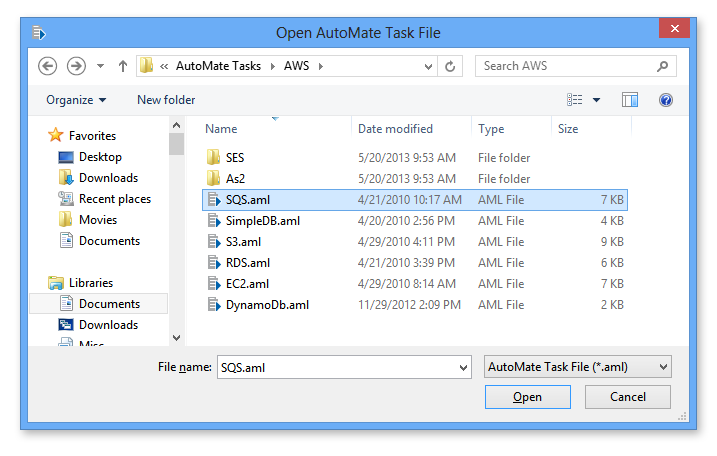
- Navigate to the location of the task (.AML) file you want to import and click Open, or double-click the .AML file.
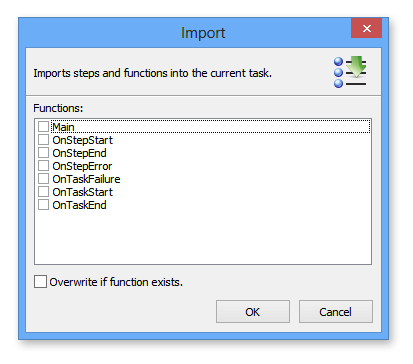
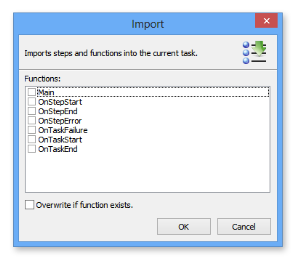
- An Import dialog appears (shown below) allowing you to choose which steps/functions should be imported to the current task. Select the desired options. To overwrite an existing function, select the option Overwrite if function exists.
-
Click OK to save changes.
- The steps of the selected task are loaded onto the Task Builder's Steps panel.
- Edit the steps as necessary and select Save from the Ribbon's Application button to save the task.