Dialog Designer
Overview
Dialog Designer is an IDE packaged with the Custom dialog activity. It provides developers a graphical user interface to design custom dialogs to use in a task and helps create a more effective, user-friendly environment, tailored to their specific needs.
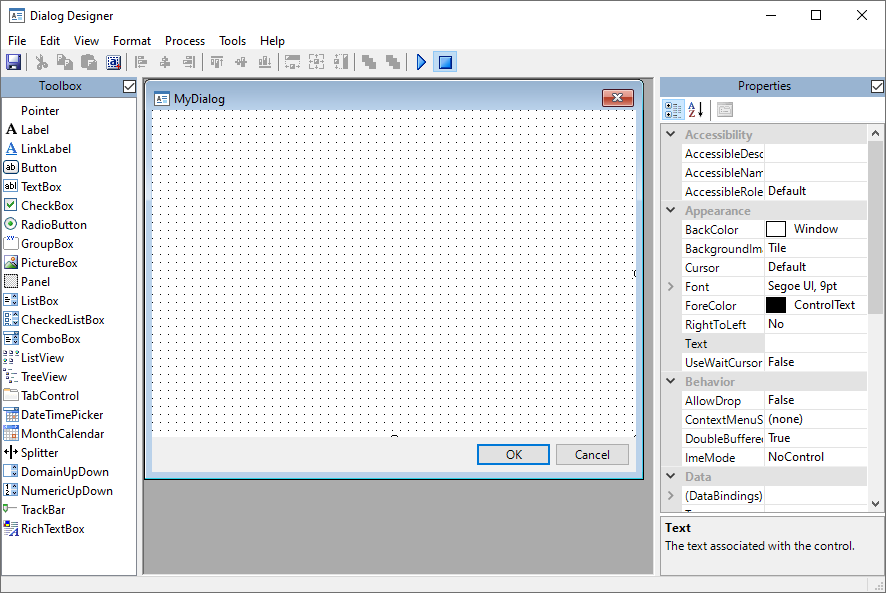
With Dialog Designer, you can create your own input forms, organize related tools in separate windows, add buttons directly to a view or layout, and link what is displayed in a dialog directly to your data. It encompasses a modern dockable interface design similar to Visual Studio or Eclipse and supports a large number of controls. Each control has properties that you can view or edit from within the property grid, including control name, position, size, and behavior. Controls also have events you can bind to your own script functions.
During construction, custom dialog definition is stored into an XML file. When you save the dialog, the Dialog Designer creates another XML file containing all the commands needed to create the dialog and all of its controls. When you are finished designing your custom dialog, the generated XML files are ready to be included in any task.
 Dialog
designer interface
Dialog
designer interface
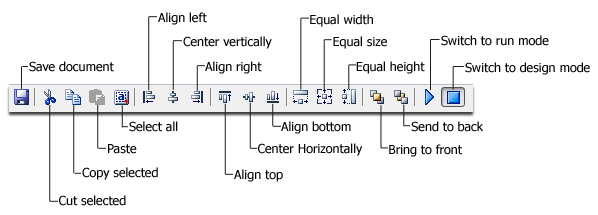
Toolbar
buttons
Dialog Designer toolbar comprises buttons, controls, and other elements intended to provide fast access to the most commonly used design tools, such as height, width, and alignment controls. Most of these functions are also available through the menu system. The specific functions required to use each control vary depending on the operation currently being performed. Available toolbar buttons are displayed below.
Creating/editing
a custom dialog
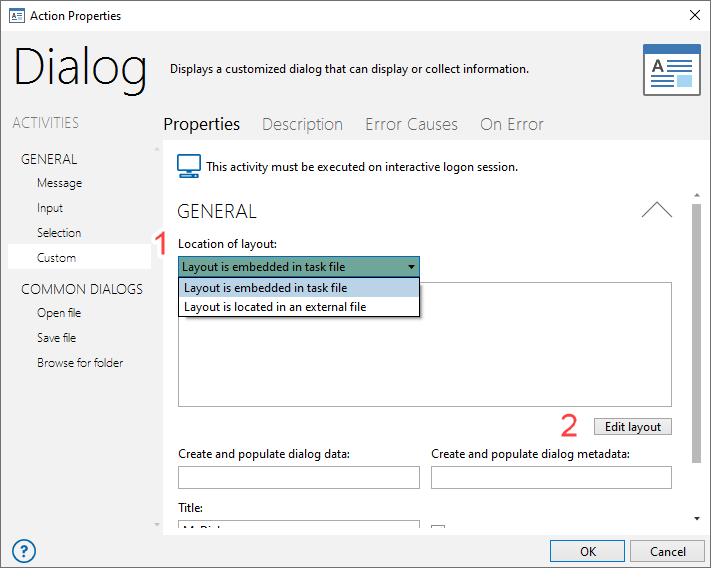
Dialog Designer can be invoked directly from the properties of the Custom Dialog activity. Developers have the option to create a new layout or edit an existing layout embedded within the task (.AML) file or previously saved to an external (.XML) file.
To create/edit a custom layout
- In the General properties of the Custom Dialog activity, select one of the two options contained in the Location of layout parameter.
- Layout is embedded in task file - If creating a new custom dialog, selecting this option saves the layout definition as code embedded directly within the current task (.aml) file. If editing an existing custom dialog, selecting this option allows changes to be made to the layout embedded within the current task file.
-
Layout is located in an external file - If creating a new custom dialog, selecting this option saves the layout definition to a .XML file located externally. If editing an existing custom dialog, selecting this option allows changes to be made to an existing layout previously saved to an external .XML file.
-
Click Edit Layout to open the Dialog Designer interface.
- Add controls to the Design Grid by selecting them from the Toolbox. This can be done the following ways:
- Drag the desired control from the Toolbox to a specific location on the Design Grid.
- Select (highlight) the desired control from the Toolbox and select a specific area on the Control Grid to place the control.
- Edit control properties by selecting them from the Properties panel and performing desired modifications.
- To save changes, select File > Update or click Save from the toolbar. The following can happen, depending on if the layout is saved to an external file or embedded in the task:
- If the layout location is set to external file, a Save As page is displayed, allowing you to select the file name and location of the external XML file.
- If the layout is set to be embedded in the task, this procedure automatically inserts the proper code into the task (AML) file.
-
Click File > Close.
Available
controls
Dialog Designer contains a number of controls that you can include on your custom dialogs. The following table describes the most commonly used controls:
| Icon | Name | Description |
|---|---|---|

|
Label | A simple text control that can be bound to other controls. It can be used to display static text such as captions and instructions for the dialog. |

|
Link label | The visible, selectable text in a hyperlink. |

|
Button | A button that performs a task when you click it, but with an icon to illustrate its action. Buttons on a dialog work the same way as buttons on a ribbon or toolbar. |

|
Text box | A text box that accepts multiple lines of information from the user or displays multiple lines of information provided by a program. |

|
checkbox | A check box that allows a user to turn on (select) or turn off (clear) a specific option. |

|
Radio button | A radio button can be combined with other radio buttons to provide an exclusive set of choices. |

|
Group box | A container control that can define groups of controls. The typical use for a group box is to contain a logical group of radio button controls. |

|
Picture box | Displays a static picture on the dialog, such as a company logo. Acceptable file formats include TIFF, GIF, and bitmap files. |

|
List box | A single or multi-column list of choices from which the user can select. Click inside the box corresponding to a specific choice to select it. |

|
Combo Box | A single column list of choices that appears to drop down when you click it. |

|
List view | The infrastructure to display a set of data items in different layouts or views. |

|
Tree view | A hierarchical view of information visualized by indentation in a list. Each item (often called a branch or a node) can have a number of sub-items. |

|
Tab control | Analogous to the dividers in a notebook or the labels in a file cabinet. By using a tab control, you can define multiple pages for the same area of a window or dialog. |

|
Date/ Time picker | Allows selecting a date and time by editing the displayed values in the control. You can make a selection by selecting the required date/time. The new selected value appears in the text box part of the control. |

|
Month calendar | Displays a calendar in the dialog. This control displays a one month calendar that allows you to select dates and move to the next and previous months. |

|
Splitter | A control that redistributes space between panels or views in a dialog window. |

|
Domain Up Down | A control that provides a spin (up/down) interface to move through predefined items using up and down arrows or by pressing the Up and Down Arrow keys. |

|
Numeric Up Down | A control that provides a spin (up/down) interface that displays and sets a single numeric value from a list of choices. The user can increase and decrease the number by selecting the up and down arrows, by pressing the Up and Down Arrow keys or by typing a number. |

|
Track Bar | Allows you to set a discrete value within a finite range of values. A slider can be oriented horizontally or vertically. |
Copyright © Fortra, LLC and its group of companies.
All trademarks and registered trademarks are the property of their respective owners.
25.1.1 | 202512150851 | December 2025