Window Dissection Technology
Overview
Automate Desktop Window Dissection technology can be used to precisely identify any window by effectively dissecting the objects and controls that are inside it. Windows are frequently identified by their title, however, in certain occasions, this might not be enough. If, for example, there are several open windows with the same title, it is necessary to specify additional criteria to identify one window from another. Window Dissection alleviates such an issue by allowing the specification of a window based on its class and handle as well as any child objects, controls, or text inside it. Multiple objects can be specified which, when combined together, form a unique window on the system.
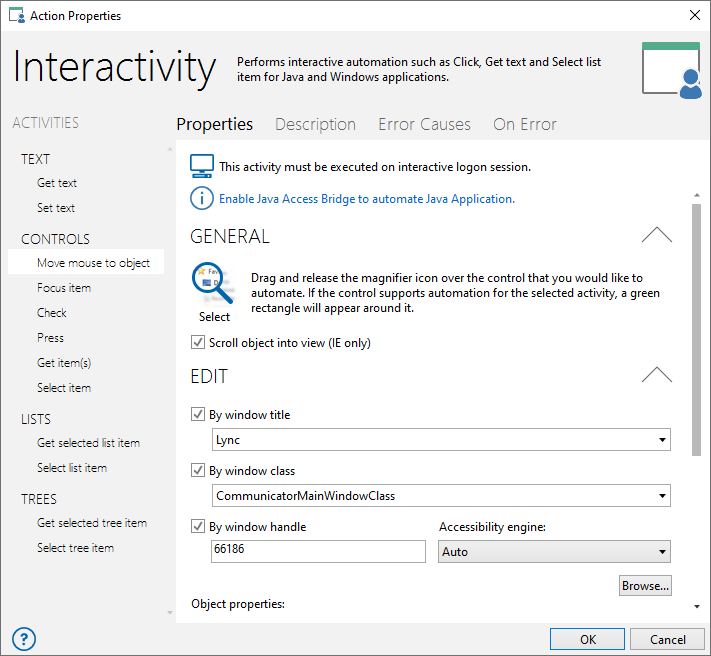
Where Window Dissection is utilized
Window Dissection can be applied to the Window Trigger, which is an object used to start a task upon occurrence of a Window-related event (that is, window opens, closes, is focused or loses focus), as well as the Window Condition. It can also be found in all activities that takes a window as a parameter, such as all Window actions and several conditional activities, as well as activities that enable interactive automation to be performed on a UI for extracting or setting data, manipulating controls, and directly interacting with other applications, such as Interactivity - Press, Interactivity - Move mouse to object, or Interactivity - Get text. The available Window Dissection parameters may vary depending on the activity. The Window Dissection parameters shown below appear in the properties of the Move mouse to object activity example (see the screenshot above).
Task Builder actions
The following are Task Builder actions and activities that contain the Windows Dissection parameters:
- If - Window exists
- Interactivity - Get text
- Interactivity - Set text
- Interactivity - Move mouse to object
- Interactivity - Focus item
- Interactivity - Check
- Interactivity - Press
- Interactivity - Get items
- Interactivity - Select item
- Interactivity - Get selected list item
- Interactivity - Select list item
- Interactivity - Get selected tree item
- Interactivity - Select tree item
- Loop - List control
- Loop - Tree control
- Wait - For window
- Web Browser - Create session
- Web Browser - Get value
- Web Browser - Set value
- Web Browser - Select list item(s)
- Web Browser - Select menu item
- Web Browser - Click
- Web Browser - Check
- Web Browser - Extract table
- Web Browser (Legacy) - Create session
- Web Browser (Legacy) - Get value
- Web Browser (Legacy) - Set value
- Web Browser (Legacy) - Click
- Web Browser (Legacy) - Extract table
- Window - Focus
- Window - Close
- Window - Hide
- Window - Show
- Window - Move
- Window - Resize
- Window - Minimize
- Window - Restore
- Window - Maximize
Window Trigger
In addition to the Window based Task Builder activities, the Window Trigger in the Task Administrator also contains Window Dissection parameters:
Accessibility engines
Window Dissection actually uses a variety of combined technologies designed to provide a single reliable source of UI information. This enables automated tasks the ability to programmatically collect accurate information about a user interface to interact with it, whether it is Windows, Java, or web browser-based. Each accessibility engine populates the object properties associated with it upon selecting a control. The following is a list of the available accessibility engines and their associated object properties:
UI automation
UI Automation is Microsoft’s standard engine that provides a consistent mechanism for any window control, module, or application to expose information about its user interface.
Microsoft Active Accessibility
Microsoft Active Accessibility is an older Microsoft engine that provides a consistent mechanism for some window controls, modules, or applications to expose information about their user interface.
Java Access Bridge
For existing assistive technologies available on Microsoft Windows systems to provide access to Java applications, they need some way to communicate with Java Accessibility Utilities. Java Access Bridge supports this communication. Java Access Bridge is a technology that enables certain Java applications and applets to be visible to assistive technologies on Microsoft Windows systems. An assistive technology application running on Microsoft Windows (for example, a screen reader) communicates with Java Access Bridge DLLs, which communicates with the Java Virtual Machine through Java Access Bridge Java libraries. These Java libraries communicate with Java Accessibility Utilities. Java Accessibility Utilities collects information about what is happening in the Java application and forwards it to the screen reader through Java Access Bridge.
Setting Window Dissection properties
Window Dissection preferences are accessible from the action editor of qualifying actions/activities under the Properties tab.
Parameters
Window Dissection parameters are most easily set by dragging the provided magnifier icon from the properties dialog and releasing it over the desired window/object. This populates available parameters with the proper specifications. A green border indicates successful detection.
| Property | Type | Required | Default | Markup | Description |
|---|---|---|---|---|---|
| By window title | Text | No | (Empty) | WINDOWTITLE="theTitle" | If enabled, the window title is used in the automation process. |
| By window class | Text | No | (Empty) | WINDOWCLASS="theClass" | If enabled, the window class is used in the automation process. A window class is a set of attributes that the system uses as a template to create a window. Every window is a member of a window class. All window classes are process specific. |
| By window handle | Number | No | (Empty) | WINDOWHANDLE="number" | If enabled, the window handle is used in the automation process. A window handle is a unique identifier that is assigned to each window created. |
| Accessibility engine | Text (options) | No | Auto |
|
The
accessibility engine that is used to programmatically
collect accurate information about a user interface in order to
interact with it. The available options are:
|
| Toolkit | Text | No | (Empty) |
|
If enabled, specifies that the toolkit (a set of basic building units for graphical user interfaces) is examined when determining a matching object. If disabled, the toolkit is ignored. The toolkit that appears is based on the Accessibility engine used:
|
| Type | Text | No | (Empty) | TYPE=PushButton | If enabled, specifies that the object type (button, check box, trackbar) is examined when determining a matching object. If disabled, the type is ignored. |
| Class | Text | No | (Empty) | CLASS=SysTreeView32 | If enabled, specifies that the object class (XTPToolBar, SysTreeView, MDIClient) is examined when determining a matching object. If disabled, the class is ignored. |
| FrameworkId | Text | No | (Empty) | FRAMEWORKID=WPF | If enabled, specifies that the object framework ID (the framework technology used to create the object) is examined when determining a matching object. If disabled, the framework ID is ignored. |
| Name | Text | No | (Empty) | NAME=Cancel | If enabled, specifies that the object name (a unique identifier for an object) is examined when determining a matching object. If disabled, the name is ignored. |
| AutomationId | Text | No | (Empty) | AUTOMATIONID=System | If enabled, specifies that the object automation ID (a unique identifier for an object) is examined when determining a matching object. If disabled, the automation ID is ignored. |
| Value | Text | No | (Empty) | VALUE=1 | If enabled, specifies that the object value (which usually coincides with the Name property) is examined when determining a matching object. If disabled, the value is ignored. |
| Role | Text | No | (Empty) | ROLE=desktop pane | If enabled, specifies that the object role type (the control type provided by the Java Accessibility bridge) is examined when determining a matching object. If disabled, the role type is ignored. |
| Description | Text | No | (Empty) | DESCRIPTION=JScrollPane | If enabled, specifies that the object description (the description given for an object) isexamined when determining a matching object. If disabled, the description is ignored. |
| X | Number | No | (Empty) | X=80 | If
enabled, specifies that the object X coordinate (a given
number of pixels along the horizontal axis of a window starting
from the extreme left side) is examined when determining
a matching object. If disabled, the X coordinate is
ignored. NOTE: The X and Y coordinates are relative to the specified window as
opposed to the screen. |
| Y | Number | No | (Empty) | Y=90 | If
enabled, specifies that the object Y coordinate (a given
number of pixels along the vertical axis of a window starting
from the top-most portion) is examined when determining a
matching object. If disabled, the Y coordinates is ignored.
NOTE: The X and Y coordinates are relative to the specified window as
opposed to the screen. |
| Width | Number | No | (Empty) | WIDTH=711 | If enabled, specifies that the object pixel width is examined when determining a matching object. If disabled, the pixel width isignored. |
| Height | Number | No | (Empty) | HEIGHT=421 | If enabled, specifies that the object pixel height is examined when determining a matching object. If disabled, the pixel height is ignored. |
| IndexInParent | Text | No | (Empty) | INDEXINPARENT=1 | If enabled, specifies that the object index in parent number (the numeric identifier of a child object located within a parent object) is examined when determining a matching object. If disabled, the index in parent number is ignored. |
| ParentPath | Text | No | (Empty) | PARENTPATH=50032|50033 | If enabled, specifies that the object parent path (the sequence of control type identifiers that lead to the object) is examined when determining a matching object. If disabled, the parent path is ignored. |
| Occurrence | Number | No | (Empty) | OCCURRENCE=1 | If enabled, specifies that the object occurrence (the numeric identifier of an object, useful when multiple matching objects are found) is examined when determining a matching object. If disabled, the occurrence is ignored. |
Examples
- Copy and paste the sample AML code below directly into the Task Builder Steps Panel.
- To successfully run the sample code, update parameters containing user credentials, files, file paths, or other information specific to the task to match your environment.
Example 1
Maximize the Untitled - Notepad window. The window must contain the objects: names = "Application", values = "", classes = "Notepad", types = "MenuBar", X = "229", Y = "317", Check names = "YES", check values = "", check classes = "YES", check types = "YES", check positions = "YES".
<AMWINDOWMAXIMIZE WINDOWTITLE="Untitled - Notepad" CONTAINSOBJECT="YES" OBJECTNAME="Application" OBJECTCLASS="Notepad" OBJECTTYPE="MenuBar" CHECKOBJECTNAME="YES" CHECKOBJECTCLASS="YES" CHECKOBJECTTYPE="YES" OBJECTXPOS="229" OBJECTYPOS="317" CHECKOBJECTPOSITION="YES" />Example 2
Get text from the control: (class = "Edit", type = "SelectableText", value = "Hello World!", X = "231", Y = "339", check class = "YES", check name = "NO", check type = "YES", check value = "YES", check position = "YES") and populate the variable theVar. The object must be in the window : (title = "Untitled - Notepad", class = "Notepad", handle = "58263186").
<AMGETTEXT WINDOWTITLE="Untitled - Notepad" WINDOWCLASS="Notepad" WINDOWHANDLE="58263186" OBJECTVALUE="Hello World!" OBJECTCLASS="Edit" OBJECTTYPE="SelectableText" CHECKOBJECTVALUE="YES" CHECKOBJECTCLASS="YES" CHECKOBJECTTYPE="YES" CHECKOBJECTPOSITION="YES" OBJECTXPOS="231" OBJECTYPOS="339" RESULTVARIABLE="theVar" />