Task Builder Toolbar Options
Overview
The Debug toolbar (illustrated below) is a small floating window that appears when a task is run from the Task Builder. It contains buttons to stop, pause, re-run and step through an active task to further aid you during the development stage. The Debug toolbar automatically closes upon completion of a running task or you can close it at any time by clicking X.
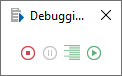
The Debug toolbar supports hot keys (also known as shortcut keys) that can be used as an alternate control mechanism. You can change the default toolbar shortcut keys to any desired key combinations not already in use, and you can change the position of the Debug toolbar on the screen. In addition, you can choose to show/hide the Debug toolbar or have it always appear in the foreground or background.
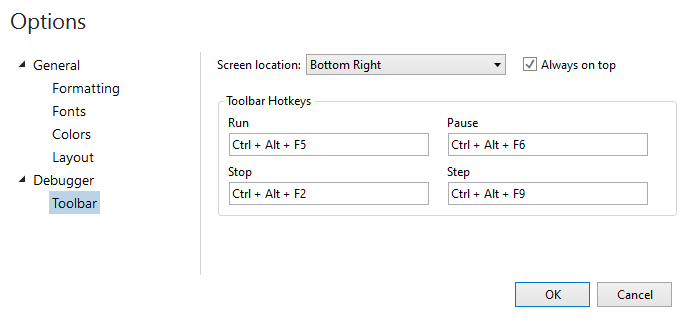
To access the Toolbar Options page, from Task Builder, select File > Options > Debugger > Toolbar. Toolbar options is a subset of Task Builder Options.
Parameters
The following table describes available Toolbar options:
| Property | Default | Description |
|---|---|---|
| Screen Location | Bottom Right | Specifies the area on the screen that the debug
toolbar is displayed. The available options are:
|
| Always on Top | Enabled | If enabled, the toolbar is always in the foreground, in front of other windows. If disabled, the toolbar appears in the background. This parameter is enabled by default. |
| Toolbar Hot-keys |
|
Allows entry of specific shortcut keys (also
known as hot-keys) used to run, stop, pause, or step through a
task. The available options along with their default hot-key parameters
are as follows:
NOTE: For more information on using the various run
options in Task Builder as a debug tool, see Run
Options. |