Task Builder General Options
Overview
Task Builder contains general options that enable control over a variety of interactive aspects. You can specify whether double-clicking an action/activity from the Actions panel adds it to the beginning or end of the task. Also, you can dictate what task appears the next time the Task Builder is open, whether it is a new task, all tasks from the previous session, or selected task from the previous session.
Task Builder General Options page can be accessed by navigating to File > Options > General. General options is a subset of Task Builder Options.
Parameters
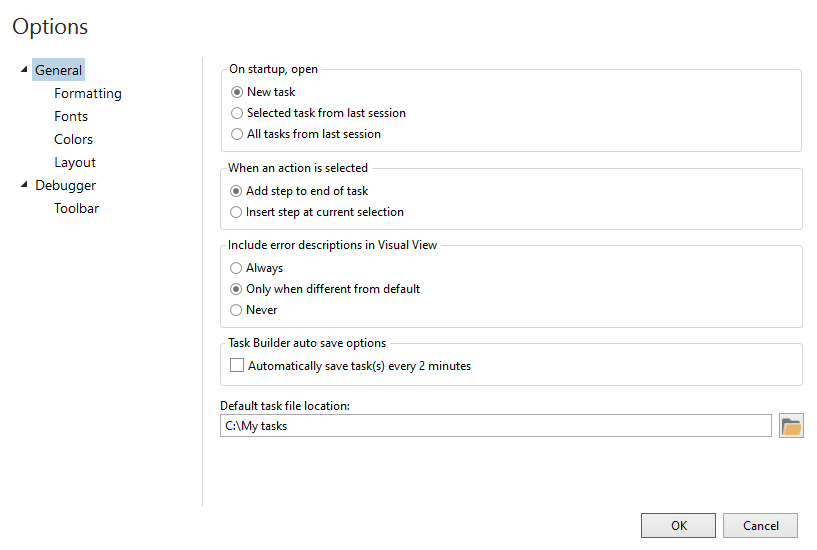
The following table describes Task Builder's available General options:
| Property | Default | Description |
|---|---|---|
| On startup, open | New task | Dictates the Task Builder startup behavior.
This option is relevant only when the Task Builder is started
manually from Windows Start menu or by the executable file using the
Program Files directory (for example, C:\Program Files (x86)\Automate Desktop 2025\AMTB.exe). The previous task is never opened when Task Builder
is started for a managed task through Task Administrator.
|
| When an action is selected | Add step to end of task | When double-clicking an action from the Actions
panel, determines where that action is inserted in the Steps panel.
The available options are:
NOTE: In either case, a new step
can be inserted at the desired position by dragging the action
from the Actions panel onto the desired position in the Steps
panel instead of double-clicking it. |
| Include error descriptions in Visual View | Only when different from default | Controls when the Visual view (as opposed to
AML view) in the Steps panel displays descriptive text about each
step error handling along with descriptive text about the step
itself. Every Automate Desktop step performs default error handling if
the step fails. Select from the following:
|
| Task Builder auto save options | Disabled | If selected, the Automatically save task(s) every 2 minutes option automatically saves tasks with an associated file every 2 minutes. NOTE: After selecting or clearing this setting, Task Builder must be restarted before changes take effect. |
| Default task file location | C:\Users\<user.name>\Documents\Automate Desktop 2025 Tasks | By default, unmanaged tasks are saved to a
location accessible by the user that initially installed the program.
This location is different from the default managed task location
and can vary depending on the operating system. To indicate the
default location where an unmanaged task is saved, click
the folder icon to browse available folders to select from or
enter the full path to the folder in the text box. NOTE: If specifying a network location as the default task location,
it is critical to not use mapped drive letters. Always specify folders using UNC (Universal Naming Convention)
paths. For example: X:\pathname\
should be \\servername\pathname\.
This is because mapped drives are available only when a user logs
in and this does not occur for LocalSystem services. |