Task Functions
Overview
In programming, functions allow the structuring of programs in segments of code to enable performance of individual tasks. A function has input and output, and contains instructions used to create the output from its input (performs a calculation on the input and returns an output). The same holds true for task functions in Automate Desktop. Each task function performs an operation and optionally returns a value. The output value can be private, or it can be made public and stored in a variable to be called upon by as many steps as required by the task.
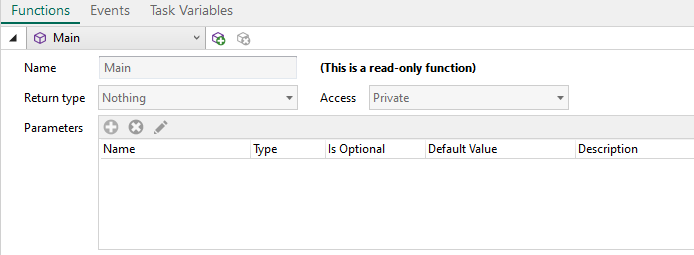
Task functions are created and managed through a drop-down interface accessible from the Steps Panel of Task Builder.
Scope and accessibility
The power of task functions comes from their ability to provide variable modularity and protection and their capability to arrange a collection of task steps into a logical structure. This is accomplished through two distinct yet complimentary standards; scope and accessibility. Scope and accessibility are primary building blocks that allows you to construct a solid foundation and enable a rich object-oriented approach to tasks. They provide distinct capabilities and serve different but complimentary roles necessary to distinguish the benefits of task functions.
Scope
A scope in any programming is a region of the program where a defined variable can have its existence and beyond that variable cannot be accessed. In Automate Desktop, scope limits a task function visibility within a task. Without proper scoping, some of the primary advantages of function-oriented design are not possible, including information-protection, modularity, maintainability, and recursion. Scoping helps take large, unruly tasks and enforce logical restrictions to their structure to provide greater readability and maintainability. Scoping also helps avoid unintentional and confusing data changes leading to easier debugging as well as construction of cleaner and more reliable tasks.
Accessibility
Accessibility provides the fundamentals of information-protection, encapsulation, and interfacing, all of which are essential for an object-oriented approach to a language. It makes tasks more portable, manageable, and documentable by providing outside access only to those parts of the task that are meant to be used, while providing the user full flexibility of functions. Task functions exist at the root of a task structure, thus, their scope is to the entire task. However, task functions are not visible nor accessible to external tasks and their access is limited to the containing type.
Subtasks
Subtasks are task files that are executed within another task by using the Task - Start subtask activity. In this situation, the parent tasks (the task executing the Start subtask step) basic functions, extended functions, public task functions, public task variables, and any local variables (not marked as private), created up to point where the Start subtask step is encountered, are accessible to the subtask. All other variables and functions are not accessible to the subtask. Conversely, because the Start subtask action is a synchronous operation, the subtasks public functions and public task variables are not accessible from the parent task. This is fully backward compatible with previous versions of Automate Desktop, since in the past there was only one function (what is now called main), no task variables, and all (local) variables and extended functions are considered public.
When you define a task function, you can optionally define one or more named, typed values that the function receives as input (known as argument parameters). You can declare arguments as optional and set a default value for any argument - so if the argument is not present, the default value is used. You can also define a type of value that the function passes back to the task as output upon completion (known as return type).
Function argument parameters and return values are extremely flexible in Automate Desktop. You can define anything from a simple utility function with a single unnamed parameter to a complex function with expressive parameter names and different parameter options. You can provide default values to simplify function calls and can be passed as in-out parameters, which modify a passed variable when the function completes its execution.
Creating & defining task functions
When you define a task function, you can optionally define one or more named, typed values that the function receives as input (known as argument parameters). You can declare arguments as optional and set a default value for any argument - so if the argument is not present, the default value is used. You can also define a type of value that the function passes back to the task as output upon completion (known as return type).
Function argument parameters and return values are extremely flexible in Automate Desktop. You can define anything from a simple utility function with a single unnamed parameter to a complex function with expressive parameter names and different parameter options. You can provide default values to simplify function calls and pass as in-out parameters, which modify a passed variable when the function has completed its execution.
To create and define a new task function
- From Task Builder Steps panel, click Functions.
-
Click Add new function. This expands the UI panel to display available function properties.
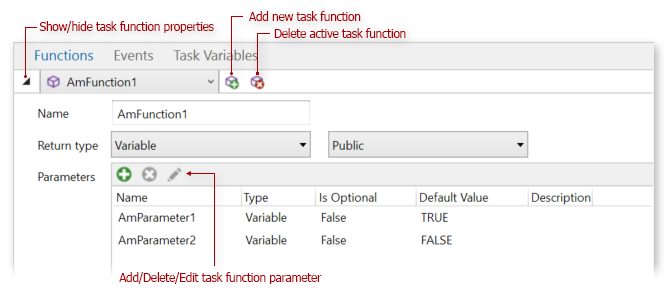
- Enter a function name, select a return type, and specify whether the function is public or private (see the Function Properties table below for more information).
-
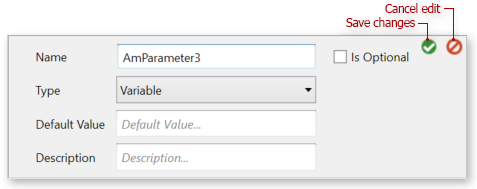
To add argument parameters, click Add new parameter. A dialog is displayed that allows you to enter function parameters.
-
Enter the required information and click Save Changes upon completion (see the Argument Parameters table below for more details). Perform steps 3-4 To add additional parameters. To edit or remove an existing parameter, select it from the list and click Edit or Remove.
To modify an existing task function
-
From the Task Builder Steps panel, click the drop-down arrow to expand the list of existing task functions/events.
-
Select the task function you want to modify and click View Function Properties.
-
Make your changes.
To delete an existing task function
-
From the Task Builder panel, click the drop-down arrow that displays existing task functions/events.
-
Select the function you want to delete.
-
Click Remove Task Function. This permanently deletes the task function.
Function parameters
The following table describes the parameters available during task function creation/modification:
| Property | Type | Description |
|---|---|---|
| Name | Text | The identifier of the function can be called. This parameter defaults to the name NewFunction but can be modified to a name that better identifies the function. |
| Return type | Text (options) | The return value type. The available options
are:
|
| Access | Text (options) | Sets the accessibility of the task function. The available options are:
IMPORTANT: The Public Access option is disabled. All task functions default to the Private option, regardless of what you select for the Access parameter. |
Argument parameters
The following table describes the parameters available during task function creation/modification:
| Property | Type | Description |
|---|---|---|
| Name | Text | The identifier of the function can be called. This parameter defaults to the name NewFunction but can be modified to a name that better identifies the function. |
| Type | Text (options) | The return value type. The available options
are:
|
| Is Optional | TRUE/FALSE | Specifies if the parameter is optional (TRUE) or required (FALSE). Any call must provide arguments for all required parameters, but can omit arguments for optional parameters. Each optional parameter has a default value as part of its definition. If no argument is sent for that parameter, the default value is used. When you define a complicated function, you might want to set this to optional (TRUE) for flexibility. |
| Default value | Text | The function default value (if any). |
| Description | Text | An optional description to enter about the parameter. |
Calling task functions
A function does not do anything until it is called. Every function has a function name which can describe the procedure that the function performs. To use a function, you call that function with its name and pass it input values (known as arguments) that match the types of the function parameters. If you are calling a function with no parameters, an empty pair of parentheses is required.
The Task - Call function activity calls a function defined in the task. If the function returns a result, you can specify the name of the variable to place the value. This activity is mainly used to pass control to a subroutine; after the subroutine is executed, control returns to the next instruction in the main task.
In addition, the Variable - Return activity can be used to exit the current function and return task execution to the calling function. A return value can also be specified to the caller. This activity immediately ends execution of the current function and returns its argument as the value of the function call.