My Actions
Overview
Having quick access to common items is essential for a productive work environment. Task Builder supports this capability with the My Actions pane. Similar to Jump Lists in Windows that enable quick access to frequently and recently used items, My Actions can take you right to the actions and activities you turn to each day. The My Actions pane is designed to make it easier to access common actions or recently used activities quicker by conveniently placing them in common folders directly above the Actions view (circled below).
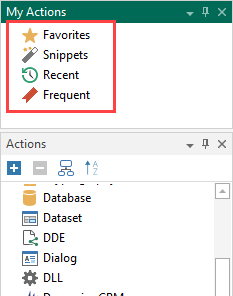
You can use My Actions to open actions/activities and you can also pin favorites so you can quickly get to the actions that you use every day. You can drag an action from one of the folders in My Actions directly to the Steps panel. In addition, you can save actions that contain common properties as snippets. Snippets store the current properties set for the action so you can reuse it in different tasks. The My Actions view houses four types of items:
Favorites
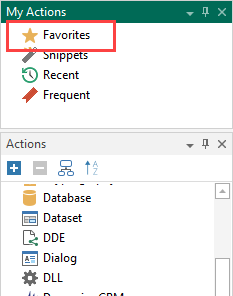
Favorites can be used as a placeholder for a collection of preferred actions and activities. When an activity is set as a favorite, a copy of that activity is added to the Favorites folder located in the Actions panel (highlighted in red below). That way, users spend less time searching through the long list of available actions and activities. They can select the activity from their Favorites list. Individual folders can be created to consolidate common activities into specific categories, forming a more organized development environment.
To set an action or activity as a favorite
-
From the Actions panel, navigate to the action or activity you want to add to your favorites list (only one action/activity folder can be selected at a time).
-
Right-click the action/activity and select Add to Favorites from the shortcut menu.
In addition, you can select the steps that perform the activity you wish to add to your favorites in the Steps panel. To select more than one step, hold down Ctrl on your keyboard during selection and right-click the steps and click Add to Favorites from the shortcut menu.
To add a folder/subfolder to Favorites
-
From the Actions panel, right-click Favorites and select Create Folder. A new folder is added to your favorites list.
-
Rename the newly created folder.
-
Add subfolders under the newly created folder by right-clicking that folder and selecting Create Folder.
-
Add actions/activities to a folder under Favorites by clicking and dragging them into the folder of your choice.
To remove actions, activities, or folders from Favorites
- From the Actions panel, under Favorites, select the action, activity, or folder you want to remove (only one action/activity/folder can be selected at a time).
- Right-click the action/activity and select Remove.
- To clear Favorites of all items (including actions, activities, and folders), right-click Favorites and select Clear from the shortcut menu.
Snippets
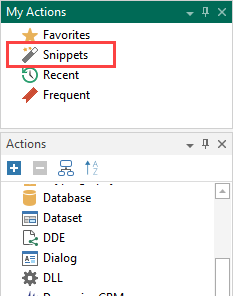
For those who use common activities that perform identical operations in many tasks, such activities can be saved as snippets. Snippets provide an easy way to implement frequently used steps into a task. Instead of re-entering the properties for a specific activity or series of activities every time they are added as task steps, you can save the steps as a snippet and drag and drop the snippet wherever it is needed in any task. The main idea is to make the process of reusing as easy as possible to avoid wasting your valuable time to enter the same properties again.
A snippet can consist of one or more task steps that perform common actions. For example, a developer can create a basic Input - Send keystrokes snippet to enter specific keys when a user opens a particular window or clicks a specific button. Other snippets can be used to perform Dialog - Open file and Dialog - Save file operations.
When a snippet is added to a task, its contents act as normal steps (they can be reorganized or deleted or their properties can be modified as needed). Task steps can be saved as a snippet using drag-and-drop. Subfolders can be added to the Snippets folder so developers can easily organize common or related snippets into categories, creating a cleaner, more manageable development environment.
To add one or more steps to snippets
- Highlight the desired steps from the Steps
panel. To select more than one step, hold down Ctrl on your keyboard
during selection. NOTE: Selected steps do not need to be sequential.
- Right-click the selected steps and select Add to Snippets.
To add a folder/subfolder to snippets
-
Right-click Snippets and select Create Folder. A new folder is added to your favorites list.
-
Rename the newly created folder.
-
Add subfolders under the newly created folder by right-clicking that folder and selecting Create Folder.
-
Rename the newly created subfolder to the desired name.
Recent/Frequent
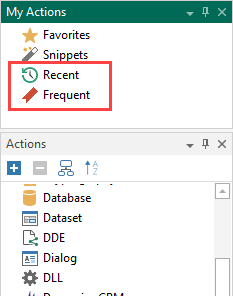
Task Builder automatically saves a history of recently and frequently used actions and activities, and displays them in Jump Lists under the Recent and Frequent folders (shown below) so you can jump to these items with a click of a button. The lists are automatically populated based on how frequently and how recently items are used. For example, if the last activity you opened or used in a task was a VMWare Guest - Delete file activity, the next time you open Task Builder, this activity is contained in your Recent folder and possibly your Frequent folder, depending on how often you used the activity in the past. By default, the Recent and Frequent folders are populated with up to 10 entries.
Having access to frequent and recent lists is great if you want quick access to commonly used and popular actions and activities without having to browse in the Actions list or perform a search, but not great if you are concerned about privacy freak and do not want someone to see what kind of actions/activities you often use if, for example, you use a shared or public computer, or if you want to clear this history periodically as a security measure. Task Builder makes it easy to clear your recent and/or popular list of actions/activities or clear all Jump List items altogether.