Importing Tasks Into Task Administrator
Overview
You can import task files containing a .AML (Automation Markup Language) extension into Task Administrator by way of drag and drop, or a standard Import option. This adds the imported tasks into the specified folder in Task Administrator and places a copy of the .aml file associated to each task in the default managed tasks folder. When a managed task is imported, triggers, task steps, logon settings and other task properties are included as well. When an unmanaged task is imported, it automatically becomes a managed task. For more on managed and unmanaged tasks, see Managed vs. Unmanaged Tasks.
Importing tasks using drag and drop
To import tasks using drag and drop:
- On the Task Administrator's navigation bar, select Tasks.
-
On the side panel, select the tasks folder you want to import your tasks into. To create a new folder, right-click in the main panel, and then select New > Folder.
- Using Window Explorer, open the folder that contains the AML files you want to import.
-
Drag the selected AML files from their original location and then drop them into the Task Administrator's main panel. A new icon will appear in the main panel representing each imported task.
Importing tasks using the Import option
To import tasks using the Import option:
- From the Task Administrator Navigation bar, click Tasks and navigate to the folder in which to import tasks.
-
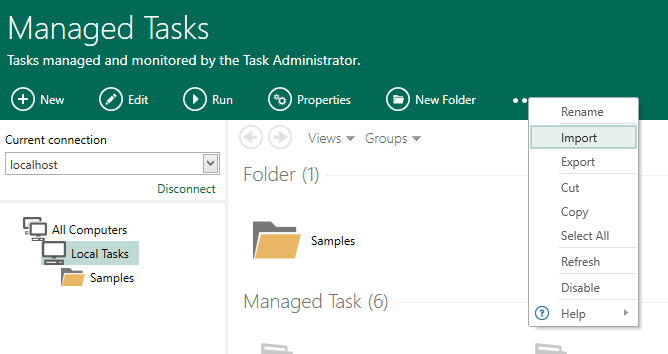
Click More Options from the top panel and click Import (as shown below) or right-click anywhere inside the main panel and click Import from the menu.
-
The Import page is displayed, as shown below. Navigate to the directory where the Automate Desktop Task (.AML) files you want to import are located.
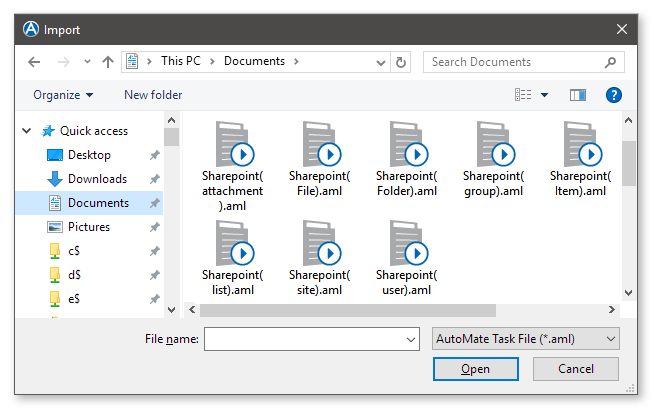
- Select the desired AML files to import and click Open. To select more than one file, hold down Ctrl on your keyboard during selection.
The Task Administrator main panel is populated with the newly imported tasks.