Requesting a Permanent License Key
If you purchased Automate Desktop 2025, but still have a trial version of the software, you need to replace the current trial license key with a permanent license key. A new license key is required in the following scenarios as well:
- Migrating Automate Desktop from one computer to another
- A change to the network interface (physical, virtual, or wireless) where Automate Desktop is installed
- A hardware ID mismatch error occurs
To request a permanent license key:
- Copy the Current Key (license key) and Hardware ID of the system where Automate Desktop.
- Create a new email message using your preferred email client. In the subject line, enter New Automate permanent license key request.
- Open Automate Desktop 2025 Task Administrator.
- On the Task Administrator navigation Bar, click Options.
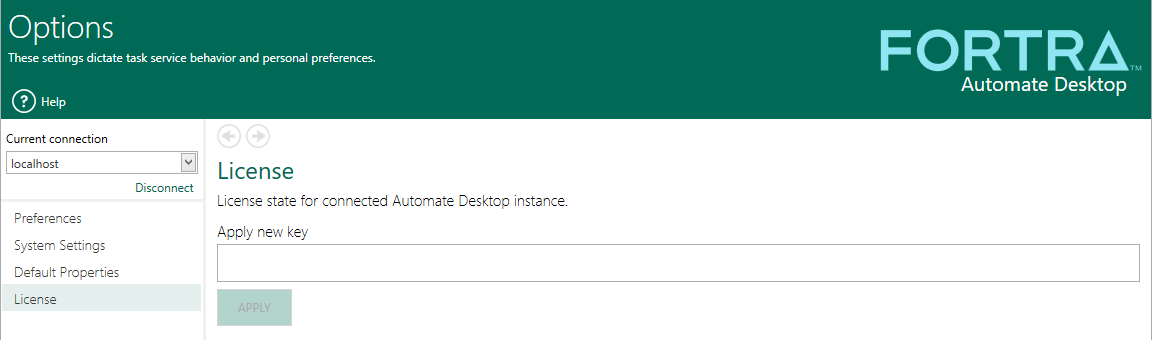
- From the left navigation pane, select License.
- Right-click on the alphanumeric Hardware ID and click Copy.
- Paste the Hardware ID in the email message.
- Right-click the alphanumeric Current Key and click Copy.
- Paste the Current Key below the Hardware ID in the same email message.
- Enter your company name above the Hardware ID and Current Key in the email message. If you are a reseller, enter the customer contact information, including company name, contact name, and email address.
- Email your message to keys@fortra.com.
- When you receive your new license key, go back to the License page.
- Enter the alphanumeric license key in the Apply new key text box.
- Click Apply.
NOTE: If you need a new license key immediately, contact Fortra at https://support.fortra.com. A support representative can provide a temporary license key while you wait for your permanent key to arrive.
See Licensing and
Maintenance for more information.