Deploying Managed Tasks
Overview
A key feature of Remote Administration is the capability to deploy local managed tasks onto remote Runtime installations. This offers an extremely cost effective means of automating multiple computers. During deployment, Automate Desktop creates a copy of the AML file associated with the local task, including its properties, triggers, and attachments (if any) and places it in the managed tasks folder designated for the remote computer. Tasks can be deployed to multiple remote Runtime installations simultaneously. As a safety measure, original tasks always remain on the local computer.
This feature is supported in Automate Premium edition only. It
is not supported in Automate Professional edition. With Premium
edition, the following remote connections are allowable:
- Local Premium edition to Remote Premium edition.
- Local Premium edition to Remote Runtime edition.
Deploying one or more managed tasks
To deploy one or more managed tasks:
-
From the Task Administrator, navigate to the Tasks section and select the tasks you want to deploy. To select multiple tasks, hold down Ctrl on your keyboard during selection.
-
Click More Options located on the header and click Deploy from the shortcut menu.
-
From the Deploy to Machines page, specify the following:
-
Deploy to Root - If enabled, deploys tasks to the root managed tasks folder of the remote computer. If disabled (or cleared) and the tasks you want to deploy currently reside in a subfolder, the same folder structure is created on the remote computer during deployment.
-
Run Immediately - If enabled, deployed tasks run immediately after deployment. If disabled, tasks do not run upon deployment.
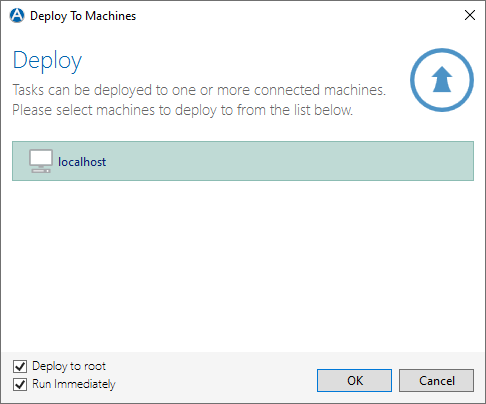
- Click OK to save changes and start the deployment process. If a task being deployed matches the name of a task that already exists on the remote computer, a page is displayed, prompting whether or not to overwrite the existing task.