Lexical Expressions
You can configure a content rule to look for particular words, phrases or character patterns sent to or from your organization. These phrases or Lexical Expressions, could include confidential information, sensitive terminology, profanities or user-defined expressions.
Lexical expressions provide a powerful way of preventing specific content leaving or arriving at your Gateway. They are grouped and managed in Lexical Expression Lists which are then used by content rules.
You can also configure specific lexical expressions called Text Entities. Text entities are lexical expressions which detect character patterns such as credit card numbers, identity numbers, or user-defined regular expressions.
Tell me about...
-
 Lexical Expressions and Text Entities
You can create your own lexical expressions directly, or you can use text entities to build them. A text entity is a predefined or user-defined component or building block that you can include in a lexical expression.
There are three types of text entity:
-
Predefined Entities
Predefined Entities are pre-configured, standard lexical patterns which are frequently used. For example predefined entities can match against Credit Card Numbers or identification numbers from different regions (identity card, driving license, passport and Japanese My Number). Predefined entities are fixed patterns and cannot be edited.
-
User Defined Entities
You can configure your own reusable text entities. These user-defined entities are displayed in a list and are available for use in lexical expressions. See User Defined Entities for more information.
-
Lexical Expression Qualifiers
Lexical expression qualifiers are specific values you might want to detect, rather than general lexical patterns. For example, you might have a particular list of identification numbers you want to redact or block. You can import the list as a set of qualifiers and then use them in a lexical expression. See Lexical Expression Qualifiers for more information.
-
-
Lexical Expression Lists
Lexical expressions are stored in collections called Lexical Expression Lists. Lexical expression lists are applied to content rules, ensuring that all the lexical expressions contained in a list apply to the policy.
You can view Lexical expression lists by clicking Policy > Lexical Expressions.
Lexical expression lists which are currently enabled in the policy are displayed with a green check mark.
 Currently applied to a content rule
 Not currently applied to a content rule
 Contains no lexical expressions
Use the Search text box to find Lexical Expression lists. The search button simultaneously applies your search criteria to both the list of Lexical Expression lists, and the entries contained within each Lexical Expression list.
List searches are not case-sensitive, and you can search for a fragment, or part of a word.
-
Managed Lists
Secure Email Gateway provides a number of dynamically updated, predefined Lexical Expression Lists, such as spam and profanity lists. The Gateway downloads these Managed Lists automatically at regular intervals from the Update Server.
Managed lists are predefined lexical expression lists (with a default threshold of 10). They can be copied to the Lexical Expressions tab, where the copy can be modified.
Copies of managed lists are not dynamically updated.
-
Document Properties
You can use the Document Properties tab to configure lexical expressions which match specific document properties. For example, you can add a document property Author and assign it with the specific value Managing Director to detect documents authored by Managing Director. You can assign a weighting to these expressions.
See About Document Properties for more information.
Document Properties lexical expressions are used with the Analyze Properties content rule.
-
Thresholds, Weighting and If matched
You can assign lexical expressions a weighting score between +1 and +10 using the If matched option. The weight of an expression determines its impact on a content rule, when detected. Expressions with a larger weight are more likely to violate the content security policy and trigger the What To Do? actions.
Expression Lists are configured with a Threshold, which corresponds to the minimum total weighting score required to trigger the policy to which it has been added.
Example: Weighted lexical expressions:
A Detect Lexical Expression content rule named Cakes and Pastries has been designed to detect the names of confectionery products.
An expression list (below) has been configured with a total weight Threshold of 10.
Custom expressions for each of your products are added as follows. Each expression is given a Weight.
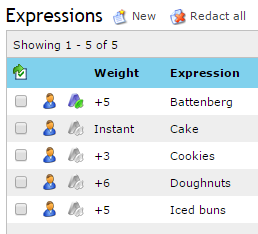
If a communication contains the expressions 'Doughnuts' and 'Iced buns', the combined weight (6+5=11) outweighs the threshold (10) and the content rule will trigger. However, if 'iced buns' and 'cookies' are detected, the combined weight (5+3=8) is not sufficient to trigger the content rule.
Expressions with Instant weighting (such as 'Cake' in this example) will always trigger the content rule, regardless of the threshold.
Each Expression may trigger only once for each part of the message. Expression Lists can also be configured to count the weight of expressions only once in each part of the message or attachment. For example, a message with the subject: 'Cookies, Cookies, Cookies!' would add a combined weight of +3 if this option is activated, and a score of +9 if not activated. -
PERL/POSIX Regular Expressions
You can use PERL/POSIX regular expressions to create more flexible and powerful user-defined lexical expressions. For example, you might want to create user defined entities which detect telephone numbers, identity numbers beginning with a fixed character, or repeated words or phrases.
See Regular Expressions for more information.
-
Redaction
Adaptive Redaction enables you to hide sensitive information by finding and obscuring lexical expressions. Rather than blocking or stopping the communication, redaction ensures the message is delivered, or content transferred, with the offending expressions hidden by * characters.
You can enable redaction of individual expressions within a list. You can also enable redaction for an entire list.
For more information, see About Adaptive Redaction.
How do I...
-
Create a Lexical Expression List?
-
Navigate to Policy > Policy References > Lexical Expressions. The Lexical Expressions page is displayed.
-
Select the Lexical Expression Lists tab. All the existing lexical expression lists are displayed.
-
Click
 New. An editing page for the new lexical expression list is displayed.
 -
In the Overview panel, click Click here to change these settings. Edit the Name and Notes of the content rule as required, and click Save.
-
Use the Lexical Expression panel, click Click here to change these settings. Configure a Threshold for your lexical expression list. This indicates the minimum total weight required to trigger any content rule to which this list is added.
Click Save.
Each Expression may trigger only once for each part of the message This option ensures that each expression only scores once per message part, when there is more than one occurrence of some text matching the expression in a message part (subject, body, attachment).
Even if different portions of text match a particular expression, for example two different account numbers match an account number pattern, this expression still scores only once with this option enabled. If you would prefer to score each unique occurrence, consider disabling this option and enabling the Ignore duplicate occurrences option on the expression instead.
-
Click New to add expressions, if required. Set the scoring weight using the If matched drop-down menu. Click Add to add the expression to the list.
User-defined expressions can be configured as Case sensitive by selecting the check box. Case sensitive expressions  are indicated in the Lexical Expression List.
 For more information on how to create and Lexical Expressions, see Create a lexical expression.
-
Apply the configuration.
-
-
Delete a Lexical Expression List?
You cannot delete a policy reference that is currently enabled ( ) in a content rule.- From the Lexical Expressions page, select the Lexical Expression Lists tab.
- Select the expression list you want to remove.
-
Click
 Delete and confirm
 - Apply the configuration.
-
Import expressions into a Lexical Expression List?
You can import expressions into a Lexical Expressions List using a Unicode .txt file.
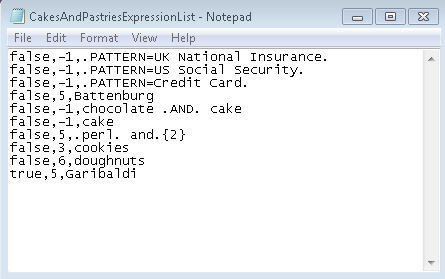
Each Expression must be listed on a separate line in the .txt file. Blank lines or lines beginning with # will be ignored. Prepare your import file
Each expression must be formatted as follows:
case-sensitive,weight,expression
- case-sensitive must be either true or false
- weight must be a numerical value between 1 and 10, or -1 for instant weighting
- expression is the expression text. You can apply a token to indicate a regular expression, and apply regular expression syntax.
 Import your expressions
- From the toolbar, click Policy > Lexical Expressions.
- From the Lexical Expressions tab, do one of the following:
- Create a New lexical expression list.
- Select the list you want to supplement with your new expressions. Click
 Edit.
Edit.
- Create a
- In the task panel, click
 Import expressions.
 -
Use the Import Expressions dialog to Browse for your .txt import file.
Use the Delete and replace... check box to replace the existing list with the contents of your import file. - Click Import.
- Apply Configuration.
-
Use an expression to detect specific values?
Secure Email Gateway uses pattern matching technology to detect character patterns. You can also qualify a regular expression or predefined text entity to look for specific data. For example, you might want to detect a unique set of account numbers, names from an address list or credit card numbers which are stored in an external data source.
See Lexical Expression Qualifiers for more information.
-
Avoid false-positives?
The Gateway detects strings that match lexical expressions that have been configured as part of your policy. It is possible that this matching could result in multiple detections of the same string if it appears more than once in an attachment or part of an email. There are a number of ways to help prevent this:
Ignore duplicate occurrences
This applies to an individual lexical expression. For example, if an Excel spreadsheet contains multiple occurrences of the same account number, you can configure the account number expression so that duplicates are ignored. This is useful if the aim is to detect multiple different account numbers, rather than multiple occurrences of the same account number.
Duplicate occurrences match the case-sensitivity of the expression. Each Expression may trigger only once for each part of the message
This is a setting that applies to an expression list, rather than a single expression. For example, if a message subject, body, or attachment contains multiple instances of a unique credit card number, the Gateway only counts its weighting once for each part of the message in which it is detected.
Lexical Expression Qualifiers
You can also configure the Gateway to detect specific values as lexical expressions, such as an actual list of credit card or account numbers, rather than a pattern. See Lexical Expression Qualifiers for more information.
-
Apply an expression list to a content rule?
Content rules use policy references (such as lexical expression lists) to look for content which violates your security policy. When you have configured an expression list, you can configure a content rule to detect the expressions it contains.
Example: English swear words
I want to create a content rule which detects and blocks any communication containing English swear words.
Swear words and profanities are defined by managed lists. Add the Swear Words: English managed list to a content rule.
- Click Policy > Content Rules > New to create a content rule.
- Select Detect Lexical Expression from the list of templates.
- Configure the What To Look For? actions Lexical Expression section.
- Select Swear Words: English from the Expression list drop-down menu.
- Configure your What To Do? actions to block or hold the communication.
-
Apply the configuration.
For more information on configuring a content rule, see Content rules.
- Click Policy > Content Rules >