Navigate to the Reports menu.
You can view a list of available reports on this page. You can run a report manually, at any time, to view the current results. The Reports page also provides options for configuring the reports.
Types of reports
There are two types of report:
System report
Custom report (
Custom report with a schedule)
-
System reports are the default, standard reports supplied with Secure Email Gateway.
-
You cannot edit, delete or schedule a system report.
-
If you want to create a new report, you should copy a system report and customize the copy.
-
Custom reports are both editable and deletable. You can also set a schedule.
View a report
-
Navigate to the Reports menu. The Reports page is displayed.
-
Reports are listed by category. Expand or collapse the category by clicking
 and
and  .
. -
To display custom reports only, select the Show only my reports check box.
-
-
Select a report and click
 View. Alternatively, double click the report name to run the report.
The report is displayed in a new browser window.
If you know the name of the report, use the Search field to narrow and match your search.
Examine report results
Report data is presented in the following format.
Summary
-
At the top of the page, summary of a report is displayed. It contains the criteria used to generate the report.
The Date Range displays the start and end dates of the selected period. For example, if you selected This Week as a date range, the explicit dates defined by the period are also displayed.
Report data
-
In the center of the page, report data is presented graphically.
Click the graphic area to cycle through the format of the report data: between bar chart, line graph and pie chart. -
Reports are often displayed by message count (numerical) or message volume (memory). Select the Msg Counts or Msg Volume tab to view the data you require.
Results table
-
At the bottom of the page, a table displays results in rank or date order, depending on the report.
-
Explore the results by clicking categories or entries in the table.
Reports might be grouped by week or month as requested, If you expand the category, use the  button to switch back the view to Grand Total or Subtotal.
 Why is only one recipient displayed?
If your report criteria returned a message with more than one recipient, only the first recipient is displayed in the Recipient column. If a message has more than one recipient, the first recipient is displayed with an ellipsis. For example,
someone@company.org...indicates that there are multiple recipients, whereassomeone@company.orgindicates a single recipient.To view a complete list of recipients, export the report as a CSV file.
Explore individual records
Certain reports, such as the ones under the Threats and Content Rules categories, enable you to explore individual records in much more detail.
For example, if you want to find out how many messages were intercepted because a virus was detected, you can drill-down from the summary data to display an individual message, its sender, recipient, subject, size and date (time of arrival) on the Gateway.
-
Example: How to view a Threats report and explore its results?
-
Navigate to the Reports menu. The Reports page is displayed.
-
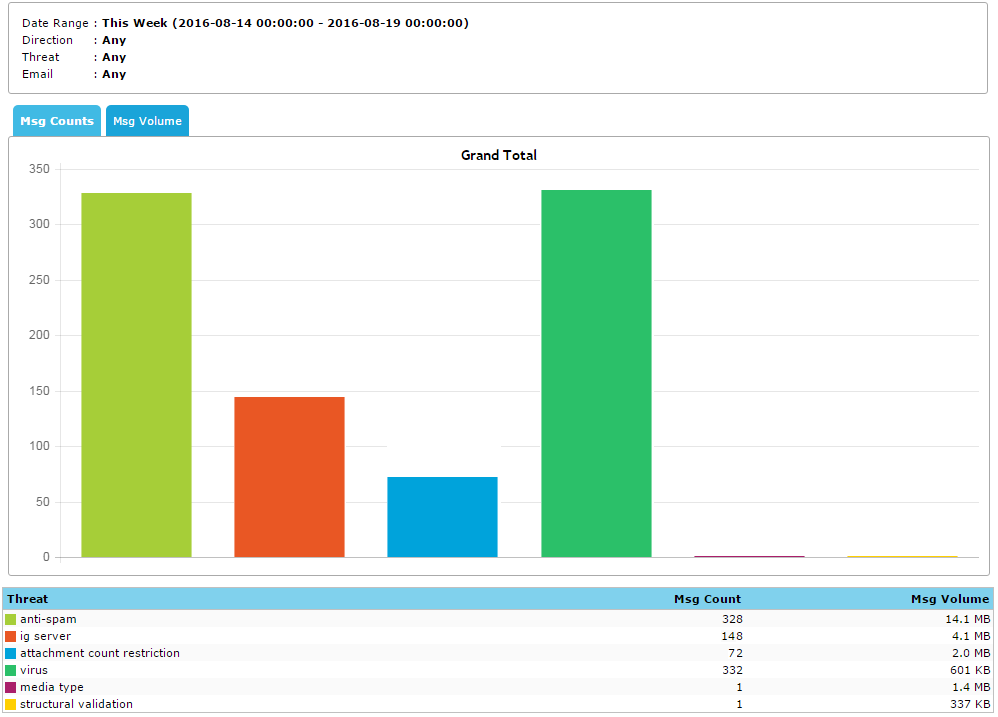
Expand the Threats category, select a system report and click View. In the report, the results table displays categories and statistics about the number and size of records contained in each category. Show screenshot
-
Click the threat category you want to explore. For example, select Media Type to examine the instances which were blocked because of this.
If there are sub-categories, you can continue to click each one, until individual records are displayed.
-
-
Example: How to view the Encryption Methods with Message Details report and explore its results?
-
Navigate to the Reports menu. The Reports page is displayed.
-
Expand the Encryption category, select the Encryption Methods with Message Details system report and click View. In the report, the results table displays the message count and volume of encrypted messages. Show screenshot

This report does not contain a graph.
Categories can count data more than once. For example, if a message has been encrypted using PGP and TLS, both categories include the record.
- Click the encryption type you want to explore. For example, select PGP to examine messages which were encrypted using this method. Each message is displayed with sender, recipient, subject, size and date.
-
Export a report
You can export a report as a PDF or CSV file. You can also email a report as an attachment.
-
From the Reports page, select and run a report.
-
From the Export to drop-down menu at the top right of the page, select an option:
- PDF: Reproduces the report as an open PDF file.
-
CSV: Exports the report as a comma-separated values file.
-
Email: Sends the report as a PDF attachment.
PDF files are designed to reproduce the report data concisely and efficiently. Export the report as a CSV file if you want to view the full report in detail, or you want to manipulate the data.
Summary data and detailed data
To monitor activities effectively, Secure Email Gateway manages the summary data and detailed data separately.
Discrepancy between the summary and detailed reporting data
It is possible that in a report, the summary statistics do not match the detailed data.
There are a number of possible reasons for this:
-
Retention time for the detailed reporting data is shorter than the date range covered by the report
If the data retention period is shorter than the date range of the report, you will not be able to view the detailed information that has already expired. For example, if the Gateway is configured to retain the detailed reporting data for 7 days, but the data range of the report (i.e. summary reporting data) is for 14 days, the report displays data for messages received more than 7 days ago, but the detailed data will not be obtainable.
The Retention Time settings are defined on the Tracking And Report Settings page.
-
Detailed records are not stored for rejected messages
Messages rejected by the Gateway might be included in the summary data, whereas no detailed data is recorded for rejections.
To search for rejected messages, use Track Messages. You can select a Reject Reason as your search criteria. -
Delay between receiving and processing a message spans the beginning or end of the date range covered by the report
A mismatch between the summary and detailed reporting data can occur if a message is received by the Gateway during one reporting period, but not processed until the next. For example, if a message is accepted at 23:59 and processed at 00:00, the summary data will be recorded in the second day, whereas the detailed data will be recorded in the first day.
-
Messages split by the content security policy can produce multiple counts by the summary reporting data
If a message is intended for more than one recipient, it could match more than one policy route. The summary reporting data counts split messages as separate, individual messages (with identical content), whereas the detailed reporting data counts each message once. As a result, the summary data might include multiple results for split messages.