Create a lexical expression
You use the New Expression dialog to create lexical expressions.
-
 Lexical Expressions and Text Entities
You can create your own lexical expressions directly, or you can use text entities to build them. A text entity is a predefined or user-defined component or building block that you can include in a lexical expression.
There are three types of text entity:
-
Predefined Entities
Predefined Entities are pre-configured, standard lexical patterns which are frequently used. For example predefined entities can match against Credit Card Numbers or identification numbers from different regions (identity card, driving license, passport and Japanese My Number). Predefined entities are fixed patterns and cannot be edited.
-
User Defined Entities
You can configure your own reusable text entities. These user-defined entities are displayed in a list and are available for use in lexical expressions. See User Defined Entities for more information.
-
Lexical Expression Qualifiers
Lexical expression qualifiers are specific values you might want to detect, rather than general lexical patterns. For example, you might have a particular list of identification numbers you want to redact or block. You can import the list as a set of qualifiers and then use them in a lexical expression. See Lexical Expression Qualifiers for more information.
-
-
Defining a new expression
-
Punctuation and word matching
When creating plain-text lexical expressions, you should be aware that the Gateway treats punctuation and word matching in the following way:
Punctuation is ignored in the text unless it is specified in the expression. Partial words are not matched.
Expression Text Match? here and there here and there yes here and there here, and there yes here and there here-and-there yes don't don't yes dont don't no don't dont no don t don't yes don't don t no butt butter no swear menswear no pig spigot no -
If matched
Weighting score for lexical expressions. This value determines how the expression impacts your security policy.
Example: Weighted Lexical Expressions
A Detect Lexical Expression content rule named Cakes and Pastries has been designed to detect the names of confectionery products.
An expression list (below) has been configured with a total weight Threshold of 10.
Custom expressions for each of your products are added as follows. Each expression is given a Weight.
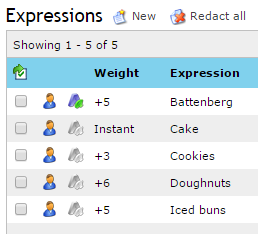
If a communication contains the expressions 'Doughnuts' and 'Iced buns', the combined weight (6+5=11) outweighs the threshold (10) and the content rule will trigger. However, if 'iced buns' and 'cookies' are detected, the combined weight (5+3=8) is not sufficient to trigger the content rule.
Expressions with Instant weighting (such as 'Cake' in this example) will always trigger the content rule, regardless of the threshold.
Each Expression may trigger only once for each part of the message. Expression Lists can also be configured to count the weight of expressions only once in each part of the message or attachment. For example, a message with the subject: 'Cookies, Cookies, Cookies!' would add a combined weight of +3 if this option is activated, and a score of +9 if not activated. -
Operators
You can use logical operators to construct lexical Expressions. Operators must be placed between keywords, phrases or text entities.

Operator Description AND Both keywords or phrases must be present. OR One or both keywords or phrases must be present. XOR One of the keywords or phrases must be present, but not both. BEFORE Both keywords or phrases must be present and the keyword or phrase that precedes the operator must occur before the keyword or phrase that follows the operator. AFTER Both keywords or phrases must be present and the keyword or phrase that precedes the operator must occur after the keyword or phrase that follows the operator. FOLLOWEDBY=x Both keywords or phrases must be present, and the keyword or phrase that follows the operator must be within x words of the one that precedes the operator. NEAR Both keywords or phrases must be present, and they must be within ten words of one another. The expressions may occur in either order. ANDNOT The keyword or phrase that precedes the operator must be present, and the keyword or phrase that follows the operator must not be present. If you want to use several operators, use brackets to ensure the correct logical behavior. The Gateway processes operators from left to right. -
Case sensitive
The Case sensitive check box applies case-sensitive matching to your lexical expression.
-
Ignore duplicate occurrences
If Ignore duplicate occurrences is selected for a lexical expression, the Gateway will ignore multiple instances of any unique string that matches that expression, only counting that string once. For example, if your lexical expression is a credit card pattern, a unique credit card number that matches that pattern will only be counted once, even if it is detected several times in an attachment or file.
-
Redact
Lexical Expressions can be set to Redact enabling them for possible redaction. Secure Exchange Gateway can use adaptive redaction to deliver content with sensitive information safely obscured (redacted) by * characters. Only lexical expressions which are enabled for redaction can be redacted by the policy. See About Redaction for more information.
Use a weight of Instant for redactable lexical expressions where possible.
-
Sensitive information
The Sensitive information check box indicates that a user-defined entity is considered sensitive when handled by the Text Analysis feature.
Sensitive information only applies to user-defined entities.
-
Summary
The Summary box can be used to display any additional notes associated with your lexical expression. You can enter up to 180 characters.
-
Create a lexical expression
- Click Policy > Lexical Expressions and select an Expression List on the Lexical Expression Lists tab.
- Click
 Edit.
-
In the Expressions section, click
 New.
The New Expression dialog is displayed.
-
Enter the expression. You can build your own lexical expression by typing it into the Expression box, or you can build an expression using text entities:
-
Predefined
- User Defined
- Qualifiers
-
-
Select the If matched weighting score for your new expression.
- Add a Summary if required.
- Click Add.
Example 1: Credit Card Numbers - using a Predefined Text Entity
I want to detect any credit numbers that may be accidentally included in messages.
Create (or Edit) a Lexical Expression List which includes a lexical expression with the Predefined Text Entity: Credit Card.
- Create (or Edit ) a Lexical Expression List.
- Add a New expression to the list.
- Select the Predefined tab.
-
Select Credit Card from the list of available options.
- Set the If matched (weighting score).
- Select Redact if you want the expression to be redactable.
- Enter a Summary if required.
-
Click Add. The expression is added to your expression list.
You can configure a Detect Lexical Expression or a Redact Text content rule which uses the expression list you have created.
Example 2: Employee ID Number - Creating a User Defined Entity
I want to create a text entity which detects Employee ID Numbers in the format (AB1234), where AB represents a two-letter department code and 1234 represents any four digit number up to 9999.
Create a user-defined entity which is a regular expression. This can be configured using POSIX/PERL regular expressions to match your required format.
- From the Manage Lexical Expression Lists page, select the User Defined tab.
- Click New to create a new expression. The Expression Editor is displayed.
-
Configure the Overview section to name your expression and add any relevant Notes.
- Click Click here to change these settings to configure the User Defined Entity.
-
Enter your regular expression.Show me:
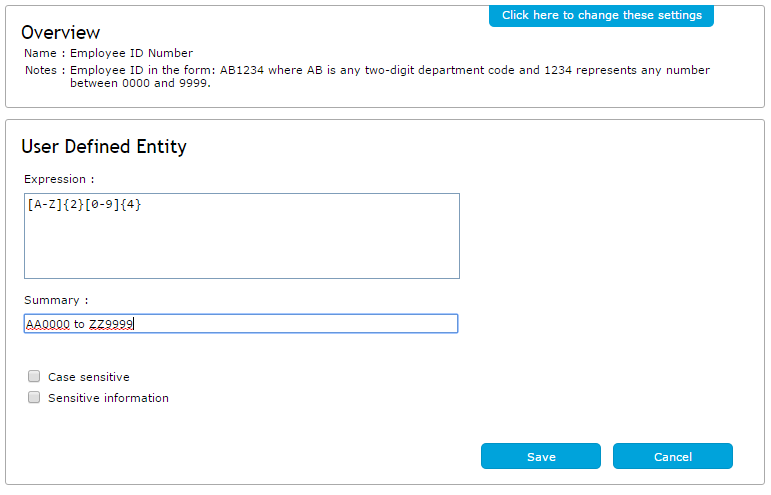
A User Defined Entity will match any string using the specified format, provided it is not adjacent to another alphanumeric character. For example, GSD7892 would not be detected but G SD7892 would produce a match.
Use Lexical Expression Qualifiers to import a specific list of values (for example, your full list of Employee ID Numbers). See Lexical Expression Qualifiers for more information.
- Select Sensitive information if required. Entities which are categorized as detecting Sensitive information prevent the detected content from being displayed in other parts of the Gateway.
-
Click Save. The expression is added to your list of User Defined Entities for future use.
-
Add the new expression to an expression list.Show me how:
- From the Manage Lexical Expression Lists page, click the Lexical Expressions tab and select an expression list. Click Edit.
- In the Expressions panel, click New and select the User Defined tab.
- Select the User Defined Entity from the list.
- Set the If matched score, Case sensitive and Redact options as required.
- Click Add.
- From the Manage Lexical Expression Lists page, click the Lexical Expressions tab and select an expression list. Click
Example 3: Social Security Numbers and Employee Numbers - combining existing expressions using operators
I need an expression that detects US Social Security Numbers and Employee ID Numbers.
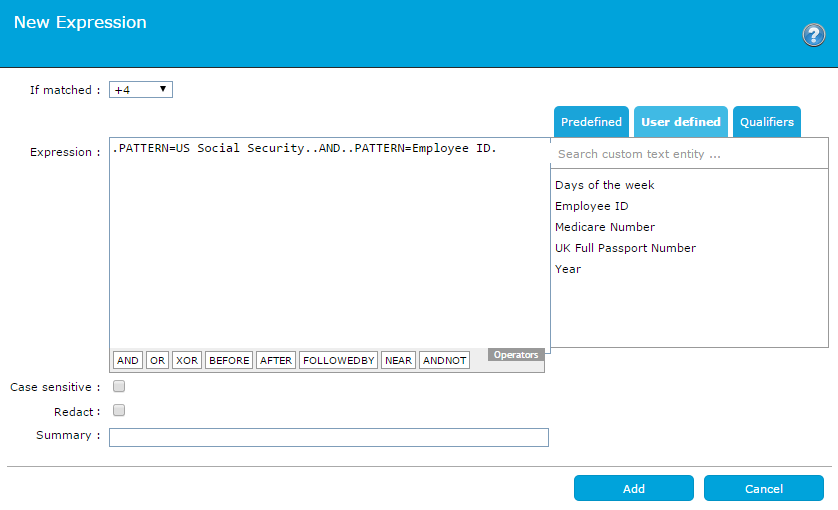
Create a Lexical Expression that uses an AND operator to detect US Social Security Numbers (predefined text entity) and Employee ID Numbers (user defined entity).
- Create (or edit ) a Lexical Expression List.
- Add a New expression to the list.
- Set If matched (weighting score) to Instant, or apply a suitable weighting.
-
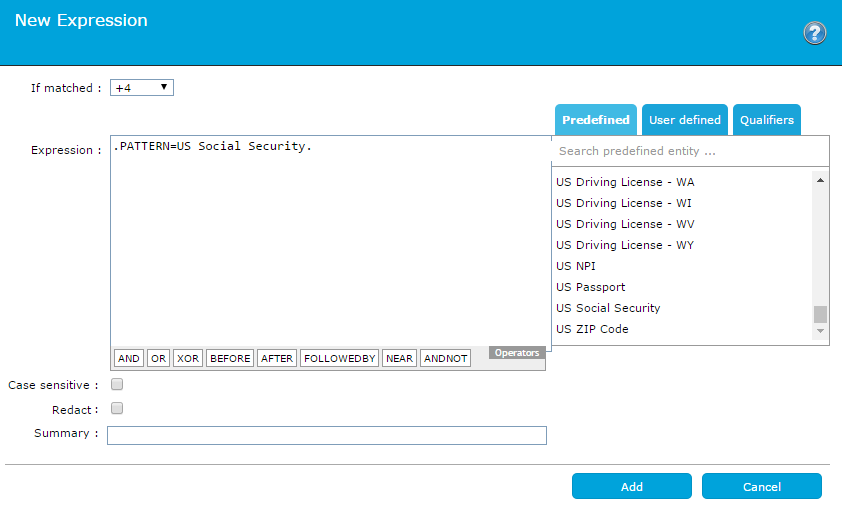
Click the Predefined tab to view the list of predefined text entities. Select Social Security Number (US).
The predefined text entity is displayed in the Expression box.Show me:
-
Click the AND operator.
All entities in a custom expression must be separated by operators. -
Click the User defined tab to locate your user-defined expression. Click the required entity from the list.Show me:
-
Click Add to include the expression in your expression list.
You can configure a Detect Lexical Expression Content Rule which uses the expression list you have created.
Example 4: Product Name - simple text entry
I need an expression that detects the name of my product, "Email Analyzer". I want this term to be redacted when sent from inside my organization.
Create a Lexical Expression and enter the text in the Expression box. Set the expression to case sensitive and enable redaction.
- Create (or Edit ) a Lexical Expression List.
- Add a New expression to the list.
-
Set If matched (weighting score) to a suitable weighting.
Give redactable terms a high or Instant weight, where possible. -
Enter "Email Analyzer" into the Expression box.
You might want to also detect a variant spelling, such as "Email Analyser". You can use a regular expression: .PERL.Email Analy(z|s)er to achieve this, or your could create a user defined entity for each variant and apply them to the expression using an .OR. operator. - Select Case sensitive and add a Summary.
-
Select Redact.
Selecting Redact enables redaction of the selected expression. To apply redaction policy, the expression list must be used by a Redact Text content rule. Expression Syntax
To match the parentheses characters '(', ')' or period/full stop '.', the character must be preceded by '\'.
For example: to match the text (CAT), including the brackets, the expression should be defined as: \(CAT\).
- Click Add to include the expression in your expression list.
Example 5: Business Identifier Codes - avoiding false-positives
I want to detect Business Identifier Codes but avoid detecting any false-positives.
Create a Lexical Expression using the BIC predefined text entity. Apply a Lexical Expression Qualifier to narrow the search to specific values. This avoids the possibility of detecting false-positives.
- Create (or Edit ) a Lexical Expression List.
- Add a New expression to the list.
-
Select BIC (Business Identifier Code) from the Predefined tab.
Insert the cursor to the left of the closing period character.
.PATTERN=BIC|. -
Select a Qualifier from the Qualifiers tab.
Qualifiers specify unique values, stored in an external data source. For more information, see Lexical Expression Qualifiers.
.PATTERN=BIC?qualifier-name. -
Set the If matched (weighting score).
You cannot change the case sensitivity of a predefined text entity. - Enter a Summary if required.
-
Click Add. The expression is added to your expression list.
You can configure a Detect Lexical Expression or a Redact Text content rule which uses the expression list you have created.
Example 6: Credit card numbers - using Ignore Duplicate Occurrences on a lexical expression
I want to detect Excel spreadsheets that might contain many different credit card numbers. However, I also want to allow for the case where a single credit card number might be repeated multiple times
Create (or Edit) a Lexical Expression List which includes a lexical expression with the Predefined Text Entity: Credit Card and select Ignore Duplicate Occurrences.
- Create (or Edit ) a Lexical Expression List.
- Add a New expression to the list.
- Select the Predefined tab.
-
Select Credit Card from the list of available options.
- Set the If matched (weighting score).
- Select Ignore duplicate occurrences. This ensures that when the same unique value appears multiple times across workbooks in the spreadsheet, its weight is only counted once per document.
- Select Redact if you want the expression to be redactable.
- Enter a Summary if required.
-
Click Add. The expression is added to your expression list.
You can configure a Detect Lexical Expression or a Redact Text content rule which uses the expression list you have created.