Disputes
Dispute failed vulnerabilities
The PCI scan may show vulnerability findings you would like to dispute. All requested vulnerability disputes are required to be documented as Exceptions, False Positives, or Compensating Controls.
-
Exception
There are four exceptions provided to the NVD scoring guidance described in Section 6.3.2, Component Compliance Determination, and these are the only exceptions that qualify to supersede CVSS scores. Examples of qualifying exceptions include incorrect or inconclusive findings due to scan interference, or if the CVSS base score is disputed. Supporting evidence must be submitted to prove there is not a risk to Cardholder Data environment.
See " Appendx B: ASV Scan Report Summary" of the ASV Program Guide for further details.
-
Compensating control
If a vulnerability cannot be remediated due to business or technical constraints, but the risk can be mitigated through other measures, a compensating control may be considered.
See "7.8 Addressing Vulnerabilities with Compensating Controls" of the ASV Program Guide for further details.
-
False positive
If a reported vulnerability does not apply to the host with sufficient evidence, a dispute may be submitted for the PCI analyst to review and confirm the occurrence of a false positive.
See "7.7 Managing False Positives and Other Disputes" of the ASV Program Guide for examples of written evidence which can be submitted to dispute a false positive.
In these situations, you can file a dispute in the scan results. The process for disputing VM and WAS vulnerabilities in Fortra VM are the same.
Fortra VM and WAS vulnerability dispute process
-
Open the scan group or the Scan Activity page, and then select the PCI scan in question to open it. Once the scan results open, select PCI Failures under PCI Progress. The PCI tab loads with the relevant vulnerabilities.
-
Address each vulnerability listed as a FAIL.
If a vulnerability listed will not be remediated, an explanation must be filed with your Fortra PCI analyst.
-
Select the checkbox for a failing vulnerability and select Dispute vulnerability at the top of the scan results to open the Dispute Vulnerability form.
-
Complete the dispute by selecting the appropriate type of dispute and use the comment field to provide an explanation of the dispute for the Fortra PCI analyst to review.
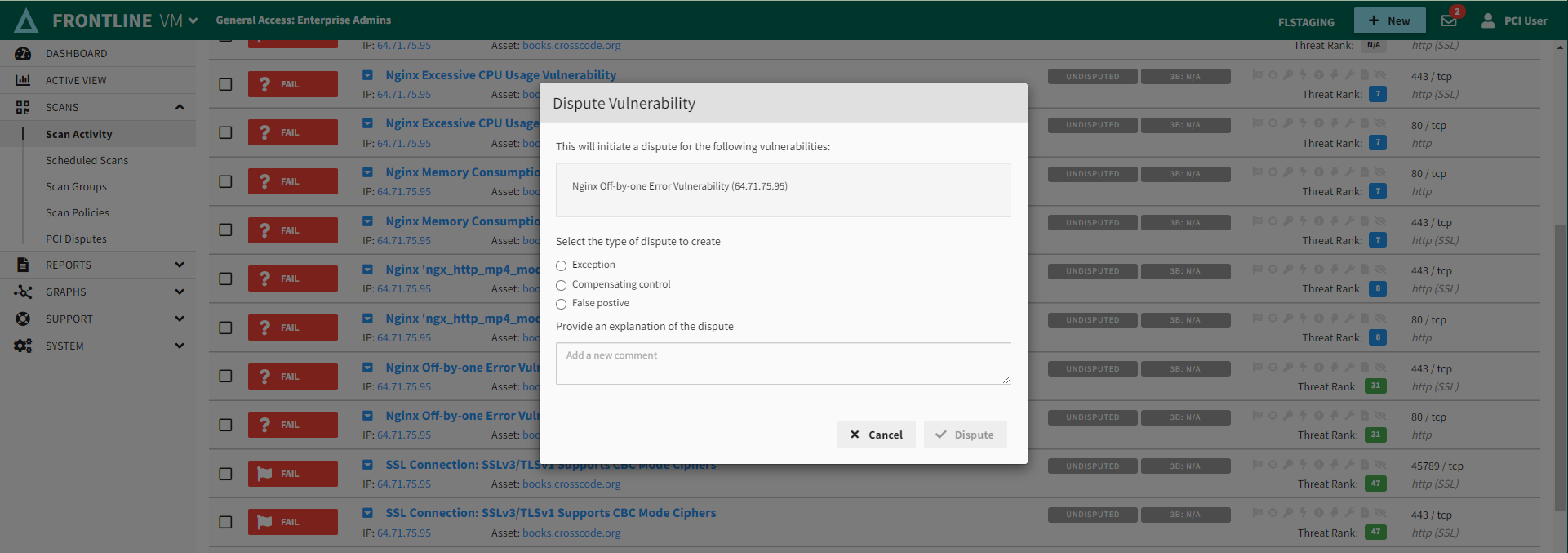
After all fields are complete, select Dispute to submit the form.
-
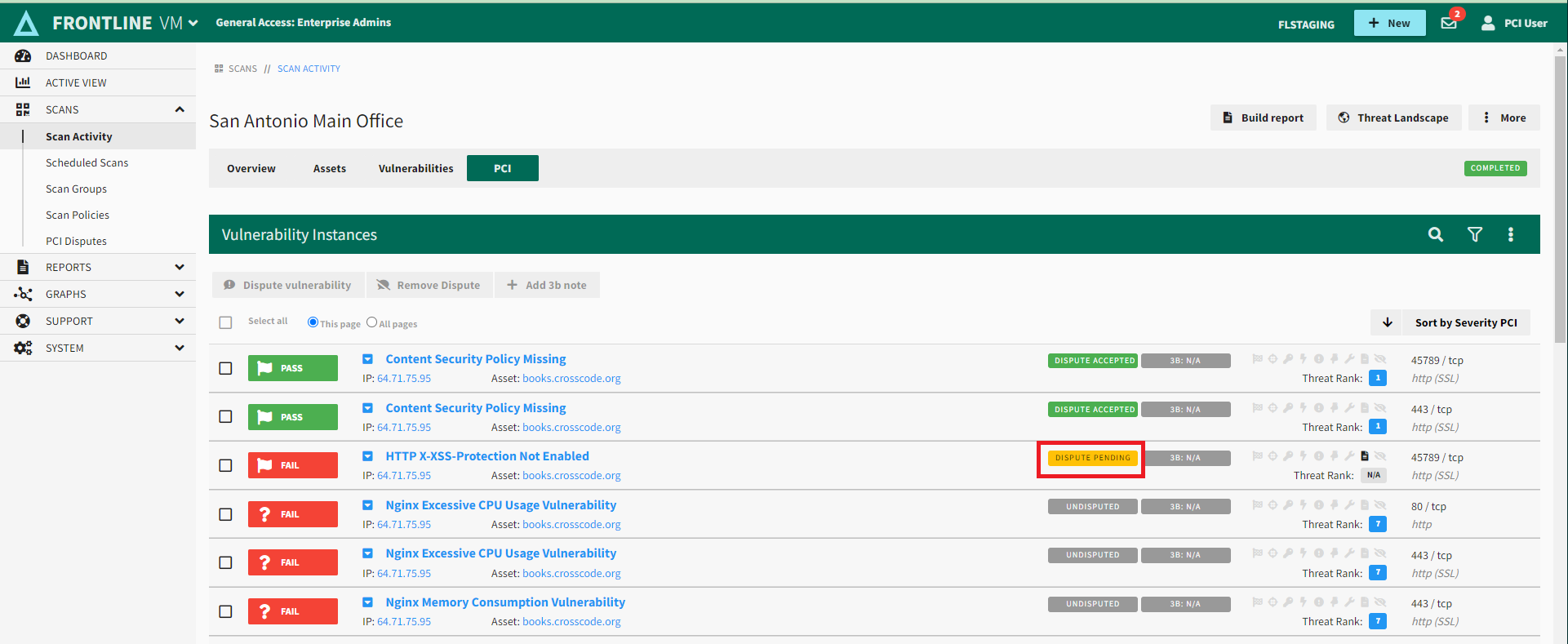
The vulnerability will be flagged with a yellow DISPUTE PENDING icon while it is under review.
-
As the analyst completes their review comments and questions will be posted to the vulnerability which you can respond to you and upload supporting files as needed. The analyst can approve the dispute and move the vulnerability from FAIL to PASS.
-
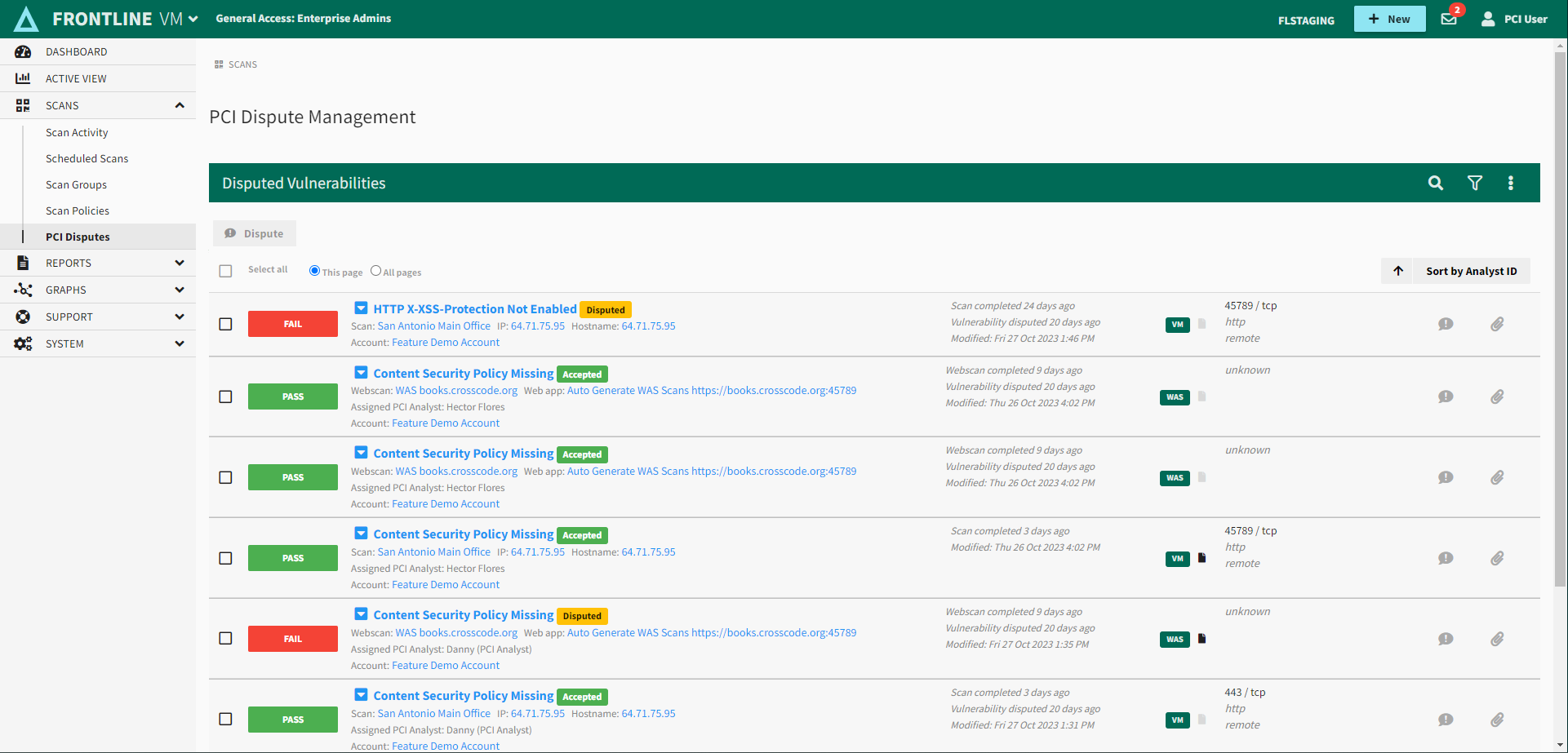
Review dispute status in the PCI Disputes section of the Scans menu.
The PCI Disputes Management page will show a consolidation of all disputed vulnerabilities from both Fortra VM and WAS, no matter which product is currently engaged in Fortra VM.
Select each vulnerability to see analyst inquiries and add additional information to the dispute.
Web app scan results - PCI tab
The analyst may reject a dispute if it does not sufficiently fulfill the requirements. If rejected, the vulnerability will retain FAIL status. You may resubmit the dispute with additional information for the analyst.
Manage disputes
As the Fortra PCI analyst conducts their review, there will be comments and questions posted to the vulnerability that may require a response or supporting files. A consolidated view is available to manage all disputed PCI vulnerabilities from both Fortra VM and WAS scans.
-
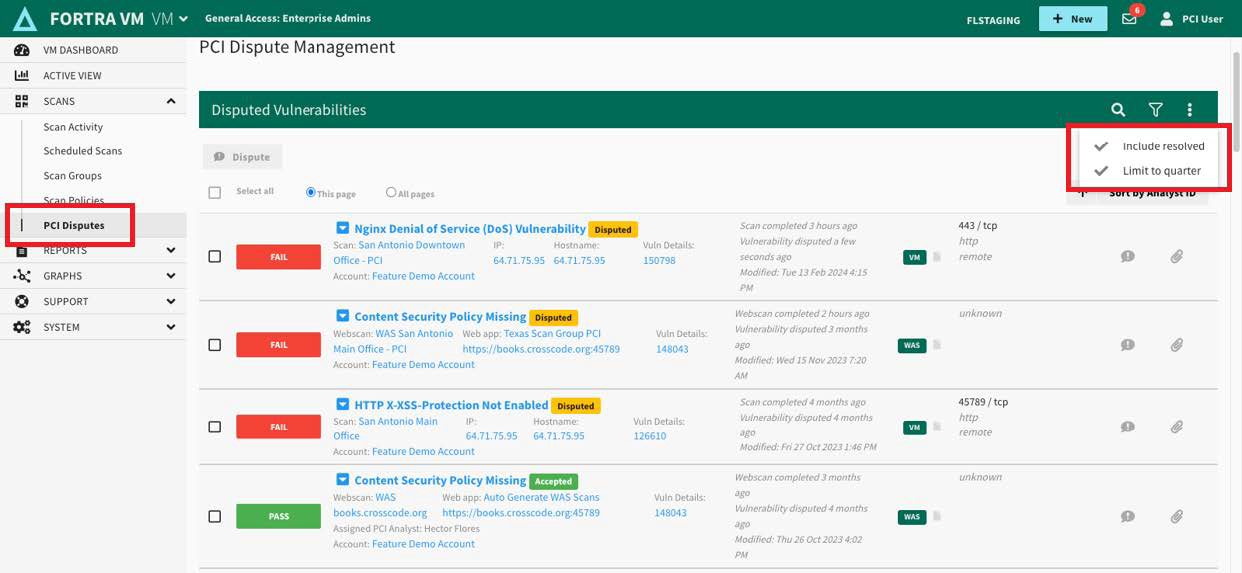
From the Scans menu, select PCI Disputes.
-
Use the filters from the drop-down menu to specify your preference to include or exclude resolved disputes in the list.
-
Select
 to expand the disputed vulnerability and see comments or inquiries from the Fortra PCI analyst.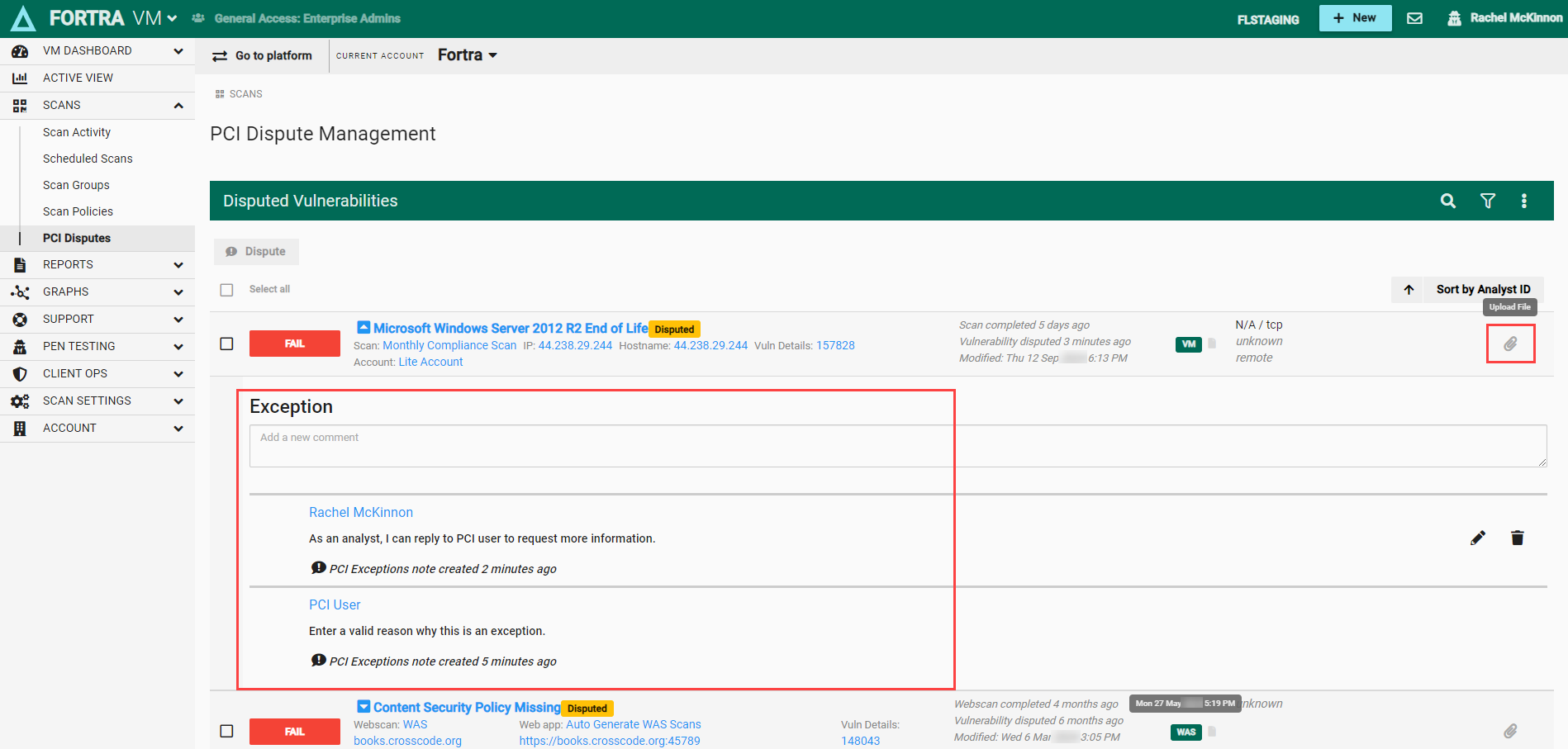
-
Enter your comments in the text box.
Upload files for PCI disputes
The Fortra PCI analyst may request that you provide supporting evidence or documentation for a disputed vulnerability.
-
From the Scans menu, select PCI Disputes.
-
Use the search and filter options to find specific disputed vulnerabilities in the list.
-
Select the
 paper clip icon for a disputed vulnerability.
 -
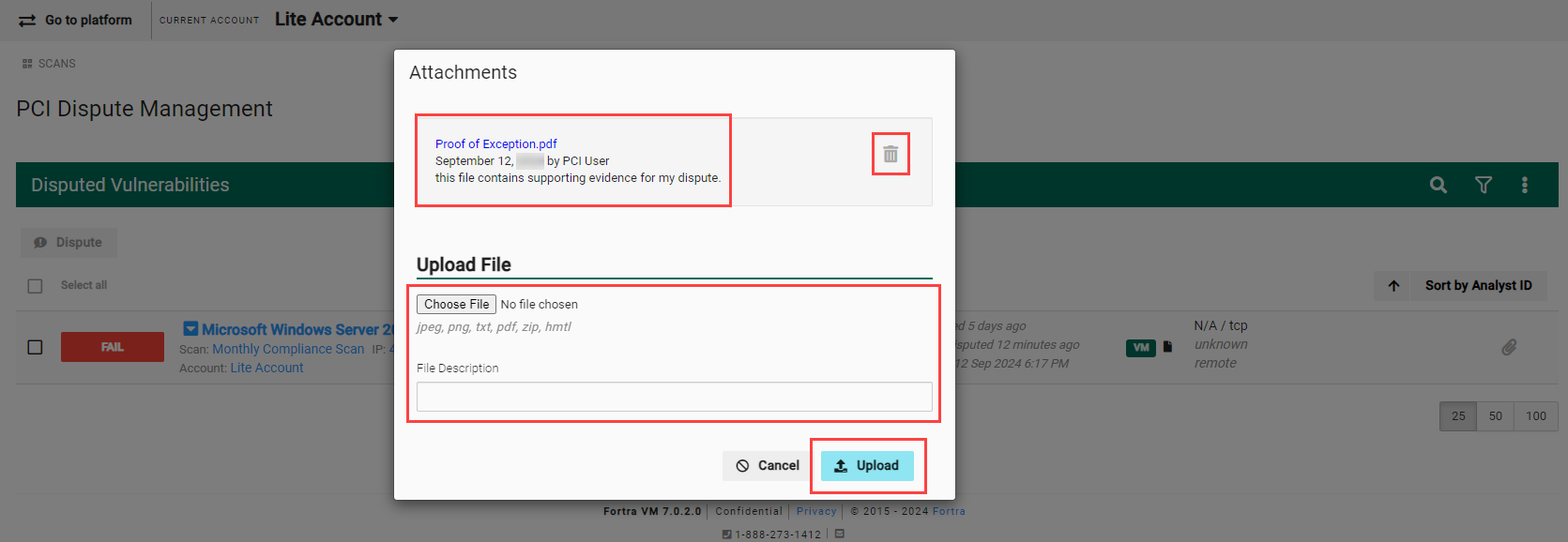
View or remove existing files that were previously uploaded.
-
Select the file to upload and enter a description.
-
Select Upload.
Redispute vulnerabilities
Accepted disputes will expire at the end of the current quarter or 90 days from the scan, whichever is less. If the same vulnerability is detected during PCI scans in the next quarter, there is an option to submit the same information from the expired dispute.
-
On the Scan Activity page, select the PCI tab.
-
Expired disputes will appear with a yellow "DISPUTE EXPIRED" flag next to the vulnerability's name.
-
Select the vulnerability’s checkbox, and then select Dispute vulnerability to open the Dispute Vulnerability form.
-
Select True for the "Redispute using last submission" option.
-
Select Dispute.
Manage PCI dispute notifications
Fortra VM has preset notifications to alert you to changes in your PCI work-flow. If you select your user name from the header bar you can select My Profile to find the Notifications tab to make customized selections.
-
Disputed vulnerability digest
Sends a daily email with all changes happened to a workflow (that is, changes, comments, disputes, approvals, and rejections). To enable this notification, toggle the switch to ON (default is OFF).
-
Disputed vulnerability status
An individual alert email sent for any change to a workflow made by analyst. This notification is set to ON by default. To disable this notification, toggle the switch to OFF.