Understanding the Dashboard
The Dashboard is the Fortra VM On-Premises home page. It provides an overview of your environment's security posture.
Site header
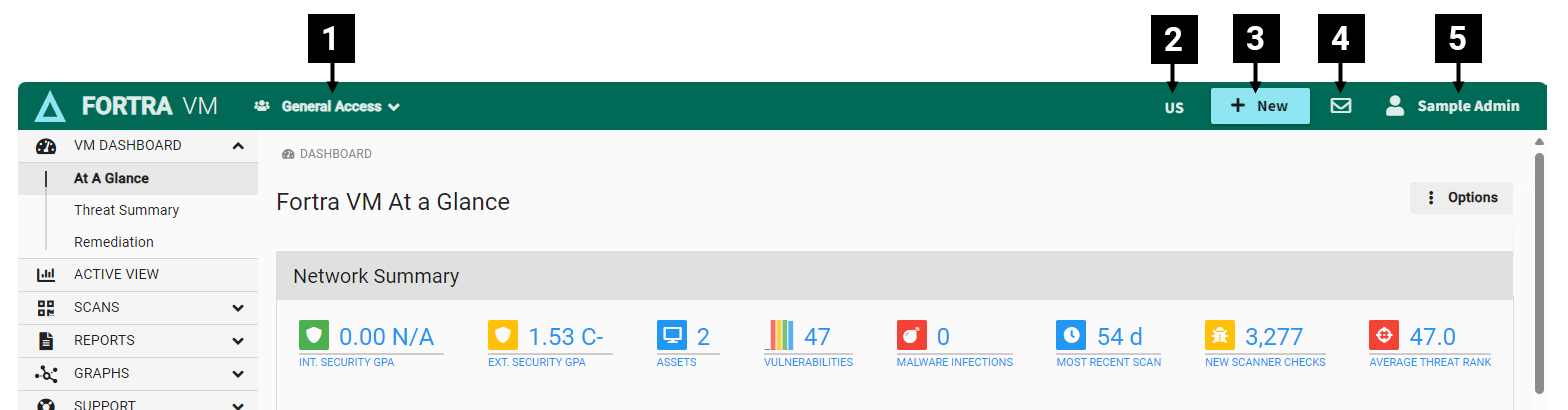
The site header appears on every page and provides access to key Fortra VM On-Premises features.
-
Business Group
Fortra VM On-Premises filters data and access based on the selected business group. You can create business groups that meet your organization's needs and switch between them from the header. For information about configuring business groups, see Business Groups.
-
Region
Displays the region currently associated with your Fortra VM On-Premises product.
-
+ New menu
Select + New in the header to access quick actions from anywhere in Fortra VM On-Premises. You can create a new account, asset group, report, scan, or user.
-
Notifications
Select the bell icon
 to view notifications. A number indicates the amount of unread notifications. To manage notification preferences, including email notifications, see Notifications.
 -
User Menu
Select the user menu to access My profile, Manage Notifications, Change Password, Hide help, Report an issue, and Sign out.
Navigation menu
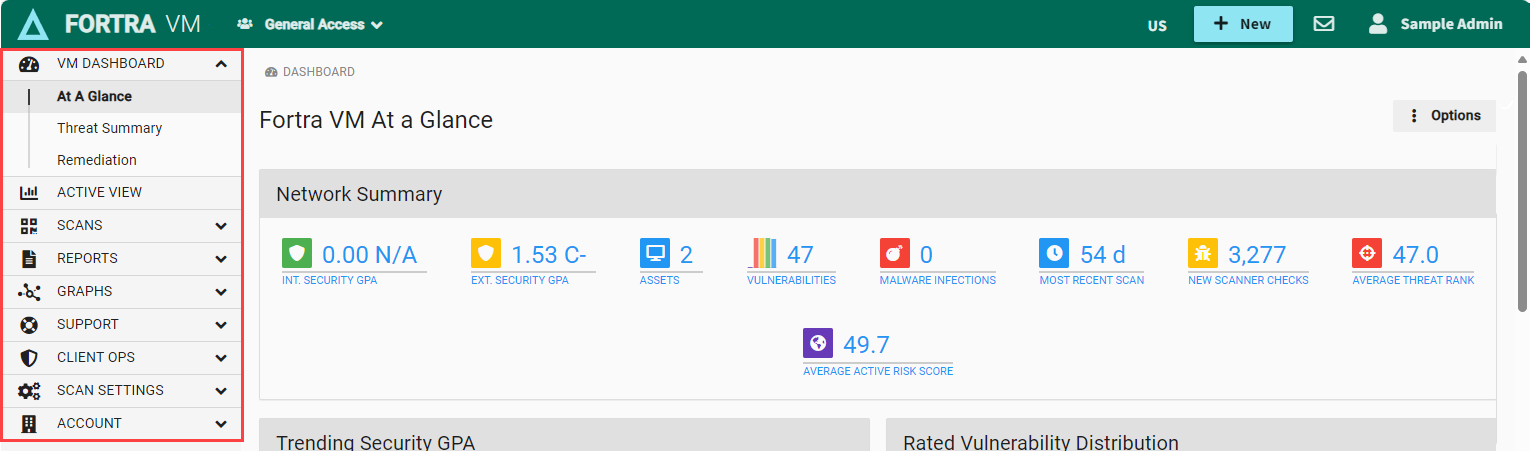
The navigation menu appears on every page and provides access to Fortra VM On-Premises tools and features. Select an item to expand it and view additional options.
Network summary
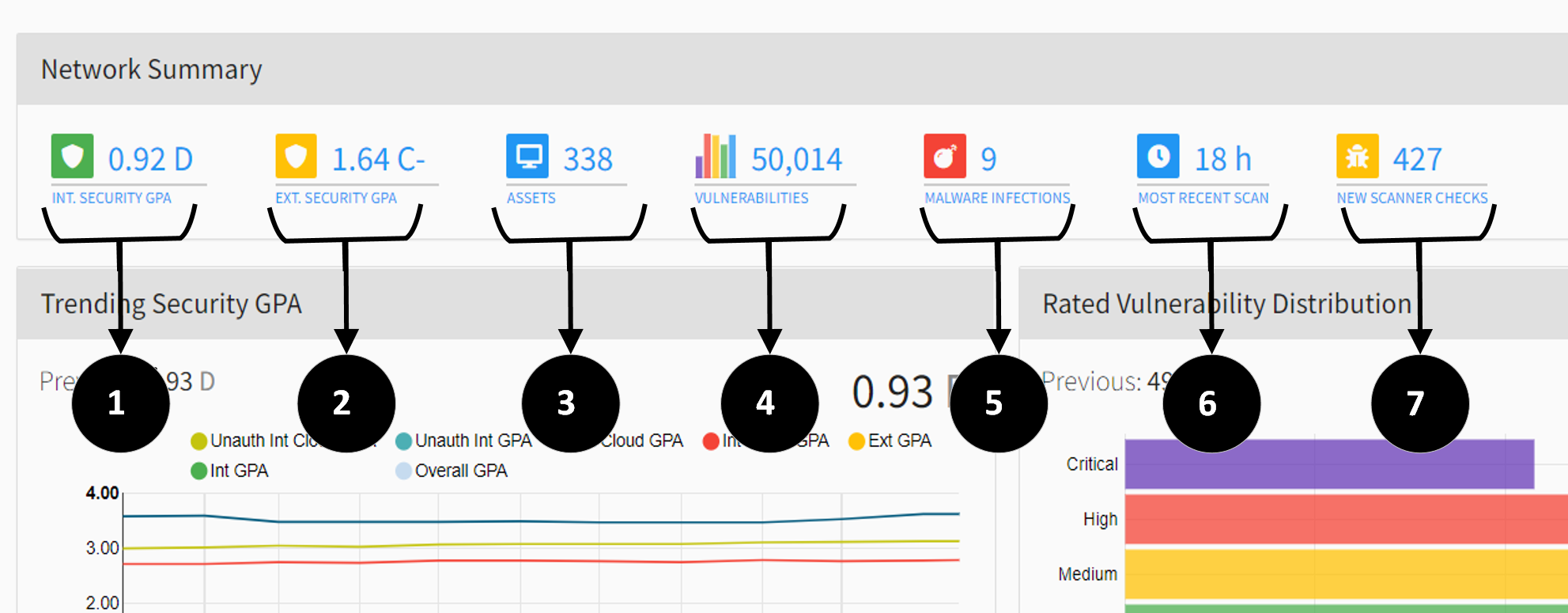
The Network Summary panel provides an overview of your network's security posture. Select an item to view the filtered data used to calculate the displayed value.
 Fortra VM On-Premises Network Summary components
-
Internal Security GPA
The weighted average of evaluated assets that are vulnerable to internal attacks.
-
External Security GPA
The weighted average of evaluated assets that are vulnerable to external attacks.
-
Assets
The number of evaluated assets identified in Fortra VM On-Premises.
-
Vulnerabilities
The number of vulnerabilities discovered in your environment.
-
Malware Infections
The number of new malware infections identified during the most recent scan.
-
Most Recent Scan
The time elapsed since the most recent scan completed.
-
New Scanner Checks
The number of consolidated vulnerability checks (CVCs) recently added to the scanner.
Trending graphs
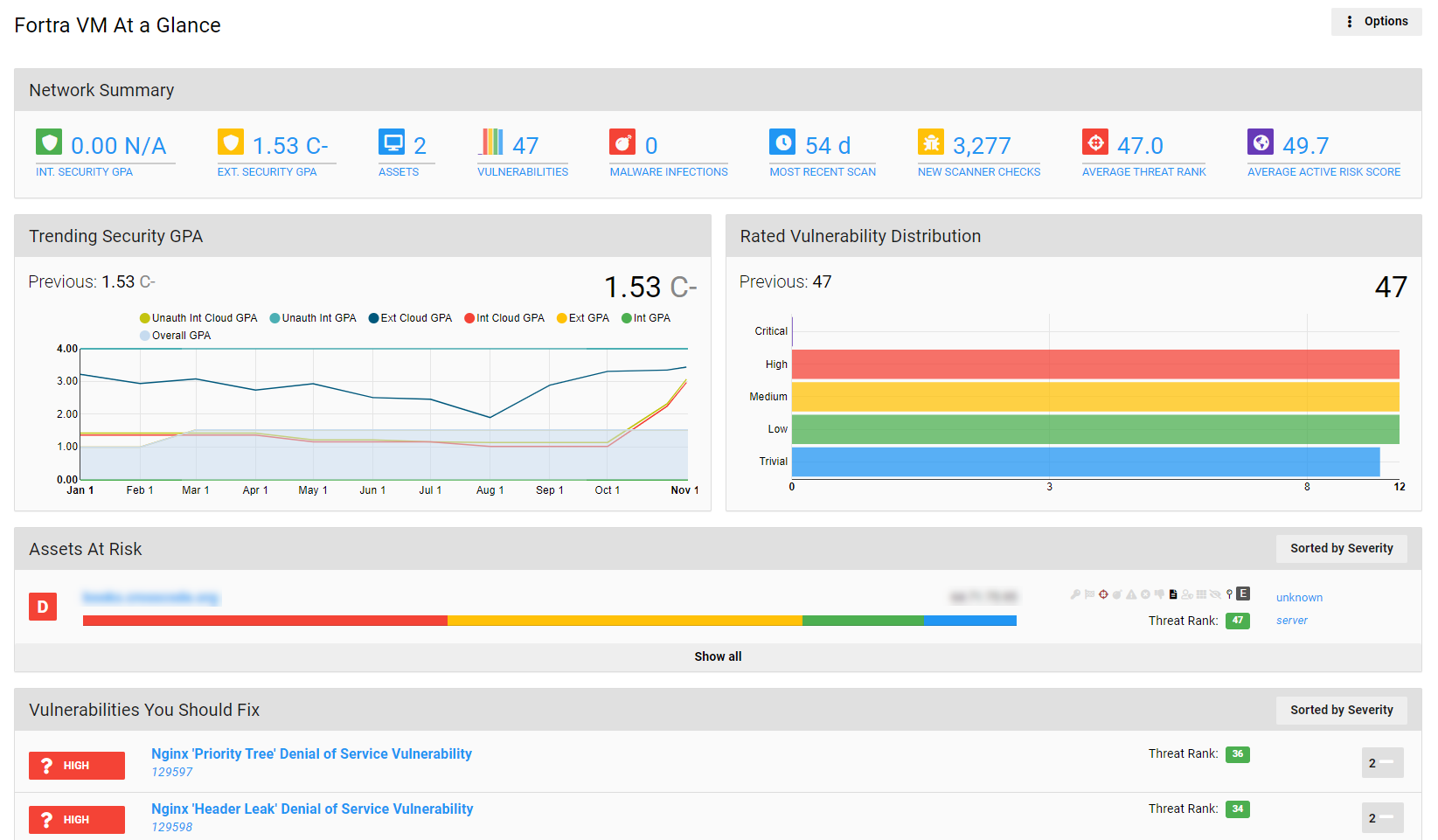
The At a Glance dashboard includes graphs that show vulnerability age and remediation-time trends. By default, only selected trend lines appear to highlight specific trends. Cloud statistics are also included in these graphs.
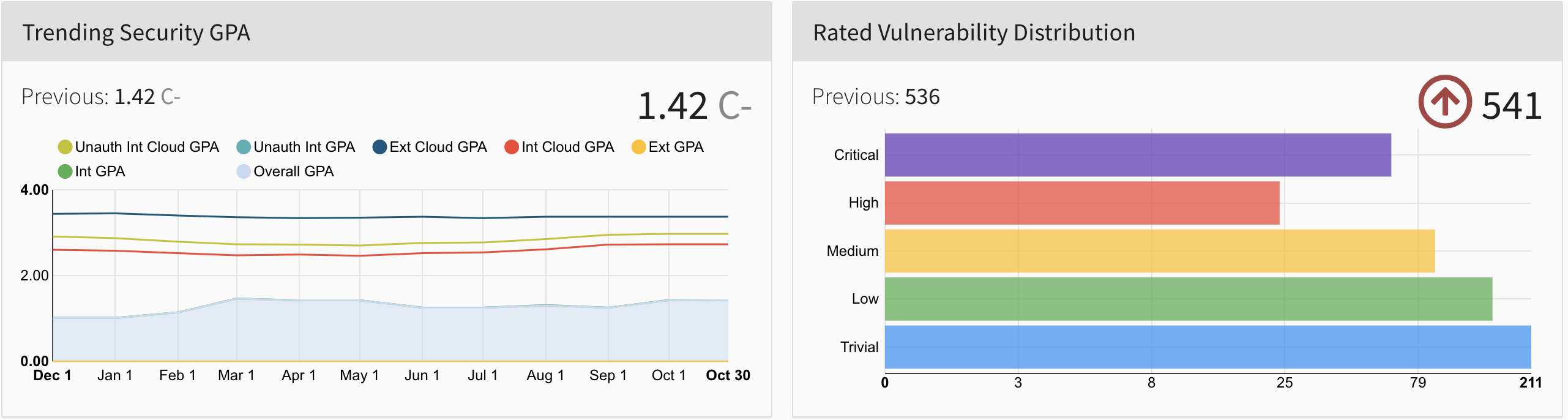
Security GPA trend graphs distinguish between Security GPA calculated from unauthenticated vulnerabilities and Security GPA calculated from all vulnerabilities. This distinction also appears in PDF reports.
Trending Security GPA
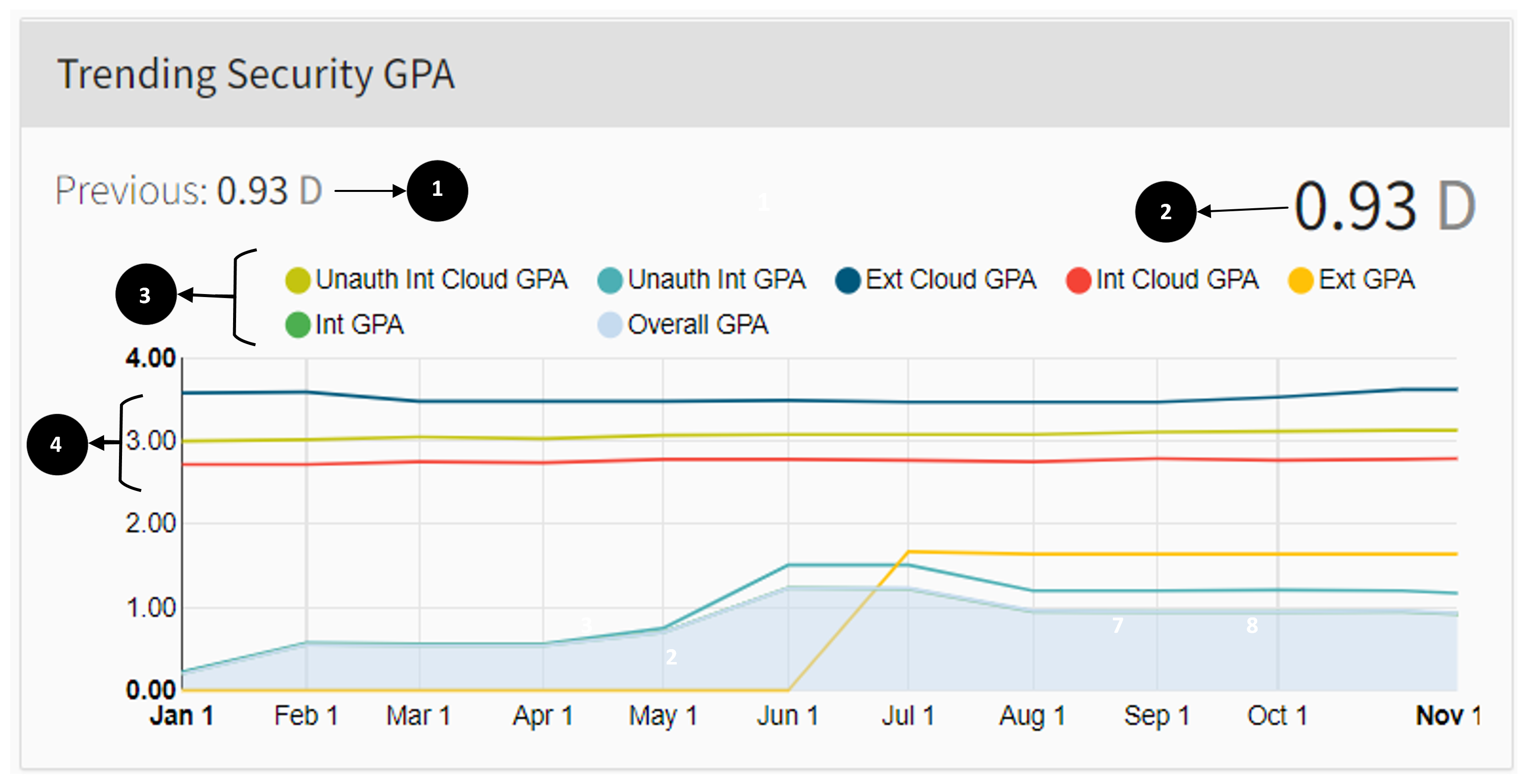
The Trending Security GPA panel shows changes to your Security GPA over time.
-
Your Security GPA before the most recent scan.
-
The Security GPA after the most recent scan.
-
Data sets shown as lines on the graph. Select a data-set label to show or hide it.
NOTE: Cloud GPA is an anonymous aggregate of customer data that you can use to compare your Security GPA with other organizations. -
The graph shows Security GPA trends over the past year and how changes in your environment affect the overall score.
TIP: Hover over a data point to view the Security GPA for that point in time.
Rated Vulnerability Distribution
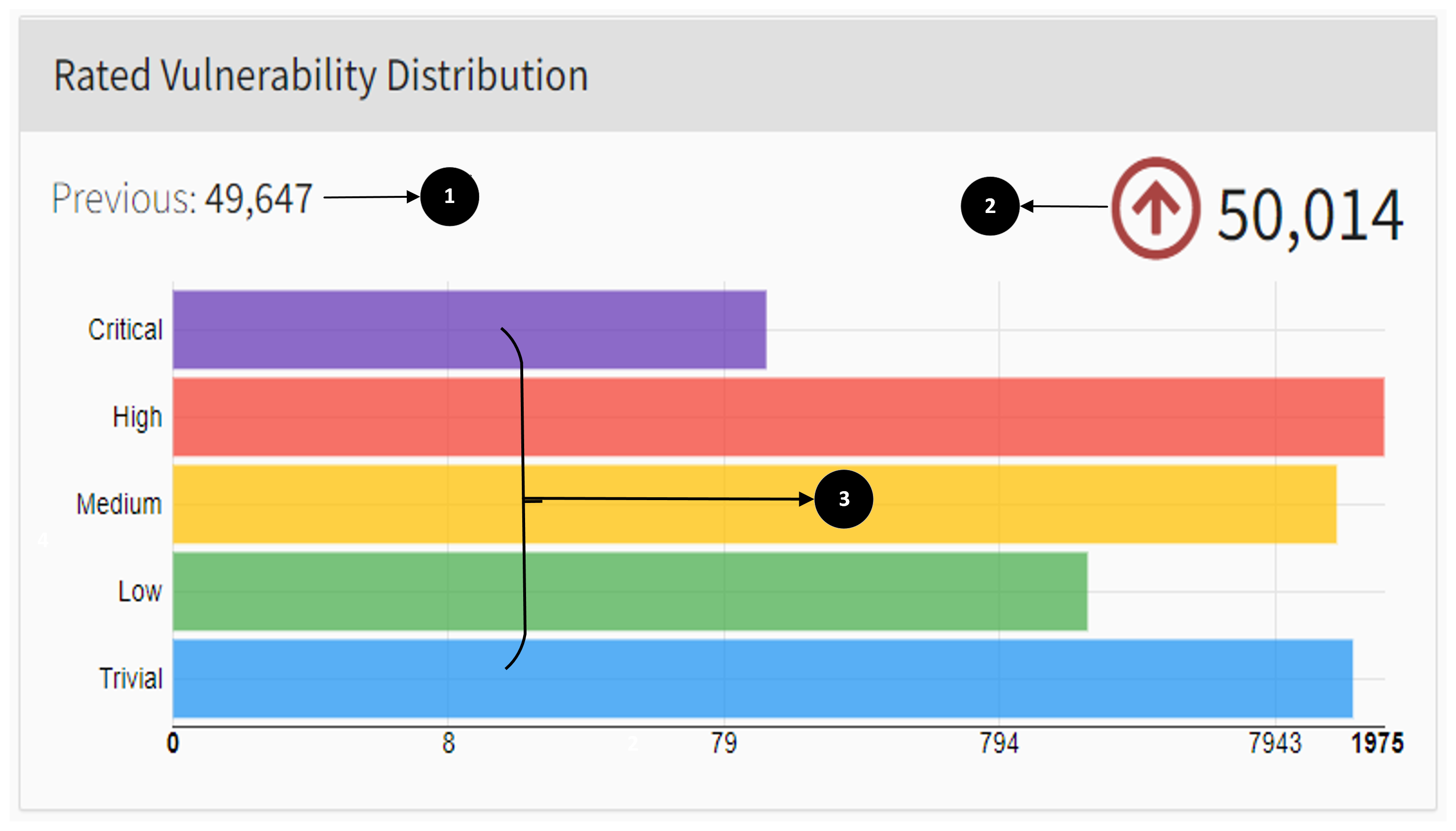
The Rated Vulnerability Distribution panel shows how vulnerabilities in your environment are distributed by severity.
-
The number of vulnerabilities detected before the most recent scan.
-
The number of vulnerabilities detected after the most recent scan.
-
Vulnerabilities grouped by severity:
-
Critical — Allows full system access and is easily exploitable.
-
High — Allows full system access but is not easily exploitable.
-
Medium — Allows some system access and partial control.
-
Low — Does not allow substantial system access but involved some information exposure.
-
Trivial — Tied to minor vulnerabilities but is not useful to an attacker.
TIP: Hover over or select a severity bar to view more information about vulnerabilities at that severity level. -
Assets At Risk
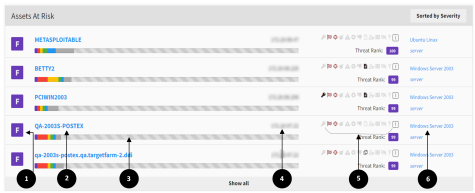
The Assets At Risk panel shows he five most vulnerable assets and lets you sort them by Severity or Threat Rank.
-
Asset's Security GPA.
-
Asset Name — Select to view vulnerabilities found on this asset.
-
Vulnerability severity distribution.
TIP: Hover over the severity graph to view details such as the number of medium-severity vulnerabilities detected on the asset. -
Asset IP address.
-
Asset status icons — Hover over an icon to view its description.
-
Asset operating system and type.
Vulnerabilities You Should Fix
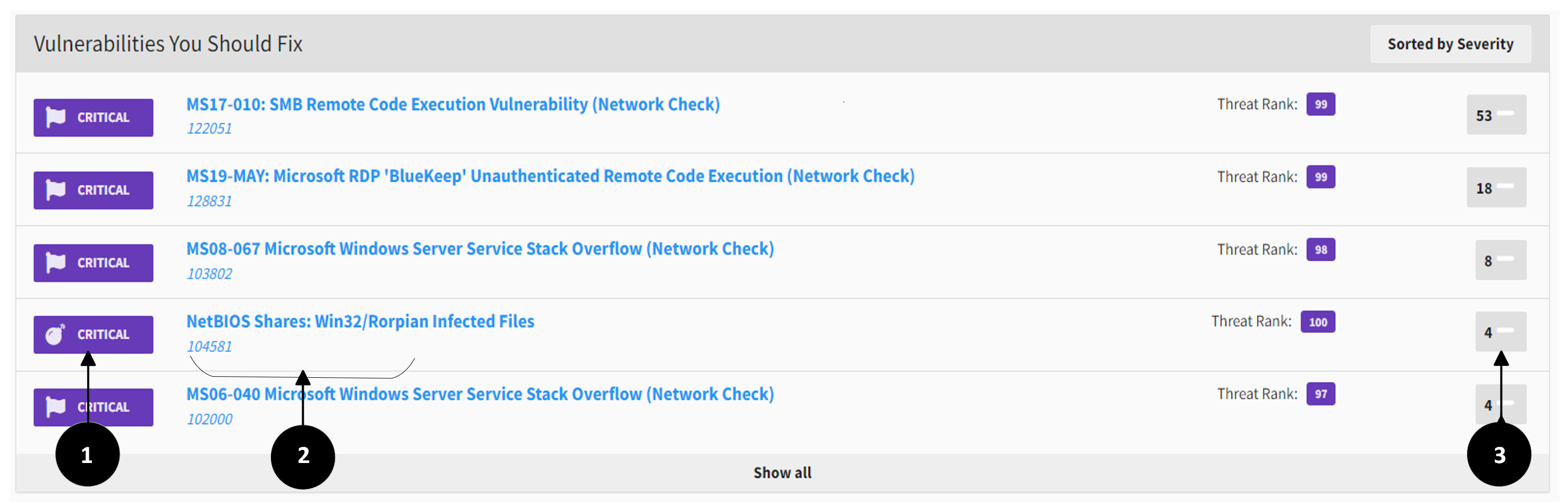
The Vulnerabilities You Should Fix panel shows vulnerabilities that require the most attention. You can sort the list by Severity or Threat Rank.
-
Vulnerability class and severity level:
-
Explicit
-
Potential
-
Recon
-
Compliance
-
Malware
-
-
Vulnerability description
-
Vulnerability instance on your environment
For more information, see What are vulnerability classes and severities?.
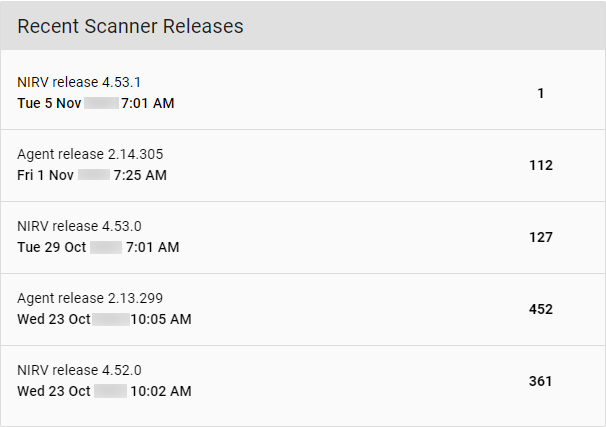
Recent Scanner Releases
The Recent Scanner Releases panel provides information about Network Scanner releases, including release notes and new checks. New checks link to Support > Vuln Dictionary.