Finding Information in Fortra VM
Fortra VM provides several ways to find vulnerability information in your environment. Search, filter, and show options are context-sensitive, so the available options and results depend on the current page.
.png)
Search
Select the search icon  to display the search bar. Search results depend on the current page. For example, if you search from Active View > Vulnerabilities, the results include vulnerability data.
When using the search bar:
- Search is not case-sensitive.
- Enclose search terms that contain spaces in double quotation marks. For example, "Windows 10".
Filter
Select the filter icon  to filter information the following ways:
Quick filter by label: Filter by system-generated or user-generated labels.
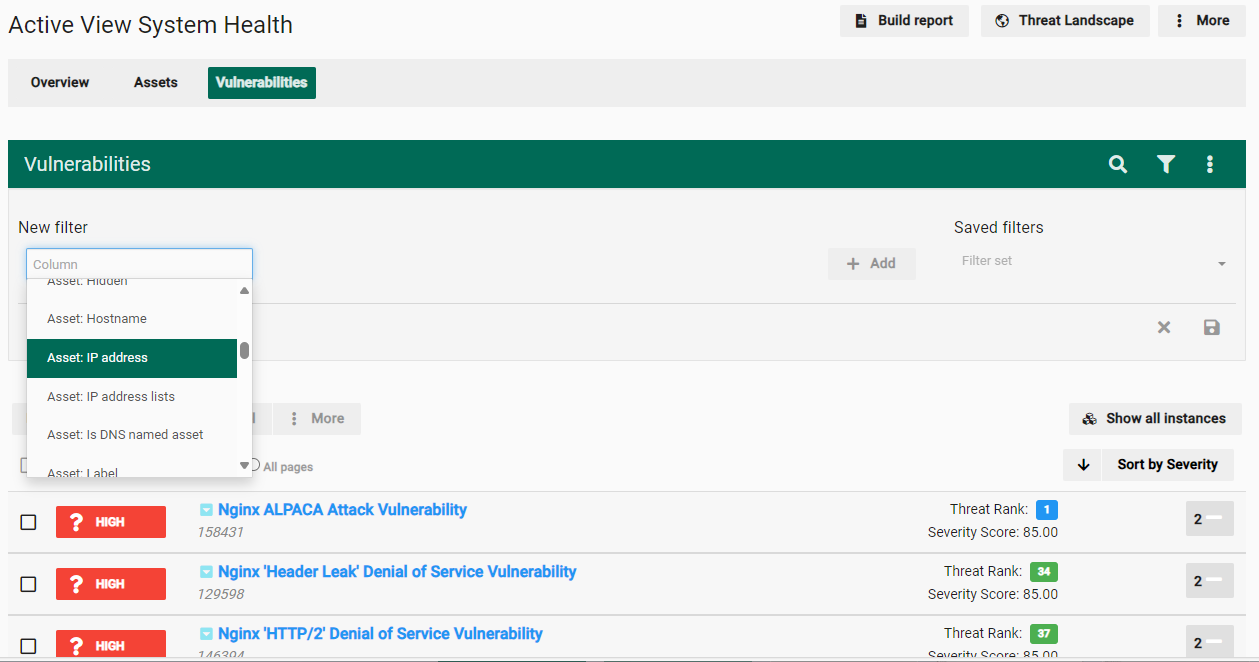
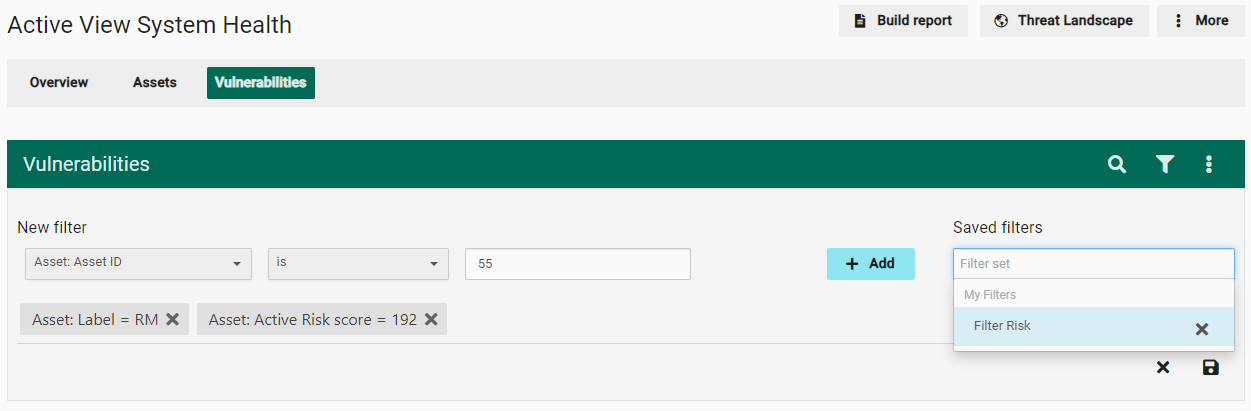
New filter: Create a filter by selecting a column and then selecting the criteria. After making your selections, select the Save icon, and then select Add.

Show
Select the show icon  to display additional information. Available options depend on the current page and can include:
-
Show hidden
-
Show acceptable risk
-
Show fixed