Virtual RNA Troubleshooting
Connectivity
Verify
- The virtual RNA is powered on in your hypervisor (VMware,
- The virtual RNA’s virtual network adapter is enabled in the virtual machine’s settings in the hypervisor.
- There is activity on the network (network allows connected machine’s outbound connectivity to HTTPS sites, [for example, Google]).
-
View the console of the vRNA and see if there are any error messages on reboot. (Keep connected. See below.)
Configuration Verification
Verify the TCP/IP settings assigned to the RNA. These settings can be viewed by drilling into the Internal Network Profile within Fortra VM. They include:
-
IP Address - The IP address for the scanner.
-
Netmask - The subnet mask for the scanner.
-
Gateway - The IP address for the gateway device available to the scanner.
-
Primary DNS - The IP address for the DNS server available to the scanner.
External RNA IPs
The RNA will utilize the following external IP addresses as the source of scanning traffic. Set these IPs to your allow lists to facilitate all Fortra VM scanning.
us.frontline.cloud External RNA IPs
3.91.114.138
3.138.53.66
3.141.139.5
3.141.173.8
3.146.42.96/27
3.217.24.124
3.219.143.59
3.222.21.65
3.234.19.229
18.119.31.28
18.189.0.135
18.233.91.252
44.213.167.13
52.13.110.124
52.32.146.206
52.39.199.83
54.144.81.241
54.190.210.87
54.191.129.125
209.163.151.0/24
uk.frontline.cloud External RNA IPs
3.8.36.25
13.50.164.192/27
35.178.136.143
35.178.163.231
jp.frontline.cloud External RNA IPs
18.177.132.124
18.178.24.42
18.178.53.188
18.182.162.60
35.75.27.80
se.frontline.cloud External RNA IPs
13.50.164.192/27
ch.frontline.cloud External RNA IPs
51.34.10.61
51.34.12.160
51.34.16.114
51.34.5.57
Debugging Console
From the RNA console, select Console for network debugging.
It is recommended that you run the status, and ping commands first to determine if you have basic network connectivity.
RNA Console
The following terminal commands are available to troubleshoot network connectivity:
Common Issues and Solutions
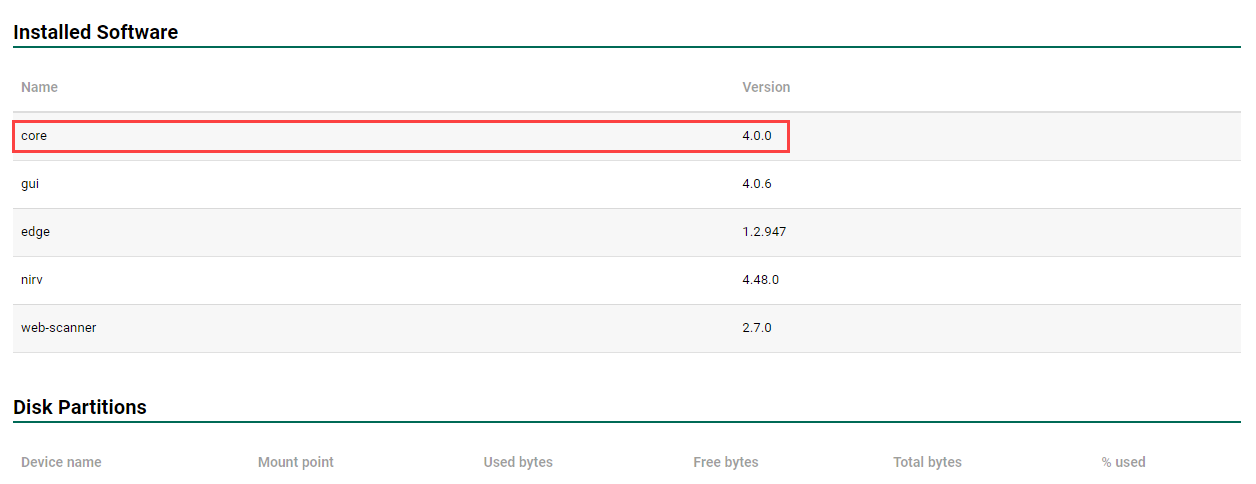
To determine which version of the RNA platform you're running, locate the core version description for the activated RNA in question. From the navigation pane, select the Scan Settings > Scanners. Select the RNA you're investigating and scroll down to locate the Installed Software section. The core item lists the RNA platform version.
RNA Console
Before attempting troubleshooting measures, verify there is nothing that blocks a WebSocket connection outbound, such as a firewall or web proxy.
-
Check for the following:
-
Perimeter security device port restrictions
-
IDS / IPS / Firewall / Web Proxy rules that could be blocking outbound traffic.
-
-
Add specific rule to your Perimeter Security Device/IDS/Web Filtering devices to allow all outbound traffic to the domains specified in the Troubleshooting section.
-
Contact the network security device monitoring company to ensure the domains are not block-listed.
-
Request the domains be allow-listed instead.
-
Since the RNA is not "logging in" as an authenticated user on your network, it will not receive the policies in effect to allow it to transmit data.
Troubleshooting
threatapi.<lineup domain>
updates.<lineup domain>
checkpoint.<lineup domain>
docker.<lineup domain>
edge-uplink.<lineup domain> - Uses a secure Websocket connection. You may need to allow outbound TCP port 443 in your web proxies or other security software.
scanner-support.<lineup domain> - Uses SSH and outbound TCP ports 443 or 22. Use the toggle command to switch between ports 443 and 22 when remote support is enabled.
Where <lineup domain> above could be:
us.frontline.cloud
uk.frontline.cloud
jp.frontline.cloud
se.frontline.cloud
ch.frontline.cloud
Domains required regardless of lineup:
*.touchback.frontline.cloud - The subdomains for this domain are dynamically generated during scans. To allow some vulnerability detections to function, the scanned host will need to attempt to resolve the dynamically generated domain.
Testing Connectivity
Run the following utility to verify proper connectivity from the RNA console. This command can be used to check if the RNA can connect to the specified domain to help rule out connectivity issues prior to requiring support:
nc -v <domain> 443
The command checks connectivity and then prints a status message to the command line.
Additionally, it is recommended to run traceroute -T -p 443 -n edge-uplink.<lineup domain>. It may help diagnose a connectivity issue and would be helpful to have in any submitted support requests.