Creating a New Virtual Folder
Virtual folders reference folders in the cloud. Similar to a Windows shortcut, a virtual folder is only an alias for the real folder.
When you create a virtual folder, you do not have to give it the same name as the folder it references. You cannot change the name of a virtual folder, but you can delete the virtual folder and then re-create it with a new name. EFT must have access to the remote location.
To create a new Virtual folder
-
In the administration interface, connect to EFT and click the VFS tab.
-
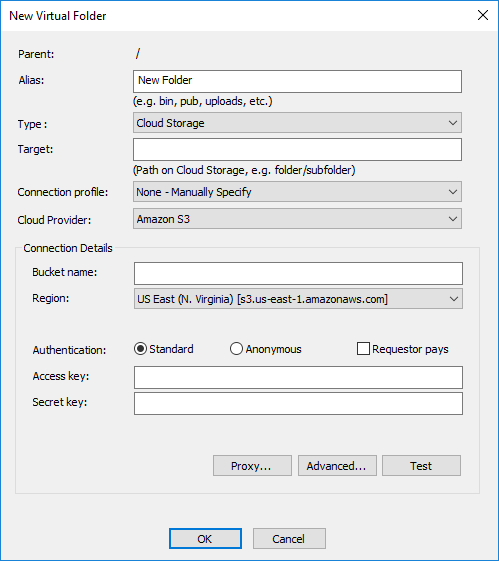
In the left pane, click the folder in which you want to add a virtual subfolder, then right-click the folder, and click New Virtual Folder. The New Virtual Folder dialog box appears.
-
In the Alias box, type a name for the folder. For example, type Shared.
- In the Type box, click Cloud Storage. (EFT Arcus does not have access to local storage for security reasons.)
-
In the Target box, specify the target folder by typing the path.
-
Click OK. The new virtual folder appears in the tree with the name that you typed in the Alias box, plus "Virtual" and the full path. For cloud storage, the VFS name appears as Alias - Virtual(Type://Info/Target)". Where:
-
Alias = name of folder
-
Type = S3\Azure\CP
-
Info = short details of Storage or Connection Profile name
-
Target = relative path on Storage
For Proxy configuration, refer to Configuring Advanced Proxy Settings.
For Advanced options, refer to Advanced Transfer Options.
Click Test to verify configuration can access the Target.