Creating SSH2 Key Pairs
To create your own Private and Public key for SSH2 connections
-
On the main menu, click Tools > Global Options, or press ALT+F7.
-
Expand the Security node, then click SSH2 security.
-
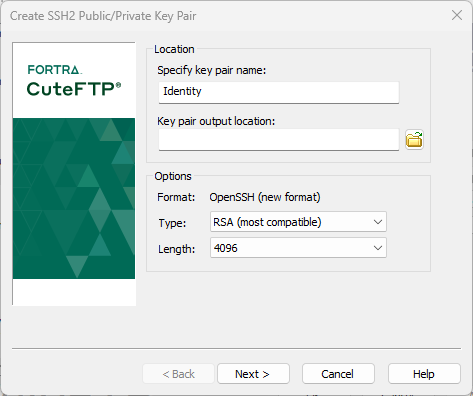
Click Create identity file. The Create public/private key pair wizard appears.
-
In the Key type box, click RSA, DSA, ECDSA, or ED25519. CuteFTP 9.4 supports additional algorithms compared to previous versions. A DSA key is required for SSH2, RSA key is most compatible, while ECDSA is recommended. In the Key length box, specify a key length of 2048, 4096 or 8192 bits. Shorter keys are faster but less secure; longer keys are more secure but slow connections.
-
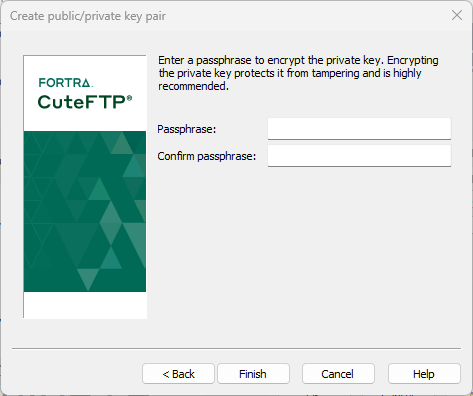
Click Next. The password page appears.
-
In the Passphrase and Confirm Passphrase boxes, type any combination of characters and spaces, then click Finish. CuteFTP generates the keys. Longer keys take more time to generate.
-
A confirmation message appears with the path and name of the keys. If you want CuteFTP to use the keys just generated, select Yes.
-
Click OK to close the Global Options dialog box.
For added security, before closing the Global Options dialog box, clear the Passphrase and Confirm passphrase fields in the SSH2 Security page. CuteFTP then prompts for the identity file's secret key passphrase when required for connection to a SFTP Site.
Related topics