Finding Information in the Help
You can find information in the Help in several ways.
-
Hyperlinks
-
Related Topics
-
Using Contents, Index, Search, Favorites, Glossary, and Print:
-
Contents - Displays a logical organization of the help topics, similar to chapters in a book. Click a main heading (represented by a book icon) to display pages that link to topics, and click each sub heading (represented by a page icon) to display the corresponding topic in the right pane.
You can close the table of contents by clicking the x in the corner of the Contents pane; click Contents on the toolbar to display the table of contents.
Index - Displays an alphabetical listing of all of the topics as well as numerous keywords.
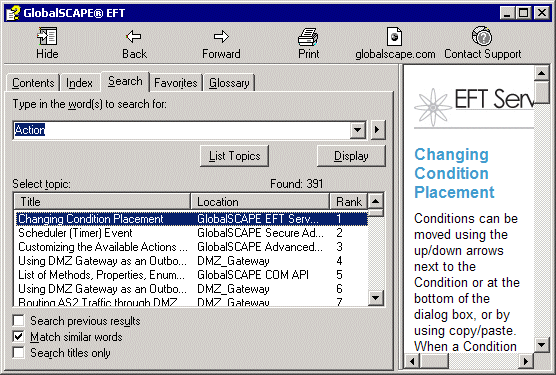
Search - Allows you to locate words or phrases within the content of the topics. Type the word or phrase in the text box, press ENTER, then click the topic you want from the list of topics that appears. In the application's help, you can search using Boolean (OR, AND, and NOT) and wildcard expressions (*, ?). Wildcard searches are not available in Web Help. You can sort the search results by Rank, Title, or the Location column. The Location column displays the name of the helpset.
Favorites - (This option is only available in the application's help, not WebHelp.) Allows you to save a frequently viewed topic to the Favorites tab in the application's help. Click Add to add the topic you are viewing to the Favorites tab. To remove a topic, click the topic then click Remove. To display a topic, double-click it or click the topic, and then click Display.
Glossary - Displays a list of words, short phrases, and their definitions. When you select a term from the Term list, its corresponding definition is displayed in Definition.
Print - Opens your computer's Print dialog box from which you can specify a printer to print the topic that is displayed in the right pane. In the application help, you have the option of printing the topic only, or the main heading topic and all subtopics in that heading. (Alternatively, see the procedure below.)
Searching the Help File
When searching, try several different words for the same concept. For example, if you want help with using a script in an Event Rule, search for command, script, vb, batch, and so on. Also, we have attempted to provide intuitive names for the topic titles. The Contents and the Index contain the topic titles of every topic in the user guide. So, in this example, if you are looking for a procedure on how to create a command, look for the topic "Creating a Command."
Printing a Help Topic
The User Guide is available as a PDF.
-
Click Print Topic in the Navigation pane, or right-click in the topic (in the right pane), and then click Print. The Print dialog box for your operating system appears.
-
In the Print dialog box, click Print. The topic is printed to the specified printer.