Locking Out an Administrator Account
EFT can automatically lock out an administrator account after a specified number of incorrect login attempts over a specified time.
Instruct administrators regarding the timeout setting, after which they can try to log in again. If they are unable to wait for the lockout to timeout, use the procedure below to enable the account.
To disable or remove an account after a defined number of incorrect login attempts
-
In the administration interface, connect to EFT and click the Server tab.
-
On the Server tab, click the Server node you want to configure, and then click the Administration tab.
-
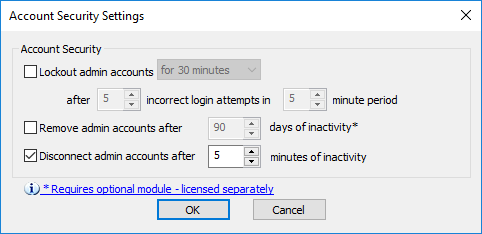
Click an EFT-managed administrator account, then click Account Policy. The Account Security Settings dialog box appears.
-
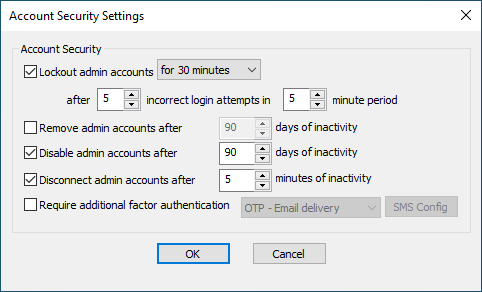
Select the Lockout administrator accounts check box, then specify the length of time the account is to be locked out, the number of incorrect login attempts to count, and the period during which to count the attempts.
-
For PCI DSS/ high-security Sites, after a maximum of 10 unsuccessful login attempts, the account should be locked out for at least 30 minutes or until they verify their identity through the help desk or other means.
-
-
Click OK to close the dialog box.
-
Click Apply to save the changes on EFT.
To enable an account that has been locked out
-
In the administration interface, connect to EFT and click the Server tab.
-
On the Server tab, click the Server node you want to configure, and then click the Administration tab.
-
Click the EFT-managed administrator account that is locked, and then click Account Policy. The Administrator Account Security dialog box appears.
-
Clear the Lockout check box.
-
Click OK to close the dialog box.
-
Click Apply to save the changes and enable the locked out account.
Related Topics