Fortra’s Threat Brain
The Threat Brain feature in EFT integrates with Fortra Threat Brain to automatically evaluate connecting IP addresses and block those identified as malicious. Threat Brain uses reputation scores based on data from many external sources and adds high risk IPs to EFT’s auto ban list.
Threat Brain is part of the core EFT Server feature set and is unlocked with an EFT Server core license.
-
An IP Access Allow rule controls access but does not disable Threat Brain evaluation.
-
Allowlisted IP addresses remain eligible for reputation revalidation by design.
-
Threat Brain evaluation occurs on new connection sessions, not on every operation within an existing persistent connection.
-
EFT caches non-blocking results for up to five minutes, so not every new session necessarily generates an external REST API call.
-
After the cached result expires, a later connection can cause EFT to query Threat Brain again.
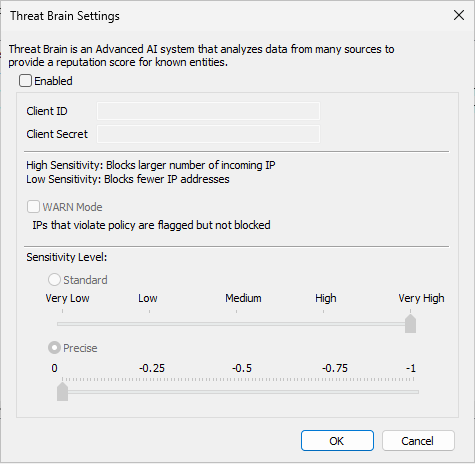
Accessing Threat Brain Settings
Threat Brain is configured from the EFT administration interface. It can be configured at both the EFT Server administrator level and the Site administrator level.
Configuring Threat Brain Settings at the Site level
-
In the EFT administration console, go to the Connections tab for the site.
-
Select Configure in the IP Access/ban list.
-
Click Threat Brain to open the Threat Brain Settings dialog.
Configuring Threat Brain Settings at the Server level
1. In the EFT administration console, go to the Administration tab under the server (Localhost).
2. Enable and configure Allow remote administration (Review Remote Administration).
3. Select Configure in the IP ban/access list for remote administration.
4. Click Threat Brain to open the Threat Brain Settings dialog.
Only users with EFT Server administrator or Site administrator permissions can view or modify Threat Brain settings.
Enabling Threat Brain
Threat Brain is disabled by default.
To enable Threat Brain:
-
Open the Threat Brain Settings dialog.
-
Enter the Client ID and Client Secret.
-
Both fields are required to enable Threat Brain.
-
The Client Secret is obfuscated after it is saved.
-
The Client ID and Client Secret are provided by your Fortra Sales Represantive.
-
-
Configure the desired sensitivity and (optionally) WARN mode (see below).
-
Click OK or Apply to save your changes.
You cannot save Threat Brain settings unless both Client ID and Client Secret are provided.
Once configured, EFT makes real-time REST API requests to Fortra’s Threat Brain when protocol connection requests are received, subject to temporary result caching, to determine whether the connecting IP address is benign, suspicious, or malicious. IP addresses included in IP Access Allow rules remain eligible for Threat Brain revalidation.
If EFT cannot connect to Threat Brain:
-
EFT logs an error similar to: ERROR: Threat Brain not available, IP x.x.x.x has not been verified
-
EFT does not block the connection solely because Threat Brain is unavailable.
-
If authentication to Threat Brain fails, EFT logs: Failed to log in to Threat Brain. Status code: 401
Sensitivity Modes and Sliders
Threat Brain uses a reputation score between −1 and 1 to classify IP addresses:
-
Values close to 1 indicate trusted/benign.
-
Values near 0 indicate neutral.
-
Values close to −1 indicate malicious.
In the Threat Brain Settings dialog, EFT provides two sensitivity modes, each with its own slider. Only one mode can be active at a time.
Standard Mode
-
Standard is selected by default.
-
When Standard is selected:
-
The Standard slider is active.
-
The Precise slider is dimmed.
-
-
The Standard slider allows you to set the Sensitivity Level from Very Low to Very High (similar to the existing Flood/Hammer slider). There is no OFF setting.
Standard slider levels map to reputation thresholds internally as follows:
-
Very Low = 0
-
Low = −0.25
-
Medium = −0.5
-
High = −0.75
-
Very High = −1
Reputation verdict definitions:
-
Trusted: 1 ≥ x > 0.5
-
Benign: 0.5 ≥ x > 0
-
Neutral: x = 0
-
Suspicious: 0 > x ≥ −0.5
-
Malicious: −0.5 > x ≥ −1
At the bottom of the sliders, EFT displays explanatory text:
-
High Sensitivity: Blocks a larger number of incoming IP addresses.
-
Low Sensitivity: Blocks fewer IP addresses.
Precise Mode
-
When Precise is selected:
-
The Precise slider is active.
-
The Standard slider is dimmed.
-
-
The Precise slider provides finer control over the reputation threshold and is configured from −1 to 0.
-
The Precise slider includes 5 markers:
-
−1, −0.75, −0.5, −0.25, 0
-
Internally, the same reputation scale applies (0 to −1, with values closer to −1 being more malicious). Use Precise mode when you need tighter control over which reputation scores will trigger an auto ban.
Only one mode (Standard or Precise) can be selected at a time; the inactive slider is always dimmed.
WARN Mode
WARN mode allows you to observe Threat Brain detections without blocking traffic.
-
WARN mode is disabled by default.
-
When WARN mode is enabled:
-
EFT still sends requests to Fortra’s Threat Brain.
-
IPs flagged by Threat Brain are not automatically added to the auto ban list.
-
Any IP flagged by Threat Brain is logged in the EFT logger as a WARN message.
-
-
When Threat Brain is not configured or enabled (for example, Client ID/Secret are missing), WARN mode controls are unavailable (dimmed).
Use WARN mode when you want to validate the impact of Threat Brain settings in your environment before enabling automatic blocking.
Interaction with IP Access Allow Rules
An IP address included in an EFT IP Access Allow rule is not excluded from Threat Brain evaluation. Allow rules determine whether EFT permits the connection; they do not permanently exempt or mark the IP as trusted by Threat Brain.
When Threat Brain is enabled, EFT continues to evaluate allowlisted IP addresses during subsequent new connection sessions. This revalidation helps ensure that an IP address previously considered safe has not developed a malicious reputation.
EFT temporarily caches non-blocking Threat Brain results for up to five minutes. During this cache period, subsequent connections from the same IP might not generate another external Threat Brain request. After the cached result expires, a later connection can cause EFT to query Threat Brain again.
Threat Brain evaluation occurs on client connection requests, not on every protocol operation performed within an existing persistent connection.
Interaction with Flood/Hammer Auto Ban
Threat Brain works in conjunction with EFT’s existing Flood/Hammer auto ban system:
-
Flood/Hammer auto ban must be enabled to automatically add Threat Brain identified IPs to the auto ban list.
-
If Flood/Hammer is set to OFF:
-
Threat Brain settings can still be configured.
-
Threat Brain will not add IP addresses to the auto ban list, even if they are identified as malicious.
-
For more information on Flood/Hammer auto ban behavior, see the existing “Flooding and Denial of Service Prevention” documentation.
Logging and Monitoring
EFT provides logging options to monitor communication with Threat Brain and the resulting actions:
-
Logging levels
-
INFO is the default logging level for Threat Brain.
-
TRACE can be enabled to view more detailed information about communication between EFT and Threat Brain.
-
-
Auto-ban entries
-
When an IP address is added to the auto ban list by Threat Brain:
-
The log entry includes the Threat Brain sensitivity/threshold setting that was active.
-
The log entry includes the reputation score returned by Threat Brain.
-
The auto ban Reason column includes the text “Threat Brain”.
-
-
-
Connectivity and error conditions
-
If EFT cannot log in to Threat Brain or Threat Brain is unavailable, the logger records appropriate ERROR messages, such as:
-
Failed to log in to Threat Brain. Status code: 401
-
ERROR: Threat Brain not available, IP x.x.x.x has not been verified.
-
-
Connections are allowed to proceed if Threat Brain cannot be reached.
-