Configuring User SFTP Authentication Options
(Requires the SFTP module) Enable and configure SFTP on the Site first, then specify the SFTP authentication options for the Settings Template and user accounts. You can assign multiple SSH keys to users.
To specify SFTP authentication options for a user account or Settings Template
-
In the administration interface, connect to EFT and click the Server tab.
-
On the Server tab, click the Settings Template or user that you want to configure.
-
In the right pane, click the Connections tab.
-
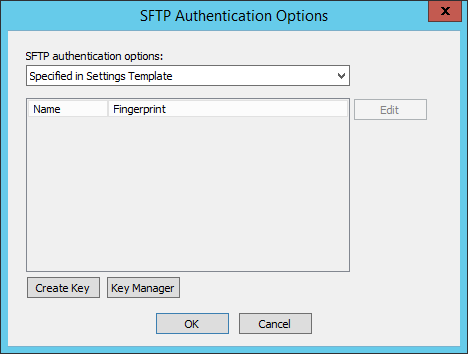
In the Protocols area, select the SFTP (SSH2) check box, then click SFTP Auth. The SFTP Authentication Options dialog box appears.
-
In the SFTP authentication options list, specify whether user are to connect using Password only, Public key only, Public Key & Password, or Public key or Password.
-
Compliance with PCI DSS requires that users change their password upon initial login. Because the Public key only method does not use a password, it potentially violates the PCI DSS and is, therefore, not available on Sites defined using the "strict security settings" option. You can, however, use the Public Key and Password method.
-
-
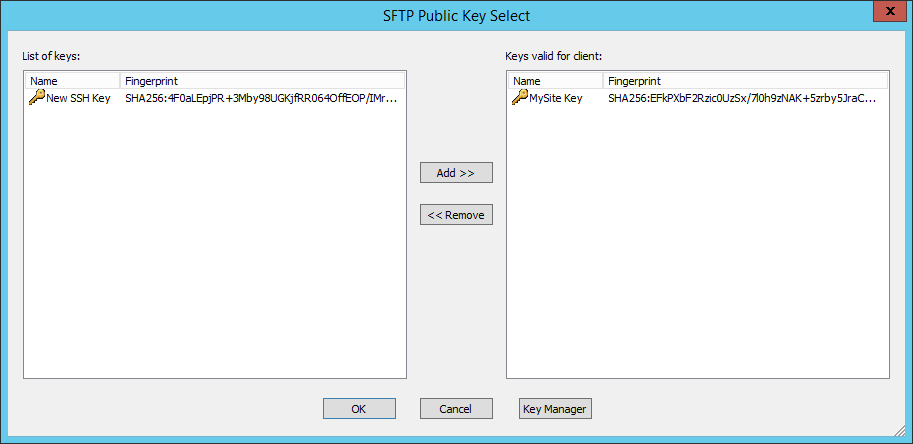
If you selected any option besides Password only, click Edit. The SFTP Public Key Select dialog box appears.
-
The SFTP public keys that are defined for this Site appear in the List of keys. If no keys appear, click Key Manager to import keys.
-
-
In the List of keys box, double-click the key(s) to use, or click each key, and then click Add. The selected key(s) appear in the Keys valid for client list.
-
Click OK to close the SFTP Public Key Select dialog box. The selected key(s) appear in the Authentication key list.
-
Click OK to close the SFTP Authentication Options dialog box.
-
Click Apply to save the changes on EFT.
Viewing SSH Fingerprint Details for Incoming Connections in EFT ARM
Overview
In EFT 8.3.2 and later, the Negotiated SSH Ciphers ARM report has been enhanced to include SSH fingerprint details for incoming (inbound) SSH connections, not just outbound.
This allows administrators and security teams to:
-
Identify which SSH key fingerprint was used by a connecting user.
-
Distinguish whether the EFT server or the client acted as the SSH role in the session.
-
Generate more complete security and compliance reports for SSH activity.
This enhancement is available in:
-
Standard ARM reports
-
High Availability (HA) ARM reports
-
Both SQL Server and Oracle ARM databases