
For information about Globalscape, visit www.globalscape.com. |
|
|
For information about Globalscape, visit www.globalscape.com. |
|
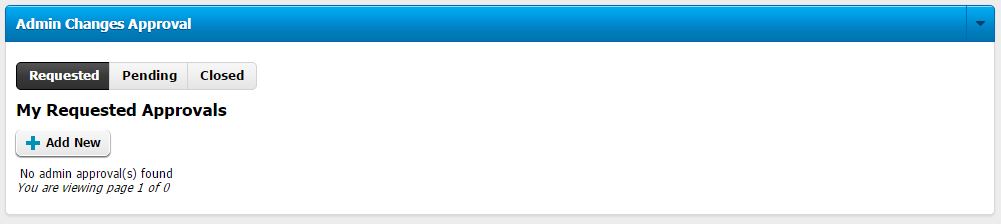
EFT Web Admin can be configured so that any change must be approved by at least one other administrator. If Admin Changes Approval is enabled, you must submit a change request. All administrators can vote to accept or decline admin changes. Admin changes include grant/revoke permissions to users, grant/revoke permissions to Roles, add/remove user to/from Role or add/remove Role to/from user. Admin Changes approval is disabled by default, so nothing appears on the Approvals page. When Admin Changes Approval is enabled, changes aren't applied until they are approved. You can remove requests that you make, but you can't approve requests that you make; only other admins can approve your requests. You can also view closed requests on this page.
|
|
You must already have created the minimum number of administrators in EFT Web Admin; after making this change to web.config, you won’t be able to add a user to the Administrators Role unless it is approved by the minimum votes. |
In addition to how to enable Admin Changes Approval, the procedures below describe how to:
To enable Admin Changes Approval
In the EFT Web Admin installation folder, open the web.config file. (e.g., C:\Program Files (x86)\Globalscape\EFT WebAdmin\webapps\EFTWebAdmin)
Search for the following settings:
<setting name="MinNumberApproveVotes" serializeAs="String">
<value>0</value>
</setting>
<setting name="MinNumberDenyVotes" serializeAs="String">
<value>0</value>
</setting>
Change <value> from 0 to 1 or larger. You can require multiple administrators to "vote" on whether a change is approved or denied. For example, if you want to allow the Account admin to approve changes, and also want another administrator to verify, you would change the 0 to 2.
Refresh the page to see the change.
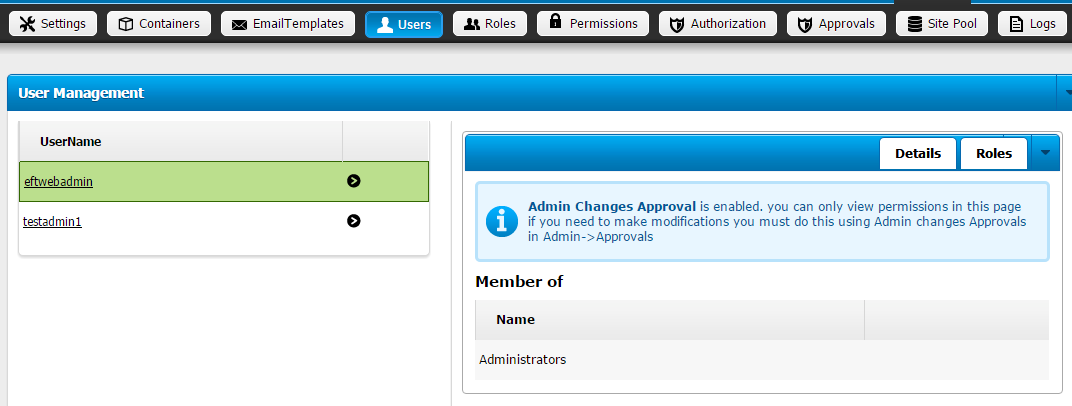
The following options are read-only when Admin Change Approval is enabled:
Users > Roles tab (as shown below)
Roles > Users tab
Permissions View
Authorization View
To submit an Admin Change Request
Login as an admin user.
Click Admin, then click Approvals.
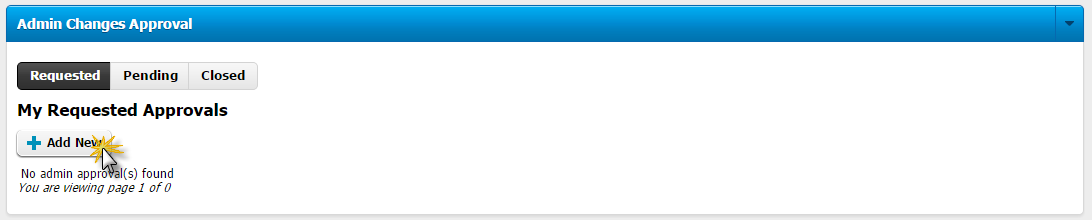
Click Requested.
Click Add New. The Request New Admin Change Approval options appear.
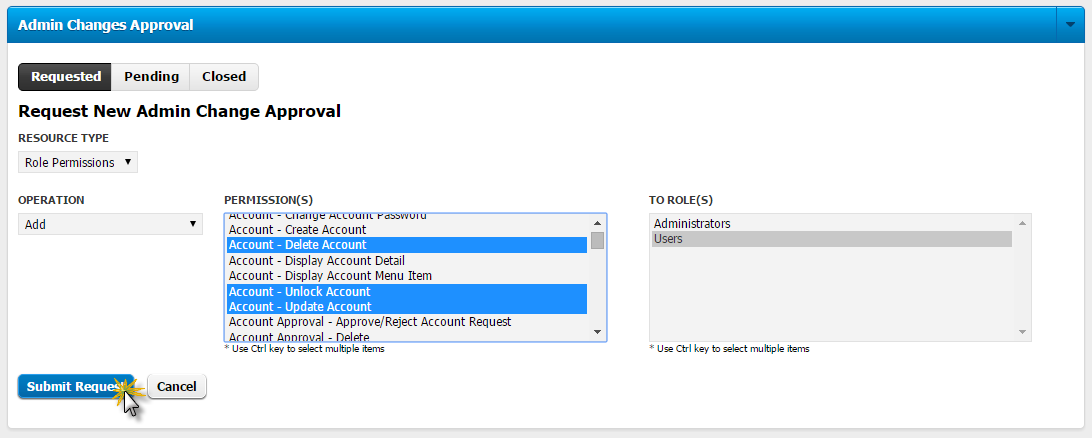
Specify the Resource Type:
User Permissions
Role Permissions
Role Member
Specify an Operation:
Add
Remove
Specify the Permission or Role that you want to add or remove to Roles or Users. (The options change depending on which Resource Type you specify.)
Click Submit Request.
Your request appears on the My Requested Approvals page.
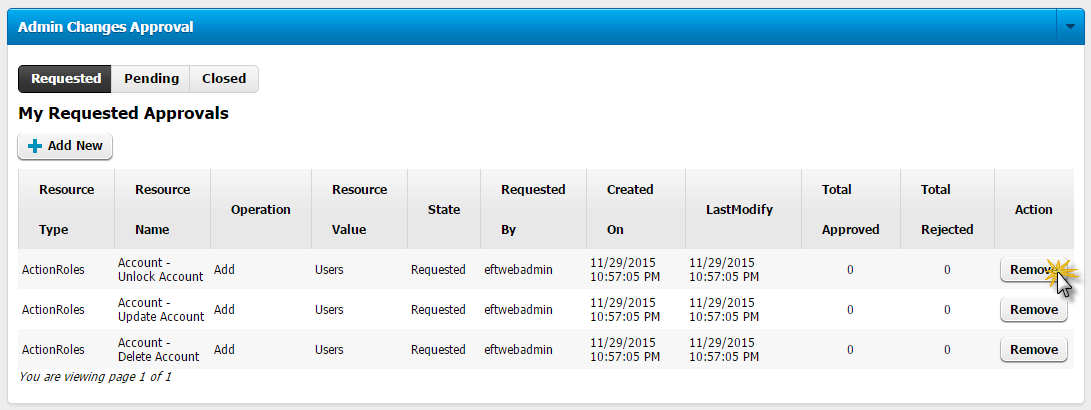
When an Admin Change is requested, it appears on the My Requested Approvals page. You can remove requests that you have made.
Click Admin, then click Approvals.
Click Requested.
Click Remove for each request that you want to remove.
To approve or deny Admin Changes
Click Admin, then click Approvals.
Click Pending. Changes pending approval appear.
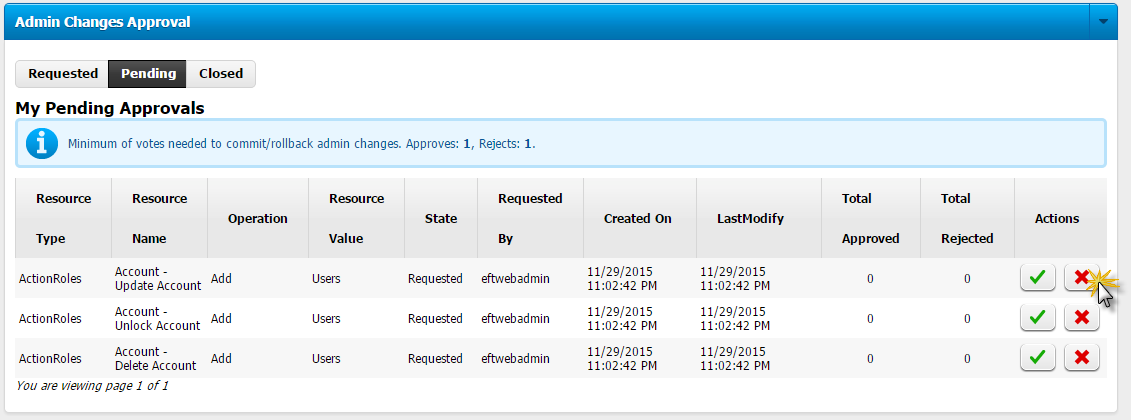
Do one of the following:
Click the green check mark for each request that you are approving.
Click the red X for each request that you are denying.
If the minimum number of votes have been reached, the admin change will be approved or rejected. If it is approved, the change is saved; if it is denied, the change will rollback.
Click Admin, then click Approvals.
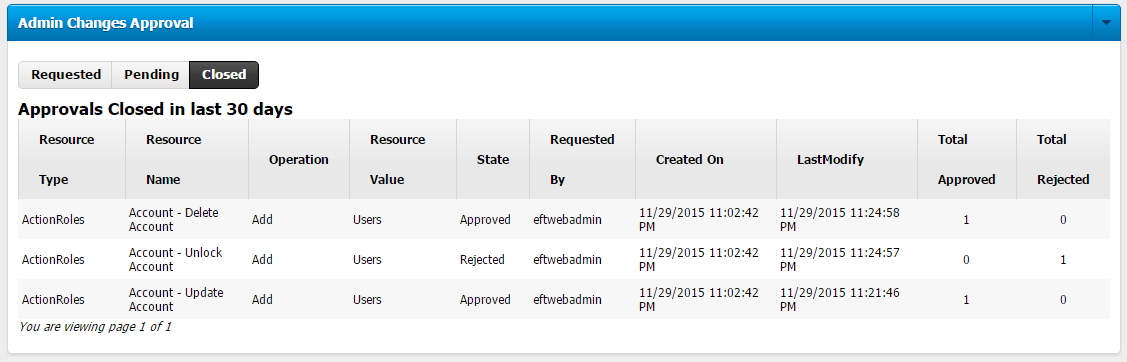
Click Closed. The last 30 days of approvals and rejections appear in the list.
|
This online help file is for EFT WebAdmin. For other help documentation, please refer to http://help.globalscape.com/help/index.html. (If the Index and Contents are hidden, click Show Contents pane in the top left corner of this topic.) |

