Auto-export options
Auto-export allows you to set this system as the central configuration point for monitors, rule groups and rules on remote locations that you have already defined. See Work with Remote Locations for more information, When you update the rule configuration on this system, the product configuration automatically updates the remote locations with the amended information.
The distribution process is controlled by the settings in system default HAL/AUTOEXPORTMODE. If the remote location cannot be contacted immediately, the export is retried according to the settings in system defaults HAL/AUTOEXPORTRETRY and HAL/AUTOEXPORTTMOUT. These two system defaults specify the interval in minutes between retries for the duration in hours before a timeout is recorded. If the auto-export process fails, a message is written to the message log. Additions, updates and deletions of rule groups and rules can be controlled by setting HAL/AUTOEXPORTMODE to *MIRROR.
Auto-export is triggered by manually adding, changing, deleting or copying a Rule Group or Rule using Work with Rules.
Auto-export is not triggered by holding or releasing a rule from within Work with Rules or by using any of the following commands:
-
Copy Action (CPYACT)
-
Copy Rule (CPYRULE)
-
Copy Rule Group (CPYRULGRP)
-
Delete Rule (DLTRULE)
-
Delete Rule Group (DLTRULGRP)
-
Export Rule (EXPRULE) (receiving changes from another system)
-
Halcyon Import of Bytware (HALIMPBYTW) (or sub-product commands)
-
Halcyon Import (HALIMPORT)
-
Hold Rule (HLDRULE)
-
Import Environment (IMPENV)
-
Release Rule (RLSRULE)
To check the waiting actions during the auto-export process, select one of:
From the main menu, use option 41=Utilities followed by option 2=Display Action Log
Type DSPACTLOG on the command line and press Enter.
Auto-export actions are listed as Command actions. See Display Action Log for more information.
Auto-export user authority
In order to be able to set-up and work with auto-export functionality, a user profile with the ‘Limited capabilities’ parameter set to *NO (WRKUSRPRF) and full authority to Halcyon General Product Use (WRKUSRAUT) must be used.
How to set-up auto-export
Use the following instructions to set-up auto-export:
-
Create a user profile with authority to add and update rules on each remote location to which you want to auto-export.
-
Set the user profile and password on each system by creating substitution variables &EXPUSER (*CHAR 10) for the user and &EXPPWD (*PROT 10 or 128) for the password.
-
For each monitor type that you want to auto-export, use option 30=Auto-export and create the list of remote locations. You can enter either remote locations or remote location groups.
-
Optionally, by using 30=Auto-export against rule groups or rules within the monitor type, you can prevent specific rules from being automatically exported.
-
Set system default HAL/AUTOEXPORTMODE to either *UPDATE or *UPDADD.
-
Set system defaults HAL/AUTOEXPORTRETRY and HAL/AUTOEXPORTTMOUT to control export retries in the event that a remote location cannot be contacted when a rule is changed.
Auto-export options are set by using option 30=Auto-export on the Work with Rules display. Different options and configuration settings are available dependent on the level at which the option is taken.
Auto-export at monitor level
When taken at monitor level, auto-export allows you to specify the remote locations to which automatic updates are sent whenever a rule group or rule belonging to this monitor is amended. The list of remote locations is set independently for each monitor.
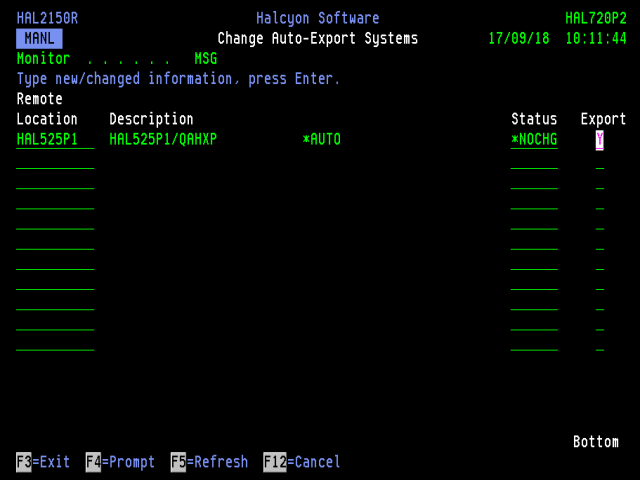
Monitor
Specifies the monitor for which these auto-export remote locations apply.
Remote Location
Lists the remote locations and/or remote location groups that define the remote systems to which rule groups and rules in this monitor are auto-exported by default (specific rule groups and rules can be omitted). Use F4=Prompt when adding remote locations to display a list of valid alternatives from which a selection can be made.
Description
Displays the description of the remote location or remote location group.
Status
Specifies the status, whether ‘Held’ or ‘Released’ that the exported rule group or rule has on the remote system.
| *HOLD | Exported rule groups and rules are set to ‘Held’ on the remote system |
| *RLS | Exported rule groups and rules are set to ‘Released’ on the remote system |
| *SAME | Rule groups and rules are set to the same status as the rule groups and rules from which they are exported |
| *NOCHG | Rule groups and rules that already exist on the remote system(s) retain their existing status. Rule groups and rules that are replaced are set to ‘Held.’ |
Once all remote locations have been added or amended, press Enter to confirm and set the auto-export options for the selected monitor.
Auto-export at rule group and rule level
When taken at rule group and rule level, auto-export allows you to specify individual overrides to the auto-export process.
The Override Auto-Export Systems display allows you to override the auto-export settings for specific rule groups or rules. The resolved list of remote locations is shown, together with the override setting and the effective setting.
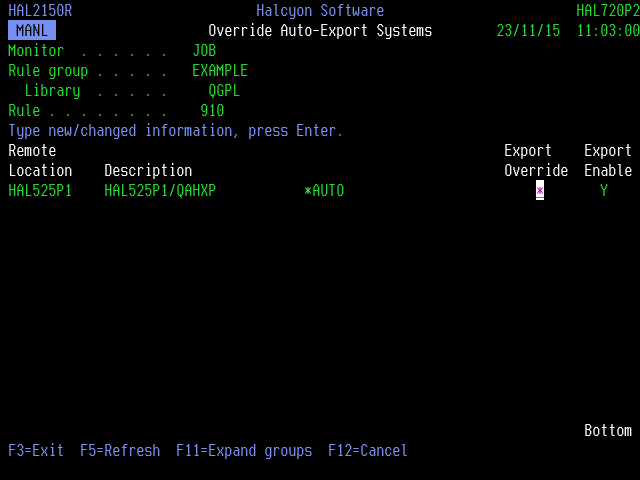
Use F11=Expand groups on this display to expand the view of a remote location group to show all the remote locations within the selected group. It is then possible to set individual auto-export overrides for individual locations within the remote location group.
Monitor
Displays the name of the monitor for which the auto-export settings are being changed.
Rule group/library
Displays the name of the rule group or qualified queue name for which the auto-export settings are being changed.
Remote location
Displays the name of the remote locations to which rule groups and rules in this monitor use auto-export by default.
Description
Displays the description of the remote location or remote location group.
Export Override
Displays the override code for this remote location. Make any amendments as necessary and press Enter.
| * | No override |
| Y | Enable auto-export |
| N | Disable auto-export |
Export Enabled
This value in this parameter indicates whether auto-export is enabled to this remote location, taking into account any overrides that have been set.
| Y | Auto-export enabled |
| N | Auto-export disabled |
Once all amendments have been made press Enter to confirm and set the auto-export override options for the selected rule group or rule.