Creating An Action Schedule
To create a new action schedule, use F6=Add on the main Work with Action Schedules display.
In the ‘Action schedule’ parameter, type a name and description for the new action schedule and press Enter to open the Create Action Schedule display.
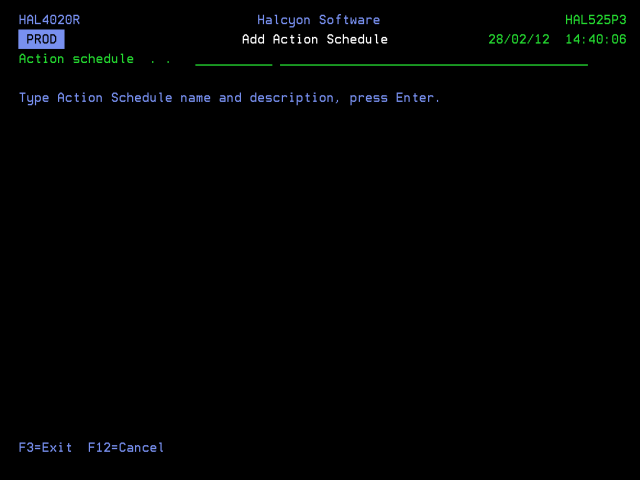
Action select
Specifies which action is selected.
| *ALL | All the actions that are applicable to the current date and time are selected |
| *FIRST | Only the first (lowest sequence number) action that is applicable to the current date and time is selected |
You are now ready to add entries to the new action schedule.
Press F6=Add to add a new entry to this action schedule and open the Add Action Schedule Entry display.
There are two pages to consider when creating an new action schedule.
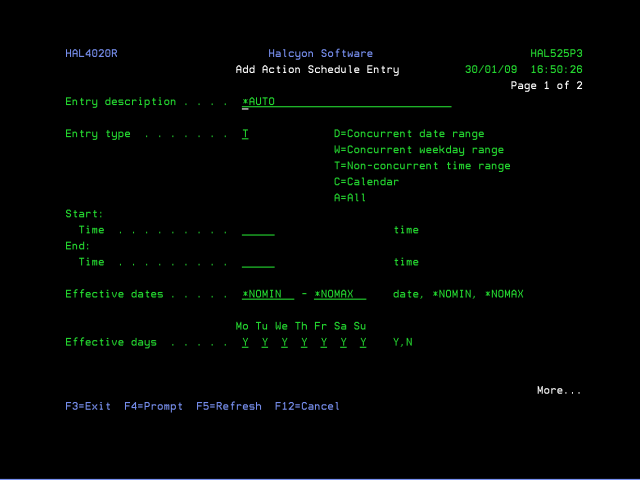
Parameters on the Add Action Schedule Entry
The following parameters are available on the Add Action Schedule Entry display.
Entry description
This is the description of the schedule entry. If the special value of *AUTO is used, a summary of the schedule is used as the description.
Entry type
Specifies the type of schedule entry.
| D=Concurrent date range | Defines a single range starting at a specified date and time and running continuously to another date and time |
| W=Concurrent weekday range | Defines repeating ranges starting at a specified weekday and time and running continuously to another weekday and time up to 7 days later. The same range repeats every week. The range may be contained within a week, for example, Mon-Fri, or may start one week and end the next, for example, Fri-Mon |
| T=Non-concurrent time range | Specifies repeating ranges starting at a specified time and running continuously to another time up to 24 hours later. The same range repeats on the days specified by the ‘Effective days’ parameters, dates by the ‘Effective dates’ parameters. The range may be contained within a day, for example 0900-1700, or may start one day and end the next, for example 1900-0600 |
| C=Calendar | Specifies that the date and times defined on a calendar are used (Normal mode) or that the date and times not defined on a calendar are used (Inverse mode) |
| A=All | Specifies that the range lasts all day, every day. With All mode specified, the time range lasts all day every day. There are no parameters with this mode. This mode may be used as the last schedule entry to catch all time periods not allocated to any previous entries |
| O=On Condition | Specifies that this action is controlled by conditions that check the status of other actions invoked by the same alert that invoked this action schedule. If ANY of the actions referred to in the conditions are not invoked, this action is not invoked. If ALL of the actions referred to in the conditions are invoked, this action is generated as Cnd- Wait status. When the conditions are met, the status then changes to PENDING, or if the conditions cannot be met, this action is changed to CLOSED status |
Type an entry type from those listed and press Enter. Subsequent parameters displayed on this page depend on the selected entry type.
Concurrent Date Range parameters
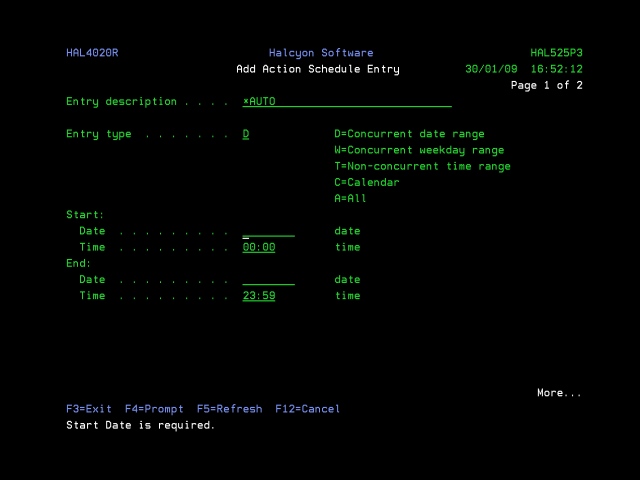
Enter the Start date and time and the end date and time of the required range. The end time must be later than the start time although the same date may be specified for both ‘Start’ and ‘End date’ parameters.
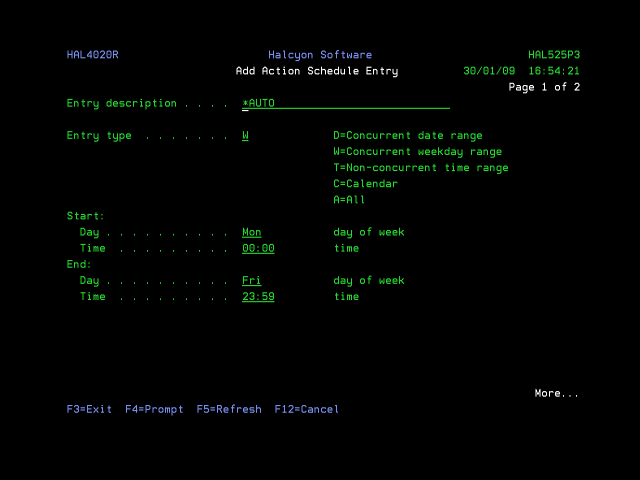
Concurrent Weekday Range parameters
Enter the start weekday and time and end weekday and time of the required range. For the ‘Weekday’ parameters, type sufficient beginning letters to uniquely identify the required day. (i.e. just typing ‘T’ is insufficient). If the end day is an earlier weekday than the start day, it applies to the following week.
Non-concurrent Time Range parameters
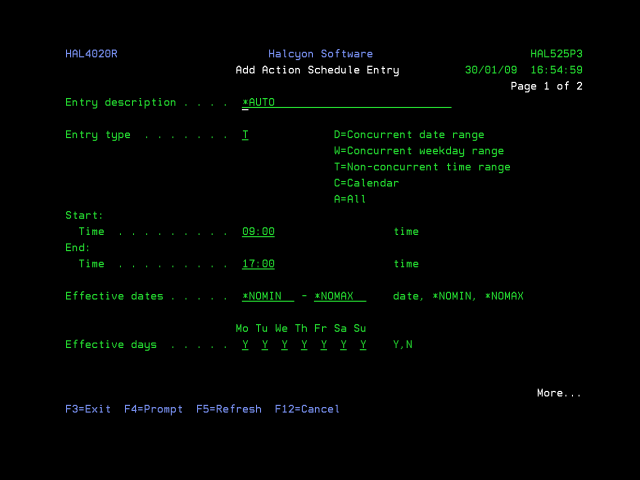
Enter the start and end time of the required range. If the end time is earlier than the start time, it applies to the following day.
Effective dates are optional but may be used to limit ranges to within a particular range of dates.
Effective days specify on which weekdays the time ranges start.
Calendar parameters
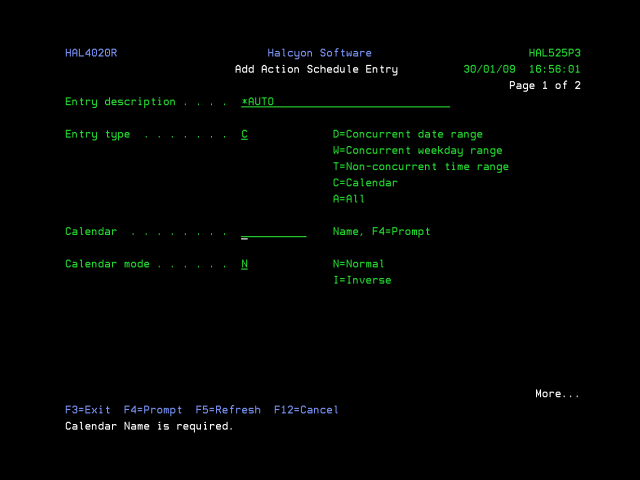
Enter the name of the calendar to use and the calendar mode. When calendar mode is N=Normal, the dates and times set on the calendar are used. When calendar mode is I=Inverse, the dates and times not set on the calendar are used.
All
In ‘All’ mode, the time range lasts all day every day. There are no parameters with this mode. This mode is intended to be used as the last schedule entry to catch all time periods not allocated to any previous entries.
Before this action schedule entry can be completed you must specify the action that you want the new schedule to take in the event of an alert being raised while the schedule is active.
Condition parameters
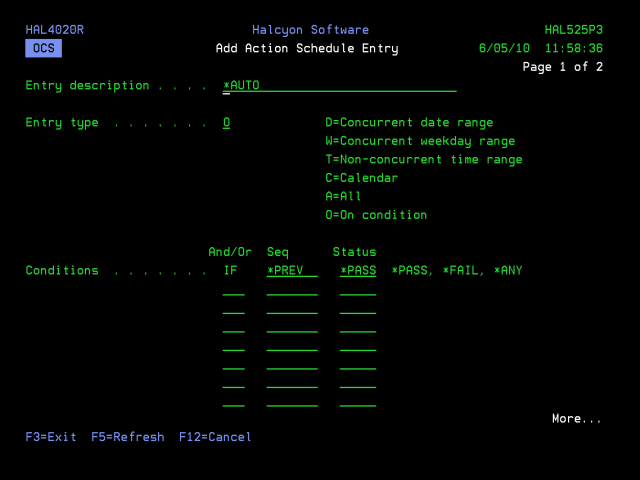
When entry type ‘O’ is selected, eight condition lines are displayed allowing you to enter the relationship, sequence and status of each condition.
Relationship (And/Or)
The first line of the conditions for the action schedule has the relationship of ‘IF’ and cannot be changed. For additional lines, specify either ‘AND’ or ‘OR’ as the relationship type.
Sequence
This parameter is used to specify the sequence number of the action schedule entry which you are conditioning. Enter a sequence number in the range of 10-990.
If you later insert or delete an entry, the number entered here does not automatically change, which can cause a condition to be looking at a different line, non-existent entry or itself. If these cases, an edit error occurs.
Four special values are supported within the ‘Sequence’ parameter:
| *FIRST | Conditions on the first entry in this action schedule (for example; 10) |
| *PREV | Conditions on the previous entry in this action schedule |
| *ALL | Conditions on all the actions invoked via this action schedule when an alert is raised. This value does not condition on any entries defined in this action schedule that are not invoked when an alert is raised |
| *ALERT | Conditions on all the actions invoked by an alert that uses this action schedule, even if invoked directly from the rule or via a different action schedule |
Status
Specifies the status required for each condition line to pass.
| *PASS | The specified actions must go to Complete status |
| *FAIL | The specified action(s) must go to Error status |
| *ANY | The specified action(s) must go to Complete or Error status |
Examples
To create a series of actions that run sequentially without regard to whether each was successful or not:
| 10 | Action with an entry type of D, W, T, C or A as required |
| 20 | Action with an entry type of O |
| 30 | Action with an entry type of O |
| 40 | Action with an entry type of O |
The conditions for sequence numbers 20 to 40 should each be:
IF *PREV *ANY
To make each action only run if the previous action was successful, the conditions on sequence numbers 20 to 40 should each be:
IF **PREV *PASS
To send a message to a main system console but with a backup system if the main system cannot be contacted:
| 10 | Main Console action with entry type D, W, T, C or A as required |
| 20 | Backup Console action with entry type O |
The condition for sequence number 20 should be: IF *PREV *FAIL.
General Notes on using Conditions with Action Schedules
-
Conditional entries are only allowed in action schedules that have ‘Action select’ *ALL specified. Conditional entries are not allowed when ‘Action select’ is specified as *FIRST.
-
When an alert is raised, any non-conditional actions that apply to the current date/time are invoked first, either to ‘Pending’ or ‘Delayed’ status.
-
Any conditional actions that apply are invoked to ‘Cnd-Wait’ status. Conditional actions do not have any date/time criteria. Whether they apply or not depends on whether the entries on which they are conditioned apply. If the conditions lines use sequence *FIRST, *PREV or a specific number, the conditional action only applies if all those entries apply. If a condition entry only uses *ALL or *ALERT and does not use *FIRST, *PREV or a specific number, it always applies, but if it then finds that there are no entries on which the condition depends, it immediately goes to ‘Closed’ status.
-
Each time any action changes to ‘Complete’ or ‘Error’ status, the conditional actions in that alert are checked. There are three possible outcomes:
-
Conditions are now met. In this case the action changes from ‘Cnd-Wait’ to ‘Pending’ and processes as soon as an Action Monitor is available.
-
Conditions now cannot be met. For example, an action needed to go to ‘Complete’ status but it has gone to ‘Error’. In this case the action changes from ‘Cnd-Wait’ to ‘Closed’.
-
Conditions are not met yet still can be. In this case the action remains in ‘Cnd-Wait’ status.
-
-
When an action changes from ‘Cnd-Wait’ to ‘Pending’ status, it is assigned a priority which ensures that it is processed before an action that changes to ‘Pending’ status later. This is especially important when only one Action Monitor is used or if all the Action Monitors are busy.
-
When an alert is closed, any actions still in ‘Pending’ or ‘Cnd-Wait’ status change to ‘Closed’ status.
-
It is possible to create conditions that can never be met. For example; entry 10 conditioned on entry 20 and vice versa. In this case, both entries remain in ‘Cnd-Wait’ status until the alert is closed.
-
For the Close action only, simple conditions can be specified directly in the rule. These conditions are:
-
COMPSame as IF *ALERT *ANY in an action schedule.
-
COMPNOERRSame as IF *ALERT *PASS in an action schedule.
-
Completing the Action Schedule
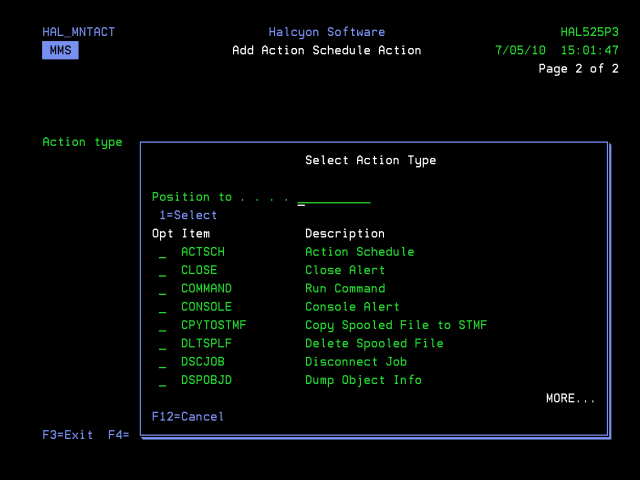
Use <Page Down> to open the Add Action Schedule Action display.
Rule number
For actions within rules, this is the rule number.
Action type
Specifies the action to be performed if an alert is triggered within this action schedule. Type the name of an action, or press F4=Prompt to select from a list of applicable actions.
F3=Exit
Use F3=Exit to close the current display and return to the main menu.
F5=Refresh
Use F5=Refresh to update the display with current information.
F12=Cancel
Use F12=Cancel to exit this display and return to the previous display.
F16=List substitution variables (where applicable)
Use F16=List substitution variables to display a list of substitution variables that can be applied to the action where applicable. (Option is hidden if substitution variables cannot be applied).