Dump Product Data
Option 30=Dump Product Data on the Utilities menu is used to save product data to a save file so it can then be sent to Halcyon Technical Support who can use the data to carry out an in depth investigation to assist in any problem resolution.
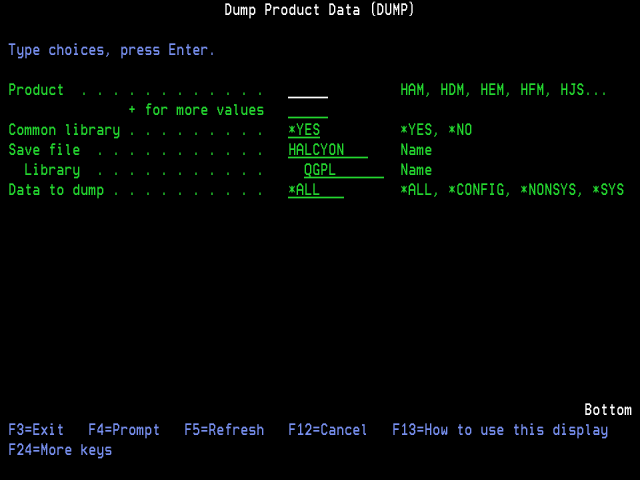
Parameters on the Dump Product Data Display
The following parameters are available on the Dump Product Data display.
Product
Specify the Halcyon product code for which data is to be saved.
| *NONE | No product information is saved |
| HAM | Halcyon Audit Journal Manager |
| HDM | Halcyon Disk Space Manager |
| HEM | Halcyon System Event Manager |
| HJS | Halcyon Advanced Job Scheduler |
| HMC | Halcyon Message Communicator |
| HMM | Halcyon Message Manager |
| HMQ | Halcyon MQ Manager |
| HMX | Halcyon HA-MX Monitor |
| HRP | Halcyon Record & Playback |
| HRT | Halcyon Restricted Tasks Manager |
| HXP | Halcyon Exit Point Manager |
Common library
Specify whether or not to also dump the common library.
| *YES | Dump the common library |
| *NO | Do not dump the common library |
Save file/Library
Specify the name of the save file to use and, if appropriate, the name of the library in which the save file is held.
Press Enter to generate the save file data.
Sending the saved Data to Halcyon
After creating the save file, you can email the data to Halcyon Technical Support as follows:
-
Using a PC, click Start | Run.
-
Type FTP followed by your IBM i device name, or IP Address and press Enter.
-
Sign-on with a user ID and Password valid on that system.
-
Type ‘bin’ and press Enter.
-
Type ‘get qgpl/halcyon c:\halcyon.savf and press Enter to retrieve the save file.
-
Create an email message and attach the file c:\halcyon.savf.
-
Send the email to: support.halcyon@fortra.com.
The following functions are available when working with the Dump Product Data display.
F3=Exit
Use F3=Exit to close the current display and return to the main menu.
F4=Prompt
Use F4=Prompt to provide assistance in entering additional parameter values for an option or in using a command.
F5=Refresh
Use F5=Refresh to reset the display to the details that were last saved.
F12=Cancel
Use F12=Cancel to exit this display and return to the previous display.