Work with Exit Point Handlers
Halcyon Primary and Secondary Handlers
A Halcyon Primary Handler is a program intended to be used as the exit program for an exit point. A primary handler does no real work itself, but merely calls additional programs known as secondary handlers. These secondary programs perform the actual work. The primary handler calls each defined secondary handler in turn, unless a secondary handler sets a return code to disallow an operation, in which case no further secondary handlers are called.
This system allows greater control over the exit point and dispenses with the one program limit that many exit points have.
The Work with Exit Point Handlers display lists the registered exit points that support Halcyon Primary Handlers. This option is available by taking option 13=Work with Exit Point Handlers from the Configuration main menu.
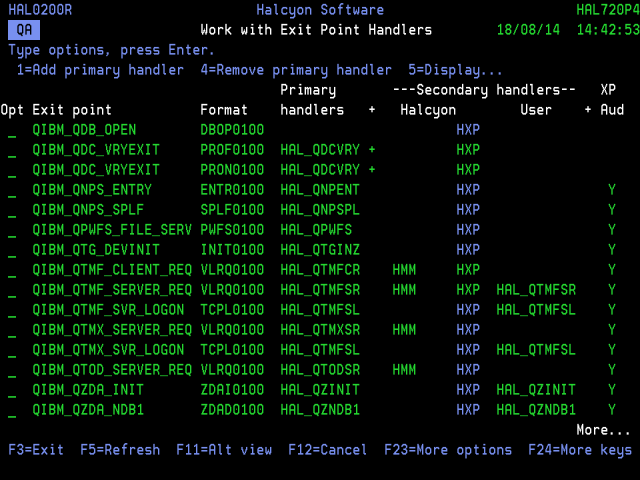
Parameters on the Work with Exit Point Handlers Display
The following parameters are shown on the Work with Exit Point Handlers display.
Exit point
This displays the name of the exit point. The exit points listed on this display are from a pre-defined IBM list. The list is dependent on the release of IBM O/S that you are running and the products installed.
Format
This displays the format of the exit point. The format is the registration identifier supplied by IBM. Each exit point can have a single exit program or multiple exit programs associated with it. Each exit point can be registered multiple times with a unique format name. To see the formats accredited to the exit points use the WRKREGINF command.
Primary handlers
This displays the name of an exit program that is registered to the associated exit point.
If the Halcyon primary handler for the current environment is registered to this exit point, the Halcyon primary handler program name is shown. If not, the lowest numbered exit program registered to this exit point is displayed.
The color of the primary handler program indicates the current status:
| Green | Secondary handlers or exit point auditing is enabled and the Halcyon Primary Handler is registered to this exit point |
| Blue | Secondary handlers and exit point auditing is not enabled. If the Halcyon Primary Handler is registered to this exit point, it is serving no useful purpose |
| Red | Secondary handlers or exit point auditing is enabled but the Halcyon Primary Handler is not registered to this exit point. If the Halcyon Primary Handler program appears to be shown in red, it is actually the handler from a different Halcyon environment. In these instances, use 5=Display to identify the environment. If no exit programs are registered to this exit point, the special value *REQUIRED is shown |
‘+’
A plus sign (‘+’) in this column indicates that more than one exit program is registered to this exit point. Use option 2=Change against this exit point for full details.
Secondary handlers - Halcyon
Indicates which installed Halcyon products have secondary handlers for this exit point, and indicates their status. The following products may be shown. These products are shown if they are installed and have a valid authorization code:
| HMM | Halcyon Message Manager - FTP activity monitor feature |
| HEM | Halcyon Authority Swapper |
| HXP | Halcyon Exit Point Manager |
Status
The secondary handlers for each product can be enabled or disabled. However, enabling the secondary handlers for a product has no effect unless the relevant primary handlers are also active. The color of the secondary handler codes indicates the current status:
| Blue | Secondary handler is disabled |
| Green | Secondary handler is enabled and primary handler is active |
| Red | Secondary handler is enabled but primary handler is not active |
Secondary handlers - User
Shows the name of a user defined secondary handler program for this exit point.
A program shown in green is enabled.
A program shown in red is disabled. This is because the Halcyon primary handler has not been set, therefore is not able to call the secondary handlers.
‘+’
A plus sign (‘+’) in this column indicates that more than one user defined secondary handler program has been defined for this exit point. Use option 2=Change against this exit point for full details.
XP Aud
A ‘Y’ in this column indicates that exit point auditing has been enabled for this exit point. The color indicates the current status:
| Green | Exit point auditing is enabled and primary handler is active |
| Red | Exit point auditing is enabled but primary handler is not active |
Using the Work with Exit Point Handlers display
The following options are available when using the Work with Exit Point Handlers display. Type the required option number against the chosen Exit Point and press Enter.
1=Add primary handler
Use option 1=Add primary handler to open the Confirm Add Halcyon Primary Handlers display. Press Enter on this display to add Halcyon Primary Handlers for the selected exit points, or press F12 to cancel.
This option is not allowed when an exit point already has the maximum permitted number of exit points and four user-defined secondary handlers.
If an exit point already has the maximum permitted number of exit points and less than four user-defined secondary handlers, you are prompted to allow the first existing exit program to be changed into a user-defined secondary handler, in order to free up a slot for the Halcyon primary handler. Press F2 when prompted to allow this amendment.
4=Remove primary handler
Use option 4=Remove primary handler to open the Confirm Remove Halcyon Primary Handlers display. Press Enter on this display to remove Halcyon Primary Handlers from the selected exit points, or press F12to cancel.
5=Display
Use option 5=Display to open the Display Handler Details display which displays full details on the primary and secondary handlers for the selected exit point, and also allows you to change the user defined secondary handlers.
6=Start exit point audit
Use option 6=Start exit point audit to display the Confirm Start Exit Point Audit display. Press Enter on this display to enable exit point auditing for the selected exit points, or press F12 to cancel.
7=End exit point audit
Use option 7=End exit point audit to display the Brings up the Confirm End Exit Point Audit display. Press Enter on this display to disable exit point auditing for the selected exit points, or press F12 to cancel.
The following functions are available when using the Work with Exit Point Handlers display.
F3=Exit
Use F3=Exit to exit this display and return to the main menu.
F5=Refresh
Use F5=Refresh to update this display with the most current information.
F11=Alt view
Use F11=Alt View to switch the view between the exit point name and the exit point description.
F12=Cancel
Use F12=Cancel to exit this display and return to the previous screen.
F16=Secondary Handlers
Use F16=Secondary Handlers display to open the Configure Secondary Handlers pop-up window. This window allows you to enable or disable secondary handlers by product (if installed).
-
FTP Activity Monitor
Specify whether to enable or disable the secondary exit programs that handle the FTP Activity Monitor feature of Halcyon Message Manager.
Y Enable secondary handlers
N Disable secondary handlers
-
Authority Swapper
Specify whether to enable or disable the secondary exit programs that handle the FTP Profile Allocation feature of Halcyon Authority Swapper.
Y Enable secondary handlers
N Disable secondary handlers
-
Exit Point Manager
Specify whether to enable or disable the secondary exit programs used by Exit Point Manager.
Y Enable secondary handlers
N Disable secondary handlers
F17=Restart servers
Use F17=Restart servers to open the Restart Servers pop-up window.
This window contains two options:
-
Resynch Primary Handlers
Specify whether to synchronize the primary handlers
Y The primary handlers are synchronized if possible. This adds Halcyon primary handler programs to exit points that have an enabled Halcyon or user defined secondary handler or have exit point auditing enabled, and removes them from exit points that have no enabled Halcyon or user defined secondary handlers and do not have exit point auditing enabled
N No exit point programs are added or removed
-
Restart servers
In some cases, adding or removing an exit program has no effect on the exit point until the appropriate servers are restarted. This option allows you to stop and restart the relevant servers. A restart is not required when only secondary handlers have been enabled or disabled.
Y The *FTP, *TFTP and *REXEC TCP servers are ended. Those servers are then restarted if they are configured to auto-start. The *CENTRAL and *DATABASE host servers are also stopped and restarted
N No TCP or Host servers are stopped or restarted
F23=More options
Use F23=More options to display additional options at the top of the screen that are currently out of view.