Work with User Authority
Overview
Work with User Authority governs user access and permission rights when using the HA-MX Monitor.
The effective authority that a user has to a product function is determined by system default HAL/AUTHMODE. This can be set to either ‘1’ or ‘0’.
Using the installed default setting of ‘1’, users with *ALLOBJ special authority automatically have *ALL authority to all Halcyon products and functions, overriding any function authority that has been defined.
If the system default setting is changed to ‘0’, users with *ALLOBJ special authority do not automatically have *ALL authority to all Halcyon products and functions. Authority is derived from function authority in the normal way.
Authority entries are checked in the following order:
-
Entry for the user.
-
Entry for the user’s group profile.
-
Entries for each of the user’s supplemental groups, in the order in which they are defined in the user profile.
-
Entry for *PUBLIC authority.
The first authority found, that is not *UNDEF, is the effective authority for the user.
To view and edit User Authorities, type command WRKUSRAUT on the command line and press Enter. The Work with User Authority display is opened.
Alternatively, from the HA-MX Monitor menu, select option 42=Configuration followed by option 2=Work with User Authorities.
The body area of this screen shows all users and the authority that each has to the given product codes (listed vertically in columns) commonly used with the HA-MX Monitor.
Typically, within an installation of the HA-MX Monitor the following columns are shown:
| * | Halcyon Common Library |
| HMC | Halcyon Message Communicator (required for sending messages) |
| HMX | Halcyon HA-MX Monitor |
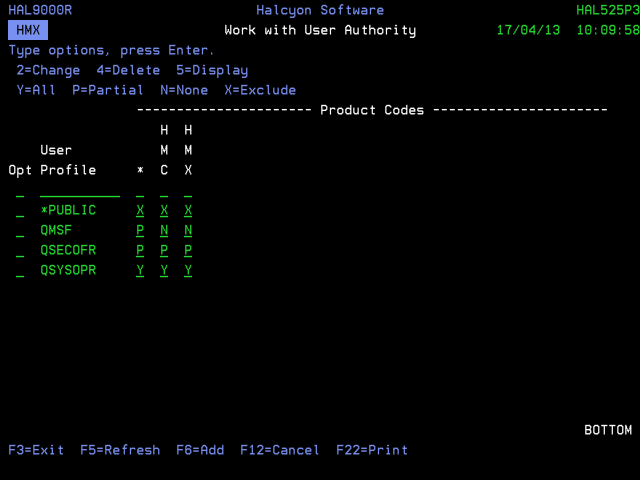
Parameters on the Work with User Authority display
The following parameters are available on the Work with User Authority display.
User profile
Displays the name of the authorized profile. The profile can be a user profile, a group profile or the special value *PUBLIC.
Product codes
Displays the Halcyon product codes of installed products. The value shown at the intersection of user and product code summarizes the authority of the user to that product. One of the following summary values is shown:
| Y | User has at least *CHANGE authority to all functions of this product. |
| P | User has some authority but does not have *CHANGE authority to all functions of this product. |
| X | User has *EXCL authority to all functions of this product. |
| blank | User has no defined authority to this product. Therefore the effective authority is derived from group membership or public authority. |
Using the User Authority display
The following options are available when working with user authority.
Options may be typed in the ‘Opt’ column as usual or in the intersecting parameters. Options typed into the ‘Opt’ column effect ALL intersecting parameters for that user. An option typed in an intersecting parameter applies only to that user and product.
Change
Use option 2=Change to alter the current user authority settings via the Work with Function Authority display.
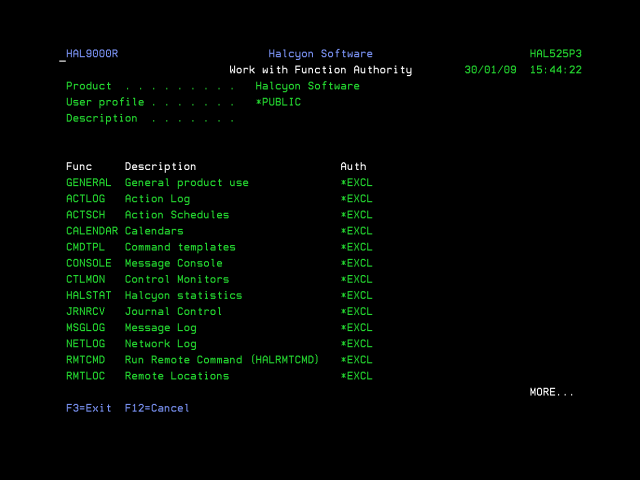
The user can be assigned the following function authorities where applicable:
| *ALL | User has all the authority that is possible for this function (not all functions support all types of authority) |
| *CHG | User has change and use authority |
| *USE | User has use authority |
| *UNDEF | No authority is defined. Therefore, the effective authority is determined by a more generic entry such as a group entry or *PUBLIC |
| *EXCL | User has exclude authority. This means that the user is not authorized even if a more generic entry grants authority to this function. |
Press Enter to confirm the changes. Press F12 to return to the Work with User Authority display.
Delete
Use option 4=Delete to open the Work with Function Authority display with all function authorities changed to *UNDEF (or *EXCL for *PUBLIC authority). Type any changes required and press Enter to update.
Display
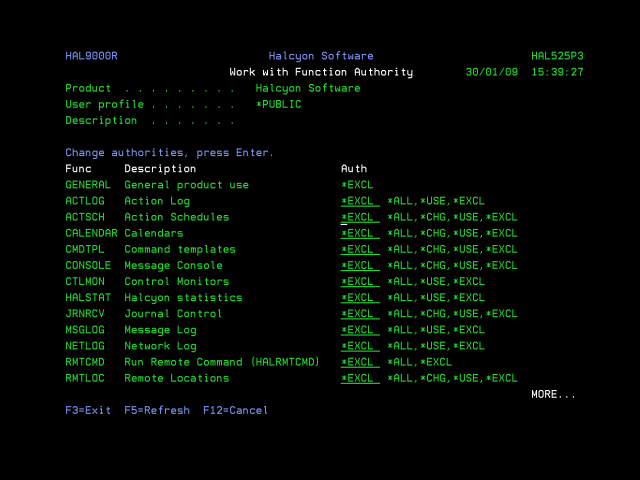
Use option 5=Display to open the Work with Function Authority display in view mode only with the current authorities for the selected user and/or product.
The following functions are available when working with user authority.
F3=Exit
Use F3=Exit to close the current display and return to the main menu.
F5=Refresh
Use F5=Refresh to update the display with current information.
F12=Cancel
Use F12=Cancel to exit this display and return to the previous display.
Exporting Halcyon User Authorities
It is possible to export Halcyon User Authorities to a remote Halcyon Environment via use of the command EXPUSRAUT.
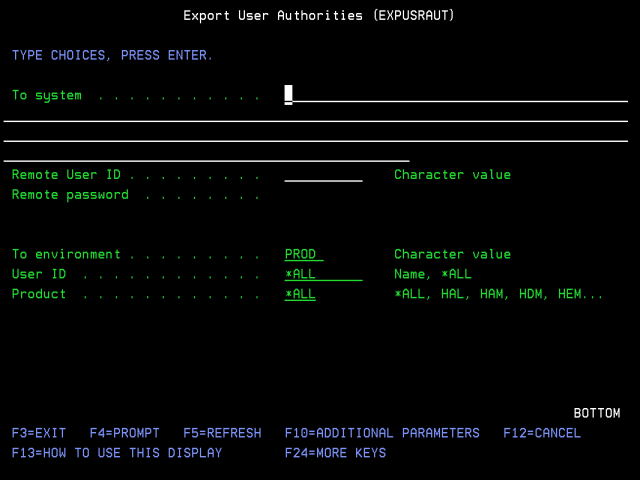
To system
Enter the Host Name or IP Address of the remote system to which the user authorities are to be exported.
Remote User ID
Specify the User ID to be used by FTP when connecting to the remote system.
Remote password
Specify the password associated with the Remote User ID to be used.
To environment
Specify the Halcyon Environment code on the remote system to which the User Authorities are exported.
User ID
Specify the User ID of the user to be exported. *ALL indicates that all the user authorities on this system are exported to the remote environment. *PUBLIC exports all *PUBLIC authorities.
Product
Specify the Halcyon product code(s) of the authorities to be exported. Use *ALL to specify all products.