AIX Physical Volume Reporting
AIX Physical Volume Reporting provides reporting on the Physical Volumes of an AIX system.
- From the required AIX System - Reporting Monitor main panel, click Add Field.
- From the Select Category dialog, select Physical Volume.
This opens the Volume Reporting reporting dialog at the Physical Volume Monitor Type.
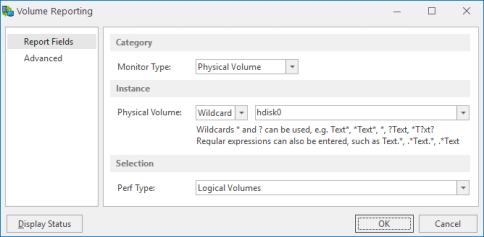
Category section
Monitor Type
Leave this parameter set to the default setting of Physical Volume.
Instance section
Physical Volume
Either select the name of the Physical Volume from the drop-down choice menu or use Wildcards or Regular Expressions (Regex) to define the name of the Physical Volume on which reporting is required.
Selection section
Performance Type
From the drop-down choice menu select one of the following options:
- Allocated Physical Extents: Reports on the number of Allocated Physical Extents within the selected physical volume
- Free Physical Extents: Reports on the number of free Physical Extents within the selected physical volume
- Physical Extent Size: Reports on the size of the Physical Extent within the selected physical volume
- Physical Volume Size: Reports on the size of the selected physical volume
- Total Physical Extents: Reports on the total number of Physical Extents on the selected physical volume
Physical Volume Display Status
- Click Display Status on the Volume Reporting dialog to display the current Physical Volume Information for this system.
- Click Show In... to amend the view by which the physical partition size measurements are displayed. The possible display options are:
- B: Byte
- KB: Kilobyte
- MB: Megabyte
- GB: Gigabyte
- TB: Terabyte
- PB: Petabyte
- EB: Exabyte
- Click OK to exit this display and return to the Volume Group Reporting dialog.