Defining Windows Reporting Fields
The simplest way to define a specific Windows reporting field is to use the Browse option from the WMI Reporting Option dialog (accessed when adding a new reporting field) to scan the current system for the generic performance object on which data is collected.
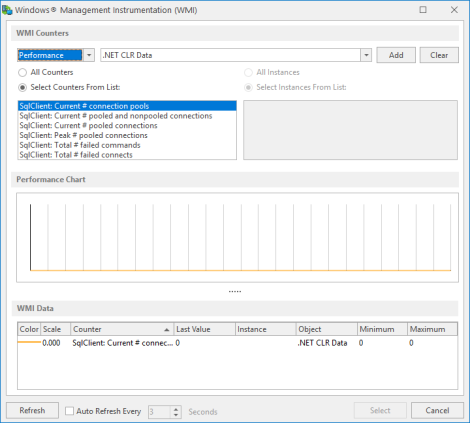
Performance data is added using a series of drop-down menu options and choice buttons.
Category drop-down
Select whether you are going to check for the Performance or Non-Performance of the intended data object.
Object drop-down
Use the drop-down menu to select the WMI Object for which the performance data is to be reported. Use the vertical scroll-bar to see further options that are not initially displayed. Click on an object in the list to select it.
Counters/Instances
Depending on the chosen object you now have the ability to select individual counters and instances unique to the object type or select all (or a combination of one counter and all instances or all counters and one instance).
- Click Add to begin generating Performance Data on the chosen counters/instances which are listed in the data field together with their corresponding graphical color representation.
- Once the choices have been made, highlight the entry in the WMI field data panel at the bottom of this dialog. The Select button is now enabled.
- Click Select to re-open the WMI Reporting Data dialog. All fields on this dialog are auto-filled with the selected WMI performance data.
- Click OK to add the WMI definition to the reporting fields in the selected field slot.
- Continue to add further WMI Reporting data as required for this system.
- When all the required performance data fields have been added, click
 Save to apply the changes to this system.
The selected fields (providing that they do not contain a null data value) are now available for inclusion in a Performance Data report for this system that can be generated using the Advanced Reporting Suite Report Designer and Web Interface components.