Configuring SAML Authentication
Fortra Application Hub can be configured to use SAML (Security Assertion Markup Language) as an authentication provider and login method. Users can be authenticated using the Identity Providers Okta, Ping Identity, and Cisco DUO.
Authentication Flow
The user goes to the service provider URL, that has been set up for SAML authentication. They are redirected to the identity provider for login and authentication. The user's authentication credentials are confirmed. The user is then redirected back to the service provider in order to use it.
User: The user accessing Fortra Application Hub.
Identity Provider: Provides online resources to authenticate users over the network. The identity providers that can be used are Okta, Ping Identity, and Cisco DUO.
Service Provider: Provides resources and product service to the user. Fortra Application Hub is the service provider.
Setting up Authentication
Before users can use the identity provider to log in to Fortra Application Hub, admin must set up the authentication connection between the identity provider and Fortra Application Hub.
The easiest way to set up authentication is to have both Fortra Application Hub and the identity provider settings open at the same time. There will be steps that go back and forth from one to the other.
These instructions will use Okta as an example of the Identity Provider.
On Okta site
-
Log in to Okta admin dashboard.
-
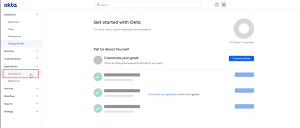
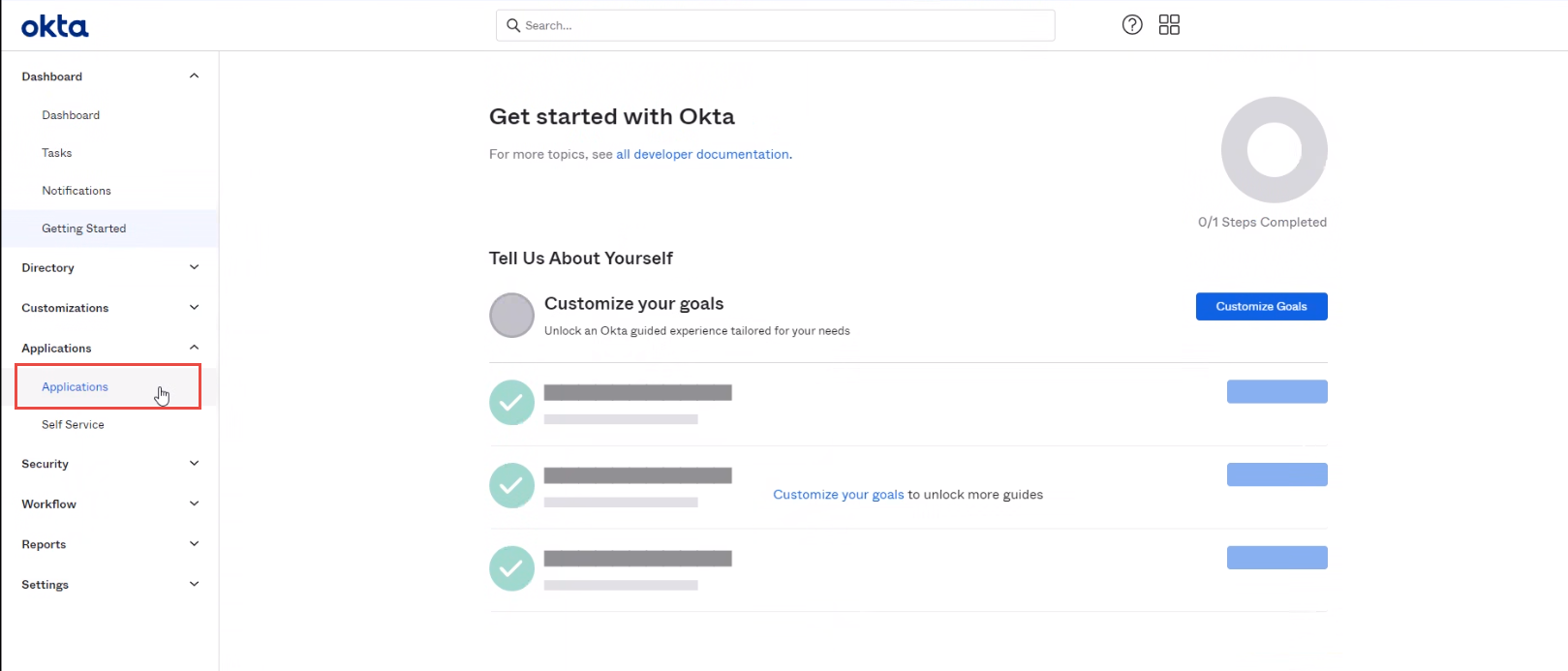
Expand Applications from left menu, and click Applications.
-
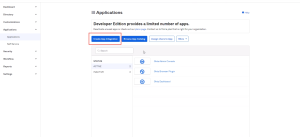
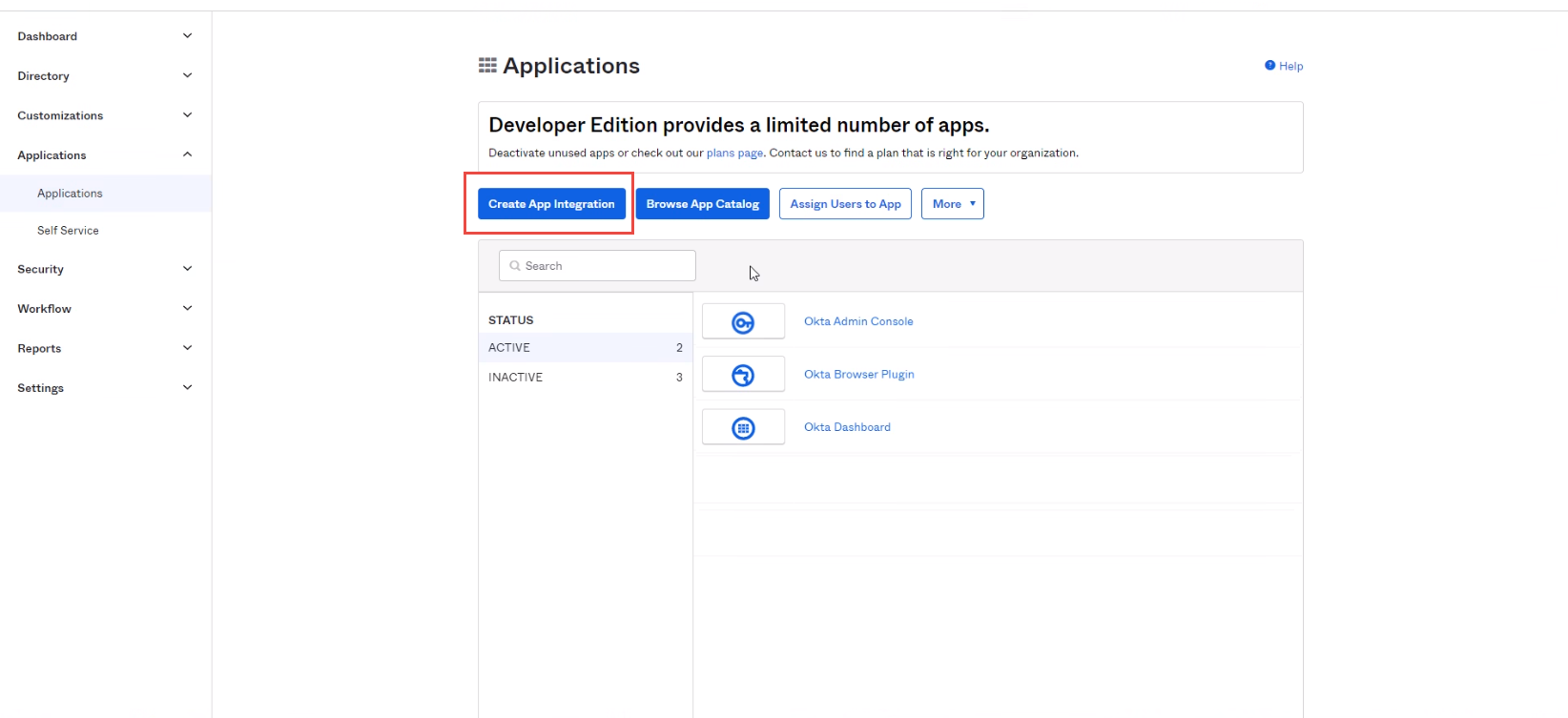
Click Create App Integration .
-
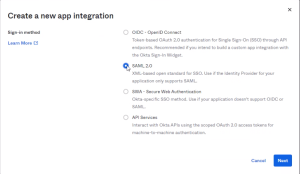
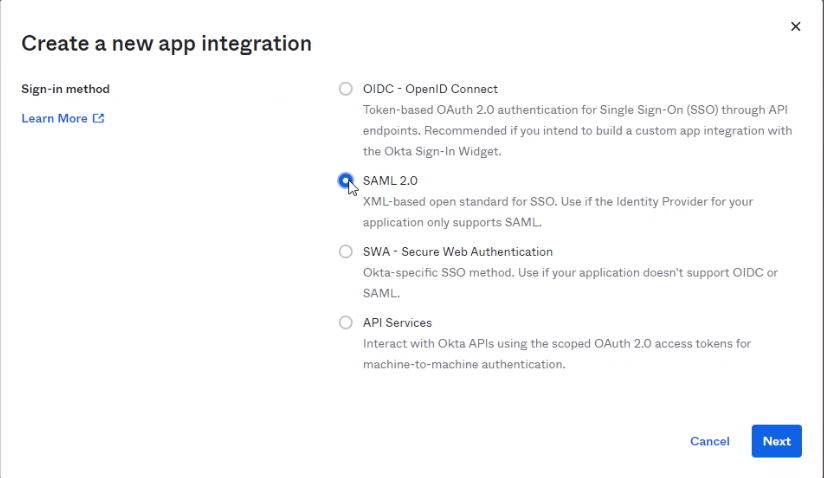
Select SAML 2.0 and click Next to proceed.
-
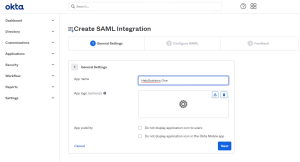
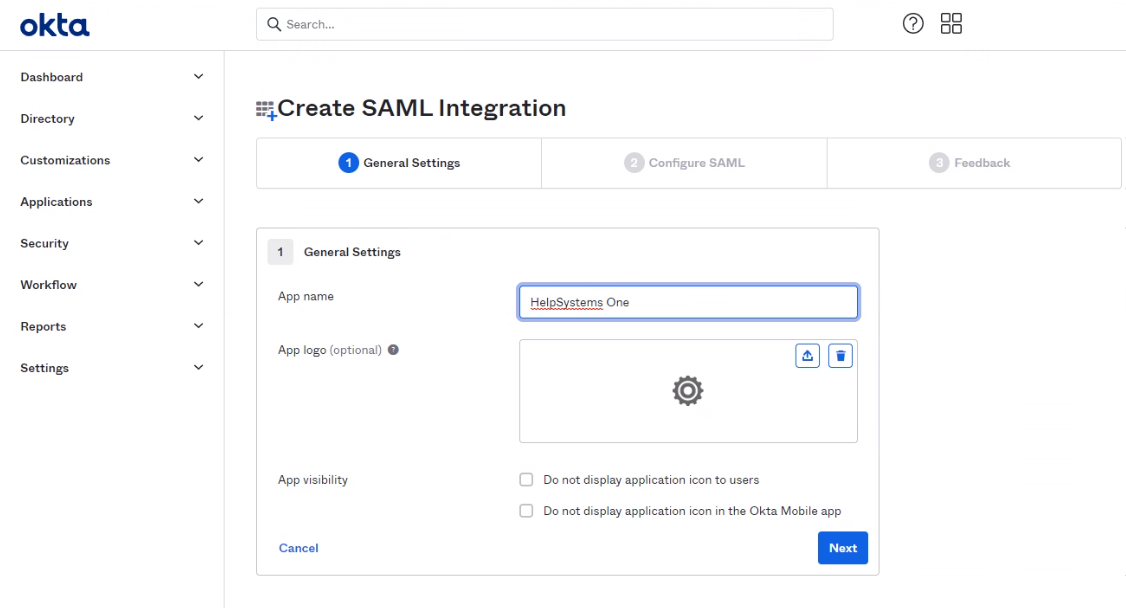
Once the app has been created, under General Settings, Enter an App name. Then click Next.
-
This will bring you to the Configure SAML step. Stay on this page in one browser while opening Fortra Application Hub in the other.
In Fortra Application Hub
-
In the Core Menu, click Security, then click Providers. Then
-
Click Add Provider.
-
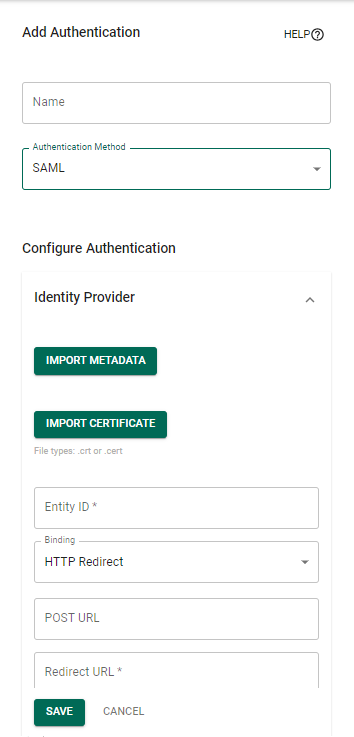
Enter a name for this authentication method.
-
Click in the authentication method field and select SAML Authentication.
- Scroll down to the Service Provider fields.
- Enter a value for Entity ID. This is the ID given to Fortra Application Hub as the trusted ID. Typically this is the host name defined for Fortra Application Hub (similar to the Site URL).
- Under the User section, for Name ID Format, select EmailAddress.
On Okta Site
-
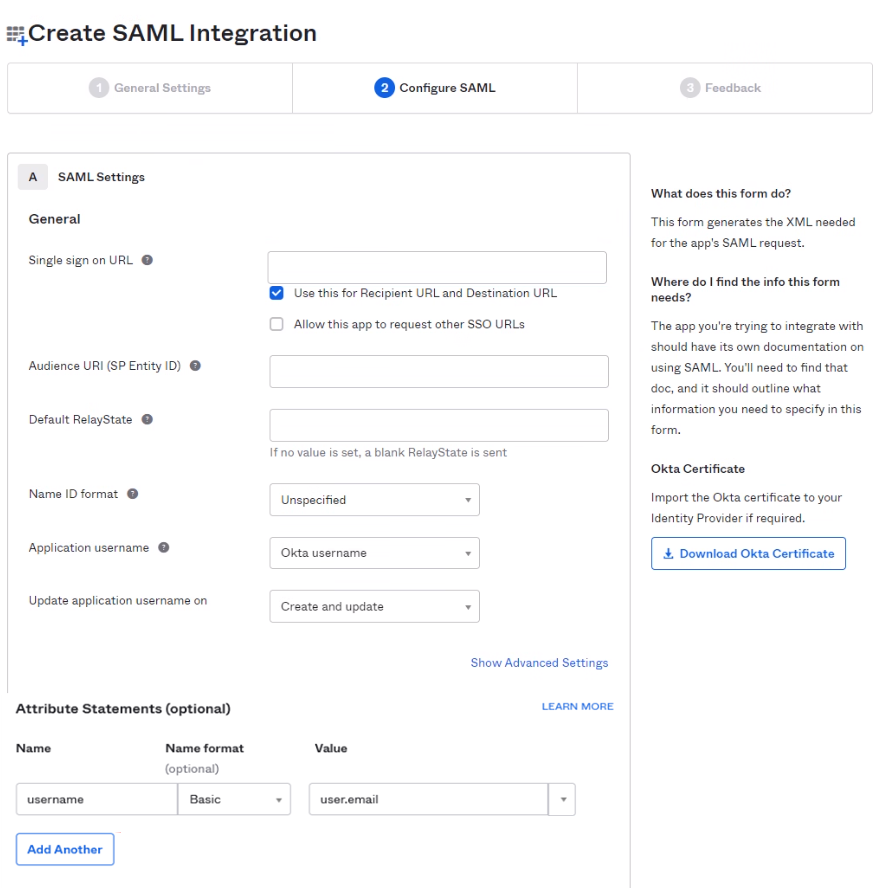
Copy the value from the Entity ID field in Fortra Application Hub and paste it into the Audience URI (SP Entity ID) field under Configure SAML
-
Copy the value from the SSO Reponse URL field and paste it into the Single sign on URL field under Configure SAML.
-
Fill in Attribute Statements section with the username that will be used in Fortra Application Hub.
-
Click Next
-
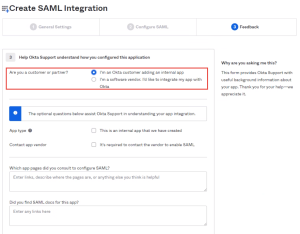
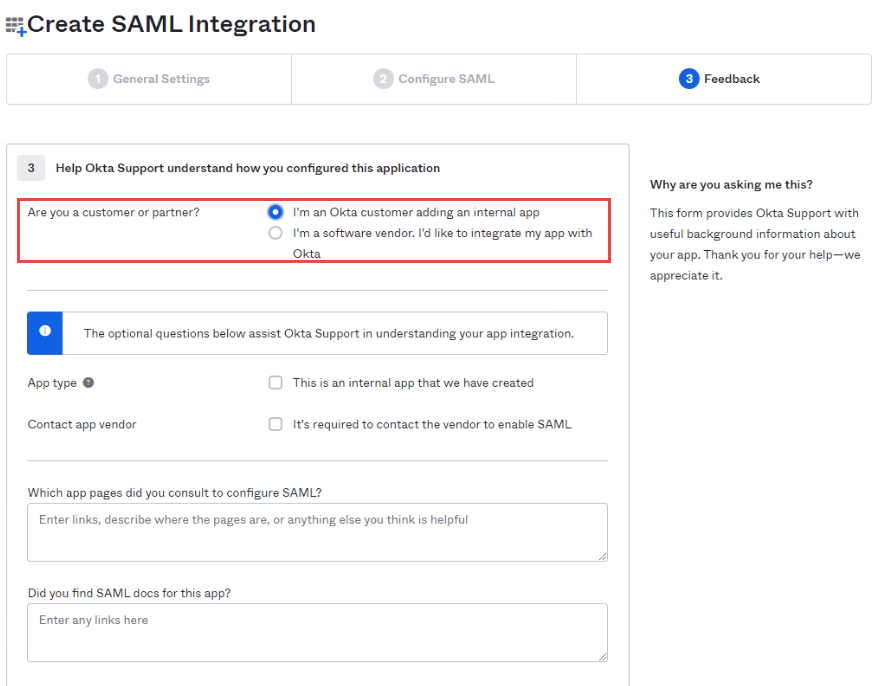
Under Feedback, select "I'm an Okta customer adding an internal app".
-
Select Finish. This will bring you to your newly created application.
-
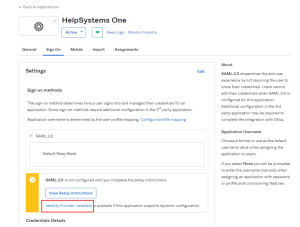
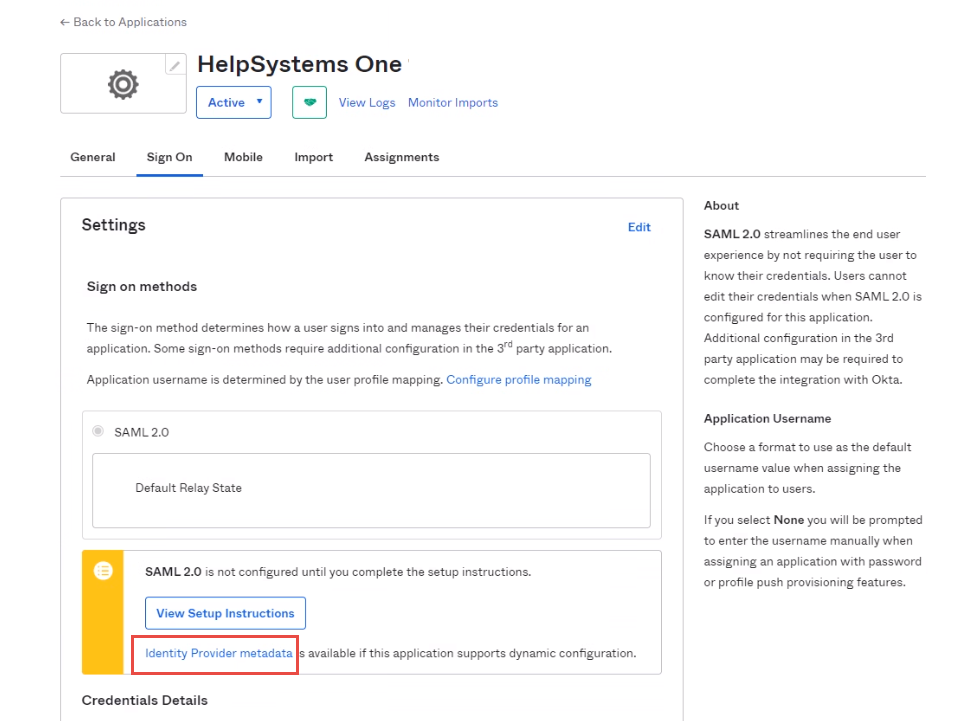
Select the Sign-on tab and click the link Identity Provider metadata. Save it as an XML file.
In Fortra Application Hub
-
Still in SAML Authentication setup, under Identity Provider, select Import metadata and select the correct xml file to import. This option populates all Identity Provider fields, except server time offset. It also includes NameID field under User.
-
Click Save.
On Okta Site
-
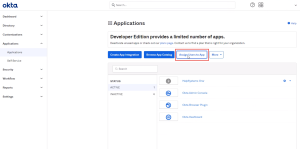
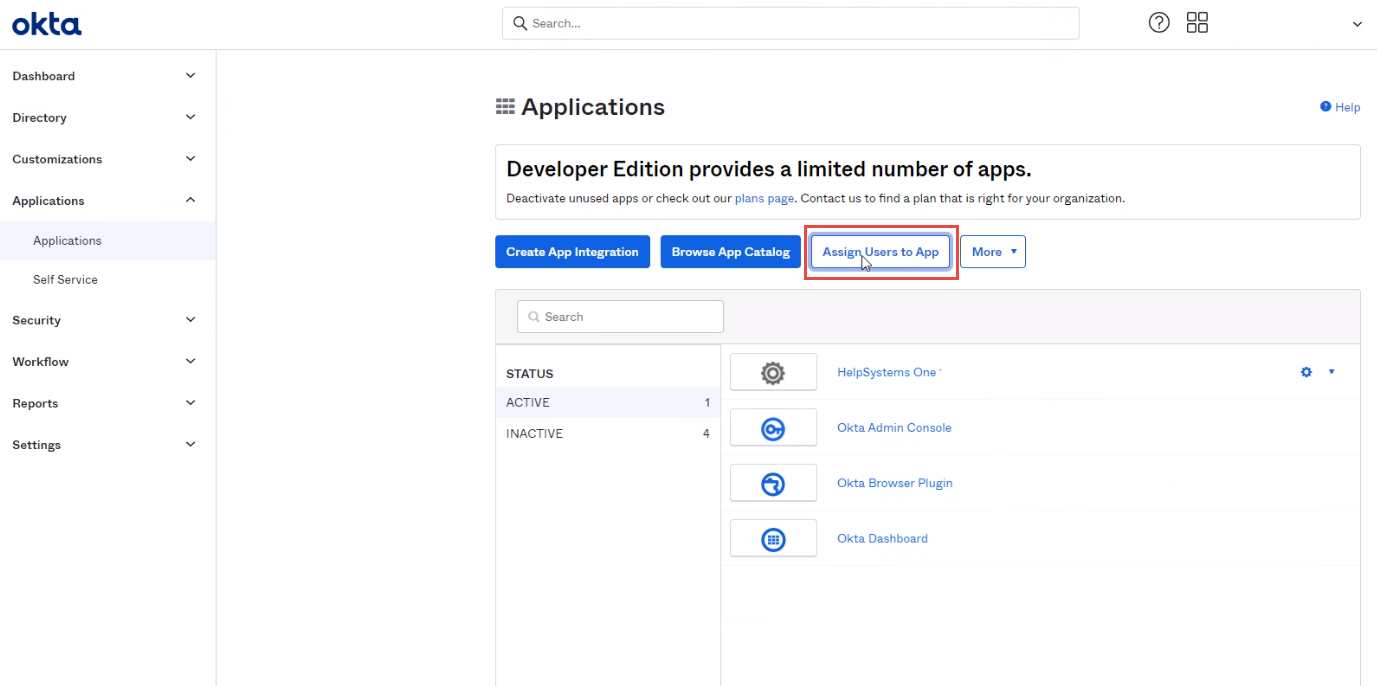
Assign users to the application. On the Application summary screen, click Assign Users to App
-
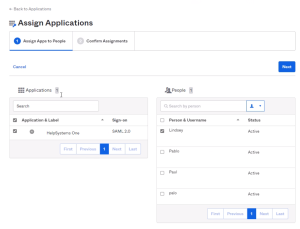
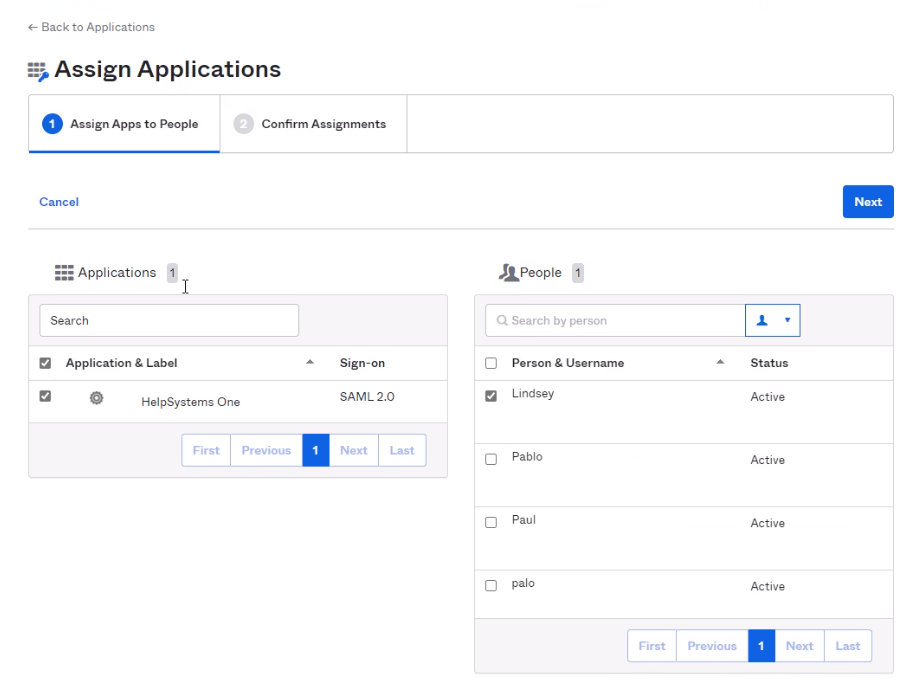
Select Fortra Application Hub application for the Applications section and select the users to add under the People section.
-
Select Next.
-
Review the assignments and select Confirm Assignments.
In Fortra Application Hub
SAML authentication for Okta is now configured. You can ensure that users will be able to log in with the following steps:
-
Add a user. For the name field, make sure to use the email address that matches the email address of a user you assigned in Okta. Also be sure to give the user authority to the pieces of Fortra Application Hub that they need to use. Use Roles to assign authority.
-
Log out of Fortra Application Hub.
-
Refresh your browser.
-
The Okta login screen should appear. Login using the email address of the user you just created.
-
You will then be logged in to Fortra Application Hub, using SAML authentication.
example: https://xx.xx.xxx.xxx:3030/HelpSystemsOne/?SAML=false