Create/Edit Rule

The Create/Edit Rule window allows you define a rule based on a set of conditional logic statements and preview the output of that rule.

Rule Builder

The Rule Builder tab is where you will define your rule. A rule can be as simple or complex as you want based on the condition statements.

  • To add a single condition statements click +CONDITION

  • To add a group of condition statements click +GROUPING.
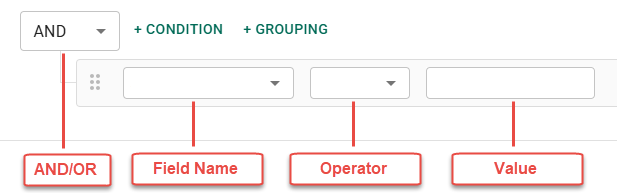
A condition statement is made up of four parts:

AND/OR
If there is one condition in the rule, AND is the default. Rules with multiple can be connected with AND or OR. Use AND when all conditions need to be true for the statement to be fulfilled. Use OR when either condition can be true for the statement to be fulfilled.
Field Name
The field on which the condition statement is based.
Operator
The way the Field Name is compared to the Value.
TIP: For the In and Not In operators, a CSV list can be copied and pasted into the value box. Each list item will be automatically separated out into individual boxes.

CSV list: machine1, machine2, machine3, machine4, machine5

To remove any of the value boxes, click on the right side of the box.
Value
The value that is being evaluated in relation to the Field Name.

Field Names

The following are the options available for Field Name in the Rule Builder. They are all different pieces of information about an endpoint that can be queried.

Global Unique ID
A unique identifier for the endpoint that Fortra creates when the Fortra Agent is installed.
Hostname
The name of the endpoint machine.
Example: HSATP-*****
Network Info Network Interfaces IP Address
The Network IP Address. Valid formats for this field are: IPv4 and IPv4 with CIDR notation
OS Information Architecture
The architecture of the operating system. The processor chip that the operating system was designed for.
Examples: x86 or arm64
OS Information Name
The name of the operating system.
Examples: Windows or macOS
OS Information Platform
The platform of the operating system.
OS Information Version
The version of the operating system.
Example: 10.0.19045
Users Name
The name of the service account user that the Fortra Agent is running as on the endpoint machine.
Example: NT SERVICE\XXXX

Single Condition Example

In this example, endpoints will be included in the group if they meet the single condition.

The OS information name contains the word 'mac'.

Multiple Condition Example

In this example, endpoints will be included in the group if they meet one of the two sets of conditions.
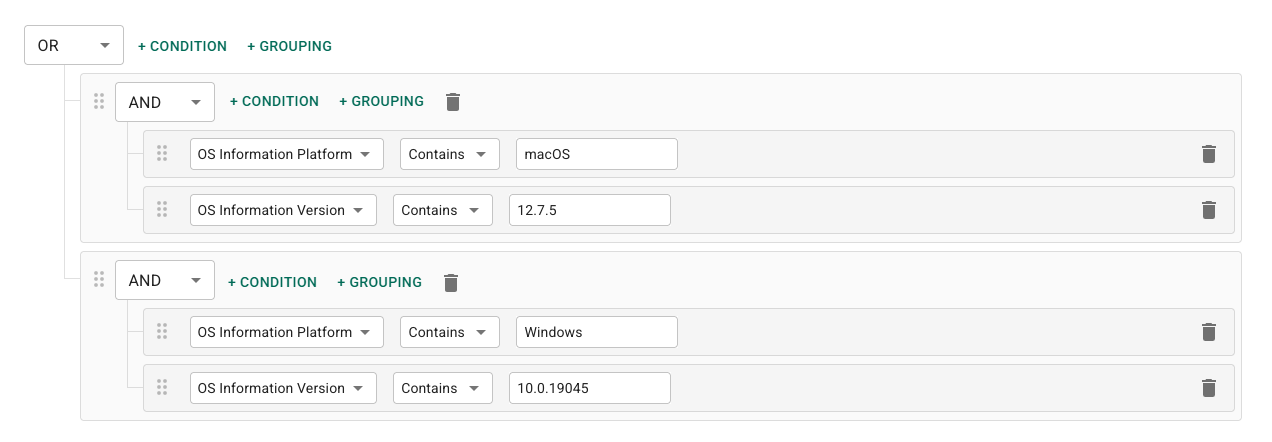
The endpoint OS platform is macOS and the macOS version is 12.7.5.
OR
The endpoint OS platform is Windows and the Windows version is 10.0.19045.

Preview Output

The preview output tab is where you can preview the endpoints that would be added to the group if the rule was evaluated at this time.

After setting the rule condition statements, you can view the output in two ways:

  • Click the Preview Output tab

  • Click the Preview button in the bottom right.

Additional Actions

  • Click Cancel to exit without saving your rule

  • Click Save to save the rule to your dynamic group

  • Click the trash button next to a condition statement to remove it from your rule.