How to Get There
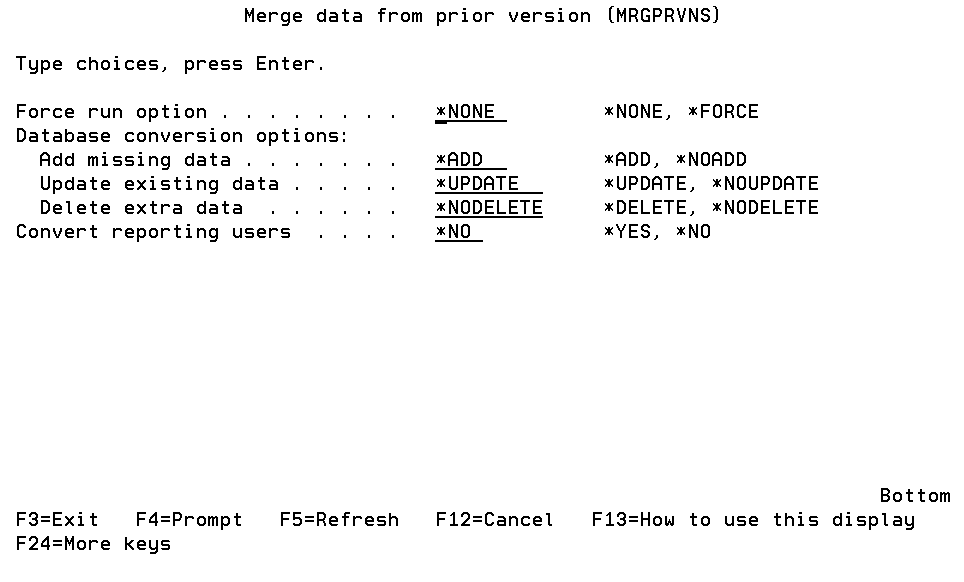
Prompt the command MRGPRVNS.
What it Does
The installation program installs Powertech Exit Point Manager for IBM i 7, but does not automatically import information from a previous version. The previous version exit programs remain active, allowing you to continue to use it as you become familiar with version 7 (as long as you do not activate Powertech Exit Point Manager for IBM i 7). Once you’ve familiarized yourself with Powertech Exit Point Manager for IBM i 7, use the Merge Previous NS (MRGPRVNS) command to merge rules from your previous version to version 7. You should review these rules and make any modifications necessary before activating version 7.
Merging data from a previous version of Powertech Exit Point Manager for IBM i does not automatically activate version 7. You must still run the activation process on Powertech Exit Point Manager for IBM i 7 to start using it. See Reactivating Powertech Exit Point Manager for IBM i After an Upgrade (below).
Options
Force Run option
Specifies that certain limitations in the migration are to be bypassed. This is useful if you have performed a migration once, made some changes, and need to run the migration again. Normally, the migration is allowed to be executed only once.
Database conversion options (CVTOPTS)
This parameter contains some settings you may use to limit the amount of data migrated to the new version. This is a multi-part parameter consisting of the following elements:
Convert reporting users (CVTAUTH)
Reporting-only users were registered as members of a particular Authorization List in prior versions. Newer versions of Powertech Exit Point Manager for IBM i employ the internal Product Security functions contained in Central Administration to control access to parts of the software.
Authorization list (CVTAUTL)
Specifies the name of the Authorization list whose member users will be attached to the Role you name in the CVTROLE() parameter.
"Reports-only" Role name (CVTROLE)
Specifies the name of the Product Security Role to which the members of the Authorization list will be attached. You must have already created this Role in Product Security in Central Administration; this command will not create it for you.
Command Keys
F3 (Exit): Exit the screen without processing any pending changes.
F4 (Prompt): Displays a list of possible values.
F5 (Refresh): Refreshes the screen and resets all available text fields.
F9 (All Parameters): Shows all available parameters.
F11 (Keywords): Displays command keywords on the entry fields.
F12 (Cancel): Exit the screen without processing any pending changes.
F13 (How to use this display): Shows help for the prompt display or associated display you are currently using.
F14 (Command string): Displays the command string based on the panel configuration.
F15 (Error messages): Displays error messages.
F16 (Command complete): Submits the command.
F24 (More keys): Exit the screen without processing any pending changes.