Obtaining a Permanent License Key |
For those that purchased a permanent license for Automate Enterprise but still have an evaluation license applied in the Licenses section, a permanent license key must be entered to replace the evaluation key currently applied. Also, a new license key must be obtained in the following scenarios:
-
Migrating Automate Enterprise from one computer to to another.
-
A change to the network interface (physical, virtual, or wireless) of the computer where the server component is installed.
-
A hardware ID mismatch error occurs.
In order to receive a new permanent key, the current license key as well as the hardware ID of the system where Automate Enterprise is installed must be obtained and forwarded to Help Systems.
To obtain a permanent License key:
-
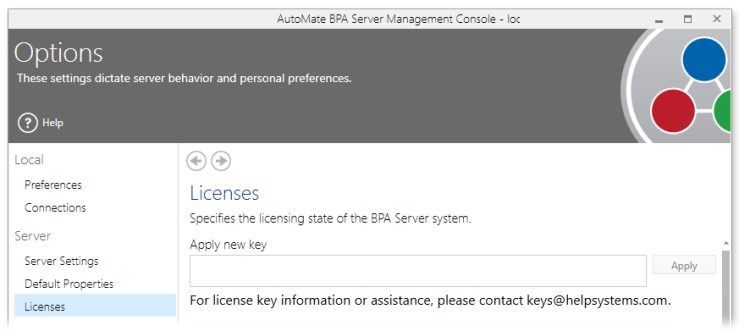
In Server Management Console, navigate to Options -> License.
-
Copy the displayed hardware ID and current license key and paste them into an email. To copy each value, right-click it and select Copy.
-
Along with the hardware ID and license key, enter your company name in the email. If you are an Automate re-seller, enter the customer contact information, including company name, contact name, and email address.
-
Send that email to keys@helpsystems.com.
-
When you receive the new license key, simply copy and paste it onto the License section under the Apply new key field and click Apply.
|
NOTE: You may also contact us directly to obtain a new license key. During after hours, you will be routed to a representative that can provide a temporary license key. See Licensing and Maintenance for more details. |