What's New in Automate Enterprise |
 New
In Server Management Console
New
In Server Management Console
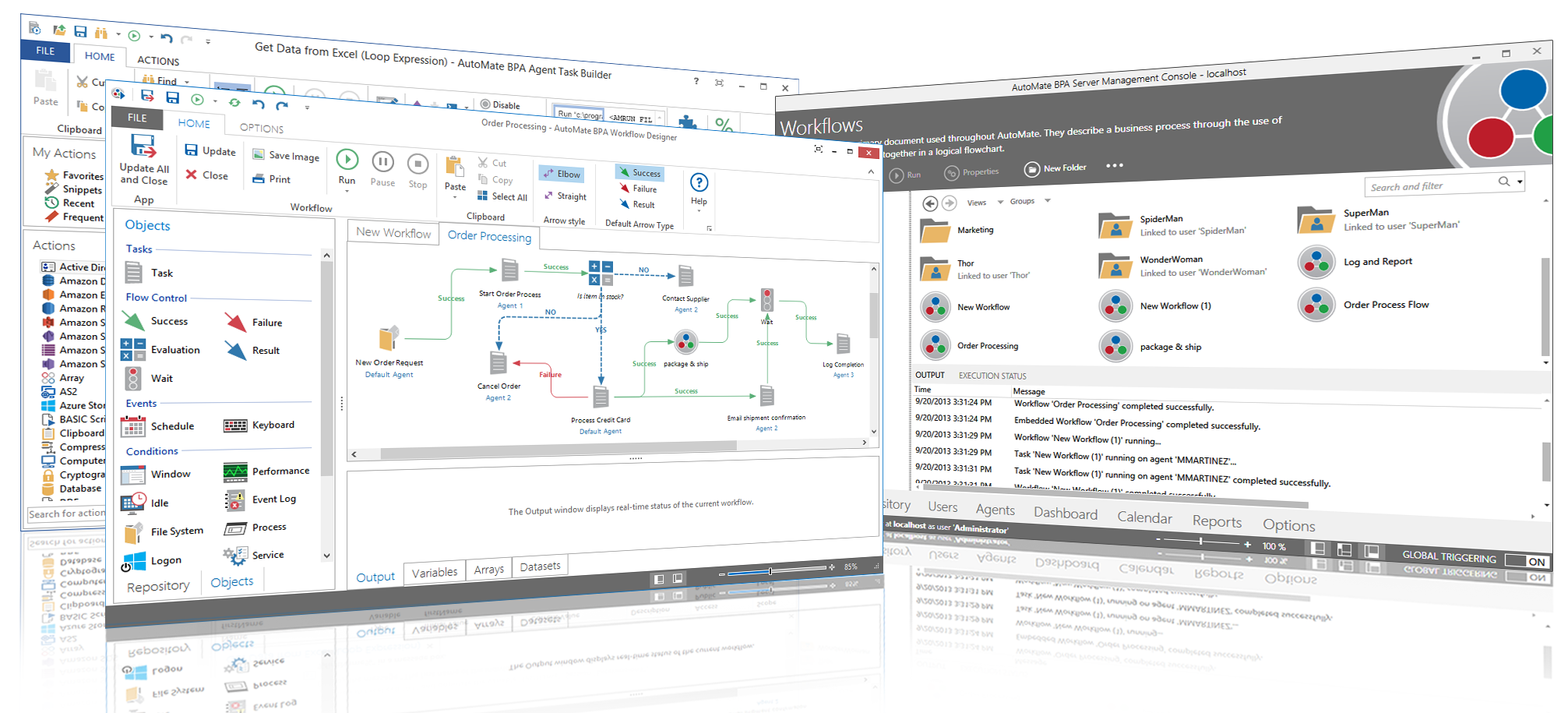
Modernized Server Management Console Interface
Server Management Console (SMC) has been graphically redesigned from the ground up with the principle focus to reduce the effort, familiarity, and thought required to use the interface. As a result, the size, color, and placement of each element work together, making it easier and quicker for users to get the results they want.
Server Management Console now features a Navigation bar which contains buttons that enable one-click access to the primary sections of the program.

New functionality has been added to the Status bar that allows users to show/hide particular window panels, increase/decrease the size of objects that appear in the main panel and conveniently set global triggering on or off.

Add Workflow Wizard
New or novice developers can now perform workflow construction with ease using the Add Workflow Wizard. This wizard assists developers by presenting them with a sequence of dialog boxes that lead them through a series of well-defined steps which includes producing and naming a new workflow, attaching one or more events/conditions required to run the workflow automatically, constructing task steps that sequentially perform the work, and configuring optional error handling, logon and user related properties. For easy navigation, the top portion of the wizard displays each step, allowing developers to jump to any particular step by simply selecting the step number/name. In the final step, the wizard displays a summary of the newly designed workflow, including added events, conditions, and other properties, allowing users to verify proper entry of parameters before completion.

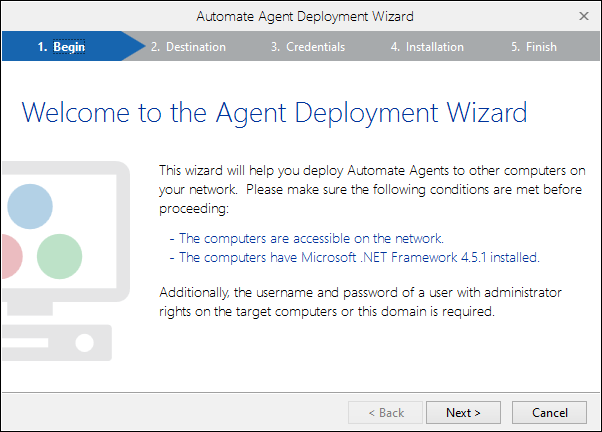
Streamlined Agent Deployment Wizard
The Agent Deployment Wizard has been redesigned with the emphasis on simplifying the process of guiding users through the fundamental steps of deploying agents. The top portion of the wizard displays the flow of available steps, which are selectable to enable direct navigation to any particular stage. Additionally, information about the managed task, such as its properties and attached triggers (if any) are displayed, allowing users to confirm proper entry of parameters before completion.
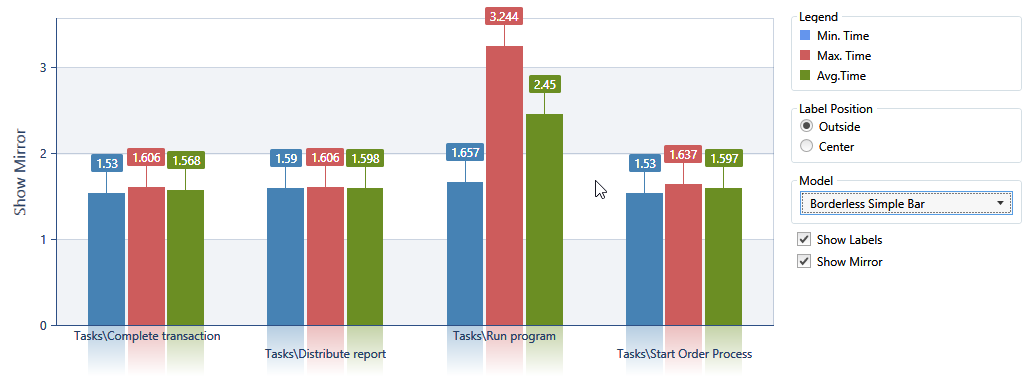
Charts Updated
Server Management Console's Charts have been updated with a new look and feel and enables the ability to export or print results for easy distribution. Viewable features include a legend box, data grid and customized vertical bar models with varied lengths that are proportional to corresponding values.
User Folders
User folders are folders that match the name of each user and appear in Workflows section of Server Management Console as well as the Repository section of both Server Management Console and Workflow Designer. Each folder is designated by an overlaid user icon (displayed below). The User folder is only accessible by its referenced AME user. All objects created from Workflow Designer are placed into their respective folders.

Global Search
Server Management Console's Search Filter functionality helps you quickly find existing repository objects in the Workflows, Repository, Users and Agents graphical views. ASearch and Filter dialog appears at the top-right portion of the main panel that allows you to dynamically search for existing objects by simply entering the name or a key word associated to the object. Each search is performed within a given scope and match criteria that you define.

Object Locking
Object locking is a security feature that enables a user to lock a task, workflow, event or condition in order to restrict other users from modifying them. Once an object is locked, restricted users will see a red lock on the top left corner of the icon representing the object.
Global Email Settings (Exchange & SSL)
Email is not simply the exchange of text messages. It is the primary and most effective means of communication in the modern office environment. Server Management Console enables email connection parameters to be set globally for outgoing email by way of Server Settings -> Email. If you connect to the same email server, this will save you time filling out the server properties for each operation that requires an email message to be sent, such as the Send message activity or Send message on error handling functionality.
Global HTTP Proxy Settings
For those that require connection through a proxy server, the Server Management Console allows specification of a default proxy server that Automate will use when certain internet related actions are executed by way of Proxy properties. This will save you time filling out the settings for each task step that involves a proxy connection.
Expressions & Constants in Events & Conditions
Unlike previous versions, Automate Enterprise 10 allows expressions and constants to be entered in the properties of an event or condition. The value of the expression or constant will be evaluated at the time the event/condition is set. An event or condition is set upon agent connection, when the event/condition is edited or when the workflow containing the event/condition is edited.
Agent Updates
In place upgrades are now available through existing agent connections. One click agent updates greatly reduce the amount of time necessary to update a particular agent and its properties.
Workflow Item Timeout
Workflow Item Timeout is a new feature in version 10 that allows the user to configure a window of time that a workflow item should execute within. If execution exceeds the timeout period, then the task will stop. This feature provides users with more control over time sensitive tasks. Rather than allowing such tasks to execute indefinitely, entering a timeout value ensures that execution will either complete or abort within a set time.
Session Security Enhancements
Server Management Console now encompasses a number of features aimed at securing user login operations and logon sessions.
- User lockout - If a given user fails to login a specific number of times in a configurable time period, the user is disabled (locked out) for a set time period.
- Session timeout - If a user is idle in SMC for a configurable time period, the server ends the session and notifies the user that they have timed out.
- Disabling concurrent login - This feature blocks a user from logging in at the same time, regardless of location.
Audit Enhancements
Server Management Console now includes a more comprehensive auditing feature enabling users to generate more robust audit records and reports. They are as follows:
- Property changes on objects are now logged.
- Permission changes on objects are now logged.
- Session opening and closing information are now logged.
- Failed attempts to open a session are now logged.
- All audits events now include the session ID they originated from, to make report generation easier.
x64 Support
Version 11 of Automate now comes with 32-bit and 64-bit installers. This allows the 64-bit version of Automate to recognize 64-bit processes.
New
In Workflow Designer
Modernized Interface
The Workflow Designer's layout is similar to Server Management Console and Task Builder's specifications. This design concept is the key principle for maximizing usability. The newly designed Ribbon contains tabs that are composed of groups, which are a labeled set of closely related commands. Visual aspects of flow control arrows are customizable. You can choose whether to show or hide text overlays that describe each arrow (for example, Failure or Success). You can choose whether to use straight arrows or bent (elbow-style) arrows and/or indicate the default arrow type to be attached to a workflow object.

The Ribbon also encompasses a Quick Access Toolbar that houses the commands and buttons that are used most often within easy reach.

Resume From Failure
After correcting an error, you may decide to re-run the workflow that caused the error to check for additional issues. However, you may not want to run the workflow in its entirety, but instead, start execution from the point of the previous error. This can be done by selecting the down arrow below the Run button and selecting Resume Failed.
Manual resume from point of failure of a workflow can occur by manually running the workflow either from the SMC or WFD. Automatic resume from point of failure of a workflow occurs upon the next triggering event of the workflow. Successful execution of a workflow clears previous failure information.

Disable After Failure
You may want to prevent a workflow from starting automatically after it has failed. In such cases, you can set the workflow to disable itself upon failure so that future executions don;t occur until the workflow is re-enabled. The Resume from failure feature can still be used upon re-enabling the workflow.
Run From Here
When workflow execution reaches an object that contains a breakpoint, Workflow Designer pauses the workflow at the breakpoint and waits for user input. You can now continue execution by selecting an object and clicking Run from here, which will run the workflow in its entirety from the currently selected object. As with previous versions, you can also click Resume to resume execution from the breakpoint, click Step to step through each workflow object one by one, or click Stop, at which point, execution halts immediately.

New
In Task Builder
Modernized Interface
The Task Builder has been graphically redesigned to make it easier for developers to find and use the full range of features and elements provided while preserving an uncluttered workspace that reduces distraction. The newly designed ribbon contains tabs that are composed of groups, which are a labeled set of closely related commands. This helps users easily find, understand, and use commands efficiently and directly, with a minimum number of clicks and with less need to resort to trial-and-error. The Ribbon also encompasses a Quick Access Toolbar that houses the commands and buttons that are used most often within easy reach.

Additionally, a new My Actions pane enables easy access to favorite, most recent and most frequently used actions and activities as well as well as activities designated as snippets.
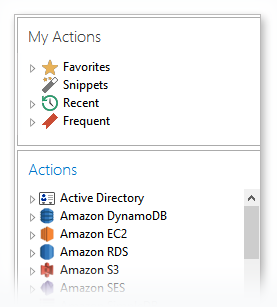
Improved Action and Activity Library
The Task Builder's Actions panel now comprises a comprehensive library of more than 600 pre-built actions/activities, eliminates the need for writing scripts and batch files altogether. The bottom portion of the Actions panel contains an intuitive search dialog that enables you to define search criteria and provide more efficient and effective searches. It supports dynamic search filtering, allowing you to enter all or part of an action's name and view only actions that contain matching text. The list is updated as you type each letter.

Modernized Action Editor
The goal for action editor interface design is to make it easier for developers to access the range of properties and parameters supported for each activity as well as reduce redundancy. The newly developed action editor is designed to do just that. It provides an easier and quicker way to edit tasks by focusing on properties that are of most importance. In addition, the left portion of the editor now contains the full list of consolidated activities common to a given action. This enables switching from one activity to another without the need to re-enter required parameters or re-open the action editor.

Modernized Expression Builder
In addition to building expressions, the Expression Builder can be used to view specific objects (for example, variables or datasets) that are created as a result of specific events. The Expression Builder has been redesigned to now include a filter dialog, allowing users to find objects by simply typing the object name. In addition, the Expression Builder's left (folders) panel is now complete with all available automation objects such as task functions, task events, attachments and other objects.

Snippets
Snippets provide an easy way to implement frequently used code into a task. Instead of re-entering the properties for a specific activity or series of activities every time they're added as task steps, users can save the steps as a snippet and simply drag and drop the snippet wherever it is needed in any task. A snippet can consist of one or more steps. Once a snippet is added to a task, its contents act as normal steps can be reorganized or deleted or properties can be modified as needed. By using folders, users can easily organize common or related snippets into categories, creating a cleaner development environment.
Task Functions and Events
Task Events and Task Functions are new core features in Task Builder that make complex, high level automation routines more comprehensible. They enable the flow of a task to be determined by specific events that take place, which in turn, triggers execution of a callback function. Automate Enterprise is capable of performing task events as it performs the steps necessary to complete a task. This capability allows specific event related information to be returned when a task starts, when it completes (either successfully or unsuccessfully) as well as a number of stages in between (that is, when a specific step starts, ends or generates an error).

Sessions
Many actions now support sessions which contain pre-configured credentials and properties that are shared amongst associated activities within a given session. Linking a combination of related activities to a single session eliminates redundancy. Additionally, a task supports construction and simultaneous execution of multiple sessions, improving efficiency.
New
& Improved Actions/Activities
Automate's PDF action allows you to create and share step-by-step activities that make complex or repetitive PDF related tasks easy for virtually anyone to execute consistently. Whether you're dealing with a single PDF or a large batch of files, the pre-built PDF activities let you run a sequence of procedures automatically. Activities include the ability to create, sign, stamp, encrypt, decrypt, extract, search and replace PDF files (to name a few).

WMI
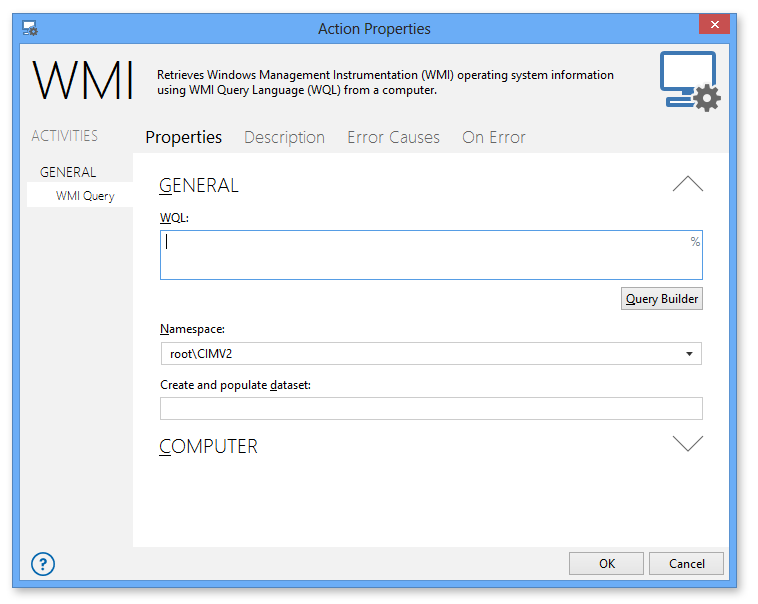
Automate's WMI action can monitor and control managed resources on a local or remote computer, thus, improving manageability of computers in a networked environment. For instance, a WQL Query task can initially determine any issues and direct itself to perform proper activities to correct the problem before proceeding to other steps.
PowerShell
Windows PowerShell is a task-based command-line shell and scripting language designed especially for system administration. PowerShell's framework allows administrators to perform tasks on both local and remote Windows systems from the command-line. Automate's PowerShell - Run script action enables you to automate the management and control for PowerShell processing. With the use of the PowerShell action, you can embed existing PowerShell scripts to a task or point to an external .PS1 file to allow for seamless integration with other actions..

Amazon DynamoDB
Amazon DynamoDB is a fully administered NoSQL database service that provides fast, reliable performance, allowing users to create database tables that can store and access any amount of data to serve any level of traffic without downtime or performance degradation. Automate allows developers to automate a variety of DynamoDB operations without the need to write code. Since DynamoDB is a service based on throughput, developers can also create tasks to monitor usage and storage capacity.

Amazon SES
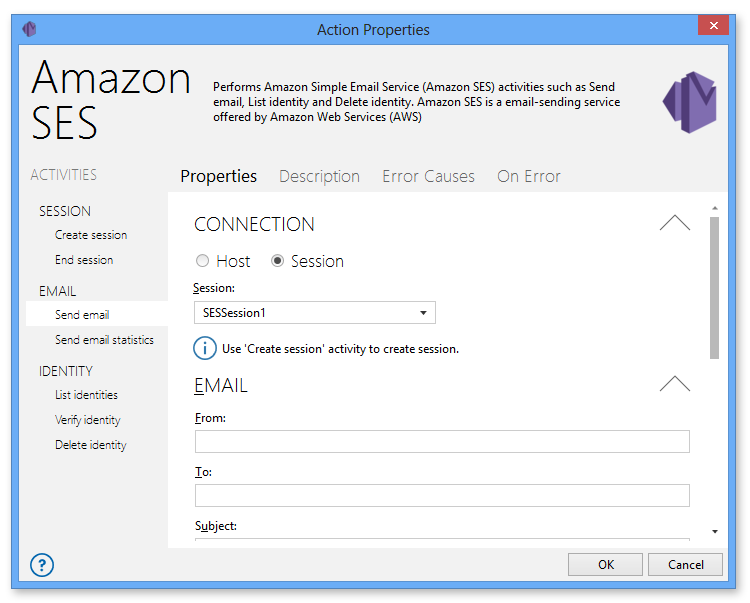
Amazon SES provides an easy, flexible, and low-cost way to deliver emails from the cloud, while reducing the possibility of legitimate email being classified as spam. It integrates effortlessly with other Amazon Web Service (AWS) products, can send a broad range of business, marketing, and subscription messages, and easily handles large volumes of email. With Automate's Amazon SES action, developers can automate the creation and transmission of emails as well as retrieve and verify identities for a specific AWS account. In addition, it allows creation of unique sessions used to run specific SES operations. Multiple sessions can exist in a single task allowing simultaneous SES executions to take place.
Image
Images are an essential element of many modern businesses due to their ability to draw attention and create a long-lasting impression, thus, more organizations are learning the benefits of adding a visual component to their social media strategies. Because images are larger in size than textual data, they can eat away at available hard drive space and create bottlenecks in networks. In addition, developers and designers must deal with editing and converting many images by hand, which can be time consuming. Automate's Image action consists of activities that can greatly reduce the time it takes to perform such a process. For example, you can create a single task that reduces the size of an image, applies a filter for a particular effect and converts the image file to the desired format. In addition, you can integrate loop related activities to run this task on hundreds or thousands of images.
In many situations, data required for automation are no longer available as text, but rather, only as pixel images. As a result, the Image action also includes a new Image recognition activity, which makes automating tasks in a graphical environment much more accurate. Image recognition allows you to search for images as well as image patterns. It can be used to quickly search for duplicate images within folders and sub-folders that may contain a considerable amount of image file or used as a tool to specify coordinates as a way to precisely identify the location of an image.

SharePoint
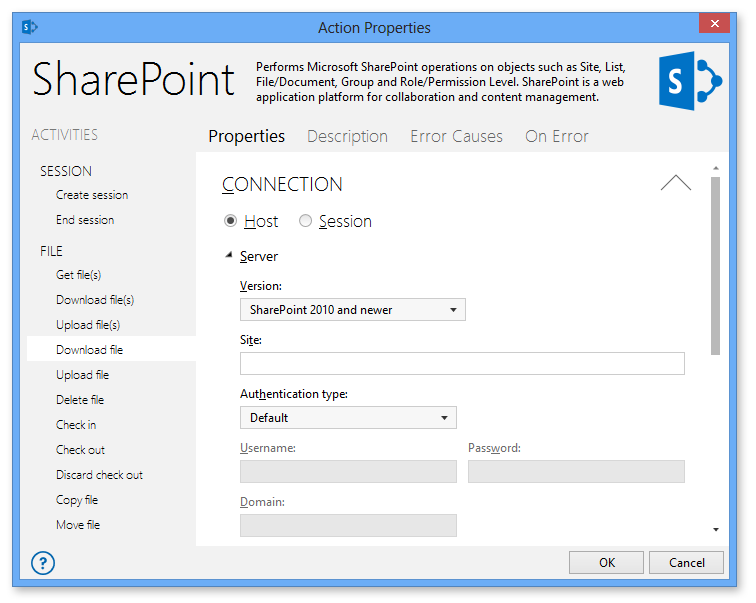
With the use of Automate's SharePoint action, organizations have the power to automate the creation, management and implementation of SharePoint sites that are discoverable throughout the organization. By further streamlining and automating SharePoint processes, a company's resources can be allocated to other areas, which can lead to reduced costs and greater operational efficiency.
Skybot
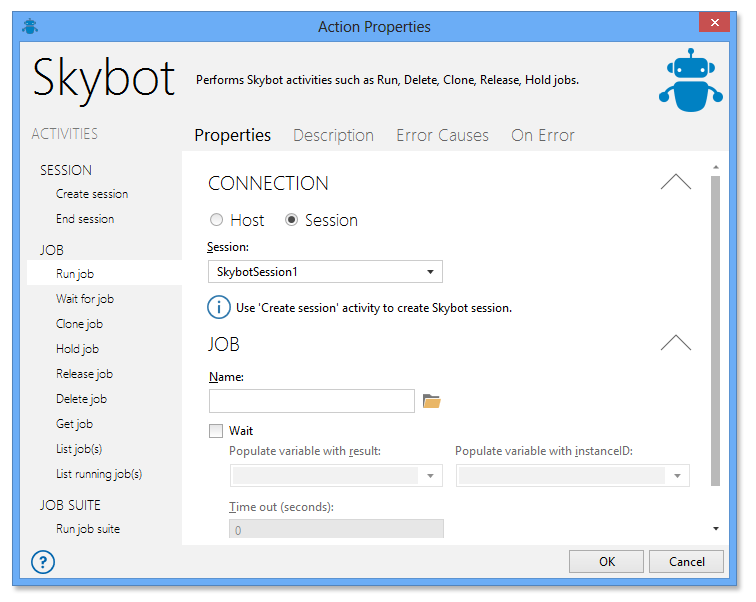
Skybot's integration with Automate will allow users to create server objects (in Skybot) that represent an Automate/Automate Enterprise installation and have the ability to build jobs that execute a task/workflow on selected Automate/Automate Enterprise servers. Skybot will be aware of defined servers, be able to run tasks or workflows on those servers, wait until the task is complete before moving on to the next command in the Skybot job, capture the return code of the task or workflow and capture the command line output and add it to the job log. The new Skybot action further enhances Skybot's automation capabilities.
OpenDocument Spreadsheet (ODS)
The OpenDocument Spreadsheet action enables creation and management of spreadsheets without requiring Microsoft Excel to be installed on the system. This action not only supports spreadsheet generation and other basic file formatting features, but also supports a number of advanced features which make it much more convenient for developers to manipulate spreadsheet contents, format cells and protect files. More importantly, it can process Excel files dynamically, which enables developers the ability to automate hundreds or thousands of of spreadsheets very quickly.

New Activities
Dialog - Custom
Automate's Dialog action supports predefined dialog boxes that can convey specific information or request user input during task execution. However, a custom dialog box may be required that, for example, presents the user with specific options and then runs the appropriate steps based on the option they chose. In such cases, developers can use the new Custom dialog activity to design a custom dialog to fit their needs. A variety of controls are supported, each containing properties that can be viewed or modified by way of the Dialog Designer (displayed below), an intuitive graphical interface used to easily design custom dialogs.

File System - CSV to dataset
The File system action now contains a new CSV to dataset activity which enables users to automate the movement of tabular data between programs that natively operate on incompatible (often proprietary) formats. For example, a user may need to transfer information from a database program that stores data in a completely unique format. The database program most likely can export its data in CSV (comma-separated-values) format. Automate can then read the exported CSV data onto a dataset and eventually import the dataset values onto the spreadsheet program.
Excel - Run Macro
A macro is typically a set of instructions produced by recording a sequence of keyboard and mouse actions using the Excel Macro Recorder. If you perform a task repeatedly in Microsoft Excel, you can eliminate repetition by creating a macro that automates the task, however, the macro can only be started manually by some type of user interaction. Automate's Excel action contains a new Run macro activity that resolves this issue by allowing such a process to be automated without the need to write a single line of code. You can automatically start existing macros on a set schedule or upon the occurrence of an event or condition, greatly speeding complex spreadsheet operations.
Registry - Get Values
Extra functionality has been added to the Registry action with the addition of the Get registry values activity. With this activity, you can retrieve the values contained within a specific registry key and save the results onto a dataset. You can, for example, determine whether a given value currently exists in a specific registry key and perform other actions as a result.
Loop - Values
The Loop action adds additional functionality to registry operations with a new Loop values activity. This activity loops through the values contained in a registry key and populates a dataset with results. It is useful when you want to operate on a collection registry values or sub-keys, one at a time.
Amazon S3 - Put Object
The Amazon
S3 action contains a new Put
Objects activity. This implementation of the PUT
operation adds (uploads) an object to a bucket. You can optionally
specify the accounts or groups that should be granted specific permissions
on your objects with the use of a canned ACL request header. Also,
to ensure that data is not corrupted traversing the network, use the
Content-MD5 header. This activity also supports the use of a Content-MD5
header to ensure that data is not corrupted traversing the network.
When you use this header, Amazon S3 checks the object against the
provided MD5 value and, if they do not match, returns an error. Additionally,
you can calculate the MD5 while putting an object to Amazon S3 and
compare the ETag returned in a dataset to
the calculated MD5 value.
Email - Archive Messages
Archiving email messages can clean your inbox by getting messages out of your way, and at the same time, protect the data contained in your email. Automate's Email action encompasses a new Archive messages activity that allows you to easily automate the process of preserving and protecting your email messages (as well as attachments and metadata) so they can be accessed at a later date, should the need arise. This activity contains a filtering function that allows archiving of specific messages based on the specified filter. The benefits of email archiving include the recovery of lost or accidentally deleted messages, accelerated audit response, preservation of the intellectual property and "eDiscovery" in the case of a court trial, lawsuit, legal proceeding or internal investigation.
If - Contains Text
Automate's If - Contains text activity is commonly used to check the contents of a piece of text and perform conditional actions depending on whether it is found. It can determine if the text to look for is contained within the target text and returns TRUE or FALSE depending on the outcome. Optionally, it can determine whether the target text starts with or ends with the text to look for.
Array - Set
The Array - Set activity sets the value of one or more elements in an existing array. In addition, it can optionally add new index/value pairs to an existing array. This activity can be used in conditional-based tasks to add or modify array values on the fly.
Various Text-related Activities
Manipulating text strings is one of the most common tasks performed in scripts. The Text action in Automate encompasses a handful of new activities that enables even more precise manipulation of text. They include the following:
Convert case - Converts the specified text to upper or lower case letters and populates a variable with the results.
Reverse - Reverses a text string and populates a variable with the results.
Format path - Formats specific parts of a file path to reveal precise data.
Base64 encode/decode - Encodes or decodes a block of text using Base64 algorithm.
New
& Improved Events/Conditions
Database Condition
The newly developed Database condition can fire off workflow execution when a specific command is performed on a SQL or Oracle database, such as data insertions, deletions or updates. This is ideal for automated execution of database related operations. For instance, a SQL query task can start upon entry of data into a specific table.

File System Condition (Updated Prerequisites)
The File System condition is now capable of monitoring folders. They include the following prerequisites:
- Folder added - Monitors for the specified folders to be added to the target folder and starts the task as a result. If disabled (default), folder additions will be ignored.
- Folder removed - Monitors for the specified folders to be removed from the target folder and starts a task as a result.
- Folder renamed - Monitors for the specified folders to be renamed and starts a task as a result.
- Folder modified - Monitors for the specified folders to be removed from the target folder and starts a task as a result.
- Number of folder exceeds - Monitors for the total number of files in the target folder to surpass the value entered and starts a task as a result.

Copyright Help/Systems LLC and its group of companies.
All trademarks and registered trademarks are the property of their respective owners.