|
|
Failure Arrow |

Overview
The Failure flow control arrow is color coded red. It stems from a parent object (for example, Condition, Sub-Workflow, Task, Process) in a workflow and proceeds only if the parent object fails. It is normally used to modify the path of a workflow as a result of task failure. In such cases, the failure arrow can link to an alternate task that corrects the issue encountered by the failed task or alerts the proper authority of the failure. See Flow Control Arrows for more details.
Examples
The sample workflows below illustrates usage of the failure arrow.
Example 1 - Conditional Branching
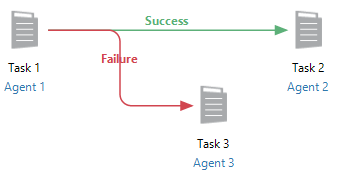
Flow control arrows allow conditional branching to take place by determining a workflow’s progress depending on specific events or conditions that transpire. The sample workflow below illustrates exception handling by way of conditional branching at its simplest form. A workflow executes along the path of any arrow containing the value equaling that of the previous object. Therefore, if Task1 completes successfully, execution follows the path containing theSuccess(green) arrow and runs Task 2 on Agent 2. If Task1 fails, execution follows the path containing theFailure(red) arrow and runs Task 3 on Agent 3 instead.
Example 2 - Multi-Execution
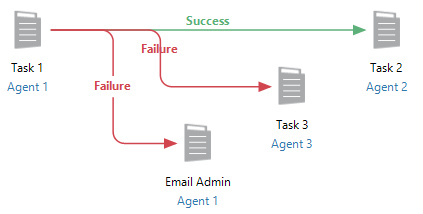
Another scenario would be to execute two or more tasks simultaneously in the event of a failure. As shown in the example below, if Task 1 is successful, the workflow follows the path of the Success arrow and runs Task2. However, if it fails, execution follows both of the Failure arrows that are assigned. Both failure tasks will execute simultaneously.
Example 3 - Evaluations Linked to Failure Arrow
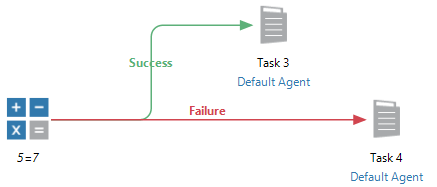
Along with a Result Arrow, an Evaluation object can also be followed by a Failure and/or Success arrow. This is because Evaluation objects treat a TRUE/YES result as a success and a FALSE/NO result as a failure. As shown in the example below, the Evaluation object evaluates 5=7 which is false, therefore, the workflow follows the Failure arrow which runs Task 4.
Example 4 - Error Handling
Failure arrows can be used handle errors that may occur, or at least link to a task that can handle the error. In the example below, if Task 1 fails, a Failure arrow sends the workflow to task that can fix the error.

Additional Notes
There are some basic practices to follow when using arrows to link from one object to another:
- The Result arrow should only be used to link from an Evaluation Object to other objects because only the Evaluation object can provide an answer (that is, the result) to a question (that is, the evaluation).
- Along with a Result Arrow, an Evaluation object can also be followed by a Success or Failure arrow. This is because Evaluation objects treat a True Result as a Success and a False Result as a Failure.
- Do not use a Failure arrow to link from event objects (for example, Schedule and Key events). Only the Success arrow should be used to link from events to other objects because events are designed primarily to trigger workflow execution. Unlike conditions, events lack behavioral properties that allow it fail.
- If a condition is used as a triggering object at the start of a workflow, it should only be linked to a Success arrow and not a Failure arrow. This is because the Behavior tab settings of a triggering condition is set to Wait for condition and Indefinitely. In other words, it will wait for the specified condition to occur indefinitely, therefore, has no possibility to fail.