Expression Builder
Overview
The Expression Builder is a valuable tool used to assist in the creation
and examination of expressions. It
essentially incorporates all of the elements required to create a properly
formatted expression for use in any step of an Automate Desktop task. In programming,
an expression is a combination of variables, constants, functions, and
operators used to represent a particular value. For example, 2+3 is an
arithmetic and programming expression that evaluates to 5. Many actions
or operations that one might want to perform with expressions are already
contained in Automate Desktop list of available actions. However, expressions
can be used to further expand the capabilities of an action, thus, supplying
more intelligence to the task as a whole due to its ability to
resolve dynamic data during task execution.
The Expression Builder interface can be accessed from the Task Builder
in the following ways:
- In the properties of any activity, reering
inside any text box that accepts an expression allows the
Insert Expression/Variable
button (represented by the % symbol) to appear to the right of
the box. Clicking this button (or pressing F2 on your keyboard) causes the Expression
Builder interface to be displayed.
- From the Task Builder ribbon, select File > Tools > Expression Builder.
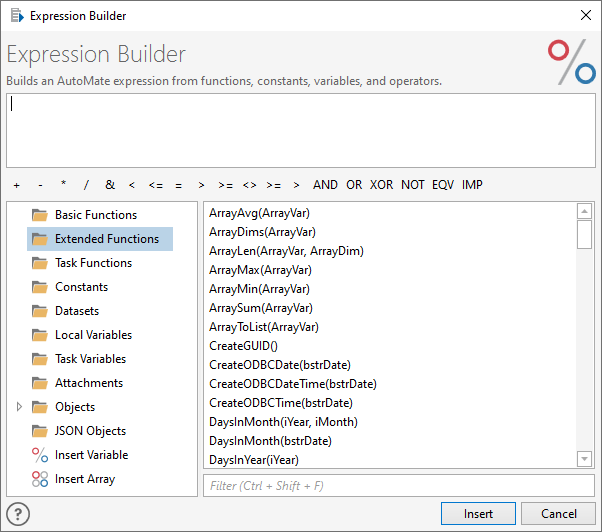
The Expression Builder interface is arranged in sections as illustrated
above. Each section plays an important role in the creation of an
Automate Desktop expression.
| Folders
panel |
Comprised of folders containing all available
functions, extended functions, variables, datasets, and so on. This also
includes the Insert Variable and Insert Array icons that enable
creation of variables and arrays directly from the Expression
Builder interface. The folders panel provides a hierarchical
view of the following items. For more information on an item,
click the associated link:- BASIC
Functions - A library of BASIC VBA-compatible
functions.
- Extended
Functions - A library of additional functions
that extend the functionality of the Automate Desktop scripting
engine beyond the capabilities that the basic VBA-compatible
engine provides.
- Datasets
- Displays a list of available datasets.
- Local
Variables - Lists all local variables.
- Task
Variables - Lists all task variables.
- AMError
- Lists all AMError dataset names that can be used
to examine properties of a specific error
to determine task failure.
- AMTrigger -
Lists all AMTrigger dataset names that returns information
about the trigger that started the task.
|
| Contents
panel |
Displays
the contents of a folder selected from the Folders panel.
Help for each content can be found by selecting the desired
content from this Contents panel and pressing F1 on your keyboard. |
| Operators |
Displays
available operators
that are symbols that represent specific actions or enables
manipulation of numbers and text in more sophisticated ways.
Operators can be used to construct more complex expressions.
|
| Expression panel |
Displays the
built expression. When double-clicking an item from the Contents panel, the expression
is displayed in the Expression
panel. Help can also be found for a function from this panel
by placing the insertion cursor inside a function name and
pressing F1 on your keyboard. |
| Search
filter |
Searches
entries for specified keywords and returns a list of the items
where the keywords are found. |
The Expression Builder can be used to construct expressions that
you can use in the steps of your task.
To construct an expression
-
Open the Expression Builder from an action dialog by clicking Insert Expression/Variable
.
-
Add elements to your expression by doing the following:
-
Select a folder from the left pane to reveal
its contents in the right pane.
-
Double-click elements in the right pane to
add them to your expression.
-
Select and replace characters in the expression
as needed.
-
Select operators below the expression pane
to add them to the expression.
-
Click Insert to insert
it into the specified action properties. When the expression
is added to the action parameter, the percent signs (%) are
automatically added to the beginning and end of the expression.
The Expression Builder can be used to view specific objects that
are created as a result of specific events. The Variables folder located
in the Folders pane of the Expression Builder becomes populated if
a Create Variable action is used to create the specified variables
in an earlier step. Additionally, the datasets folder becomes populated
when the specified datasets are initially created by running the step
that creates and populates a dataset names and its contents, however,
the dataset name itself is available in the Expression Builder if
a step that creates the dataset appears in the task.
For example, imagine creating a task that includes a Get Email
action as the first step to retrieve email messages from a POP3 mail
box. The General
tab of this action contains a parameter labeled Create
and populate dataset that specifies the name of
the dataset created and populated with the mail message
upon execution.
 Accessing the Expression Builder