Expressions
What are expressions?
An expression, in programming, is a combination of symbols that represents a value. The expression is interpreted according to the rules of the programming language and a value is returned. The Expression Builder provides a quick and convenient way to create and evaluate Automate Desktop BASIC expressions from directly within the parameters of a task step. Expressions work by taking the text found between percent (%) signs and passing it to the Automate Desktop BASIC expression interpreter. During runtime, the BASIC interpreter replaces the original expression (including the percent signs) and returns the resulting value instead.
Using expressions
Many actions that normally require expressions may already be built into Automate Desktop activities. However, you can use expressions to further expand an action's capabilities. For instance, you can build expressions that resolve complex, dynamic data at runtime with the use of variables, functions, extended functions, and operators.
Example 1 - Simple mathematical expression
In the following example, a task runs a single step that performs a simple mathematical calculation and displays the results in a message. To create this task, do the following:
-
From the Task Builder, add a Dialog - Message activity to the Steps panel.
-
From the General properties of this activity, enter %7+7% in the Message to display parameter and click OK.
-
From the Task Builder ribbon, click Run to start the task.

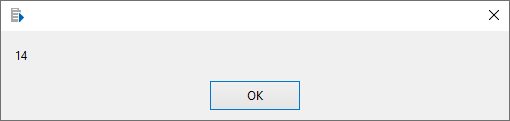
Since the phrase 7+7 is surrounded in percent signs, Automate Desktop knows that it should try to resolve the expression and not display it literally. To resolve the expression, at runtime, the value between the percent signs (%) is passed to the BASIC expression interpreter, where it is processed and the result is returned. A message is displayed with the value of 14.
Example 2 - Expression with variable
Expressions can also contain Automate Desktop variables. Taking the previous example a step further, assume we now want the task to give the user the ability to enter a number they want squared.
-
Use the Variable - Create activity to create a variable named NUMTOSQUARE with the initial value of 1. This variable is used during runtime to retain the user's response to the question.
-
Use the Dialog - Input activity as the second step to display the question What number do you want squared? and populate the NUMTOSQUARE variable with the answer.
-
Use a Dialog - Message activity as the last step which displays the result by use of the following expression multiplying the variable by itself: %NUMTOSQUARE *2%.
The complete task is displayed below in AML format. To run the task, copy and paste the code below directly into the Steps panel of the Task Builder.
<!-- Create the variable. -->
<AMVARIABLE NAME="NUMTOSQUARE" VALUE="1" />
<!-- Ask the user to enter a number. -->
<AMSHOWDIALOG ACTIVITY="input" MESSAGE="What number do you want squared?" RESULTVARIABLE="NUMTOSQUARE" />
<!-- Perform the calculation using an inline expression. -->
<AMSHOWDIALOG WINDOWTITLE="Result" RESULTVARIABLE="NUMTOSQUARE">The answer is: %NUMTOSQUARE*2%</AMSHOWDIALOG>Notes
Notice that we first had to create the variable we intend to use. All variables to be passed into a scripting language, either explicitly through the use of a BASIC script step or implicitly through the use an expression, need to be created first. You can accomplish this using the Variable - Create activity.
Variable names are not case sensitive in Automate Desktop ; the variables are capitalized here for clarity.
Because each expression is passed to the scripting language engine, any command available from a common Automate Desktop BASIC script is available to you for use in expressions in your step parameters. Refer to the Automate DesktopBASIC Language Reference for more information on these powerful commands.