Functions & Extended Functions
Overview
In computer programming, a function is predefined code which can generate various kinds of values depending on certain input from the user. Most programming languages such as VBScript come with a pre-written, built-in range of functions that perform various procedures or routines. Functions can be used as an expression in any task step, thus, adding more intelligence to a task and further broadening the functionality of Automate Desktop . Additionally, Automate Desktop contains an extensive collection of additional functions that increase the functionality of the Automate Desktop Scripting Engine which are called Extended functions.
Function syntax
Most functions require other parameters in order to properly complete a procedure or routine. The general format of a function is its name followed by any arguments contained in between parenthesis. An argument (sometimes referred to as parameters) is a value sent to the function when it is called upon. By passing an argument to a function, the function is given information to work on. A basic function looks similar to this:
FunctionName(arguments)
Certain functions might not need arguments to properly perform its duty. A function without arguments must include an empty set of parentheses ( ). For example, the Date() function returns the current system date and the Now() function returns the current date along with the time. These functions require no arguments or parameters they need to perform any procedures on, therefore the proper syntax are simply the functions themselves, with nothing entered in between the parenthesis. For instance, if the following syntax was entered:
Date()
The returned result is the current date value such as 1/1/2023.
An example of a function which requires arguments is the Len() function, which returns the number of characters in a string. The syntax for this function is Len(“string”) which requires a string to be entered inside the parenthesis in which it performs calculations on. For example, if the following is entered:
Len(“Hello”)
The returned value is 5.
Another example is the Automate Desktop extended function, ExtractFileName(), which requires a path and file name in between the parenthesis it extracts the file name from. So, if the following is entered:
ExtractFileName(c:\files\filename.txt)
The returned value is filename.txt.
An example of a function requiring more elaborate arguments is the Left() function, which returns a specified number of characters from the left side of a string. The syntax for this function is Left(“string”, length) which requires a valid string followed by the amount of characters to return inside the parenthesis. If the following is entered:
Left("Automate", 4)
The return value is Auto.
Another example is the InsStr() function which returns the position of the first occurrence of one string within another. The search begins at the first character of the string. The syntax for this function is InStr(“string1”,“String2”). If the following is entered:
InStr(Hello,o)
The return value is 5 signifying that the letter o is the fifth character in the word Hello.
Using functions
Built-in VBScript functions along with Automate Desktop extended functions can be used to return data inside any action parameter of a task that accepts expressions by surrounding the function with percent signs (%). This tells Automate Desktop that the contents in between the percent signs are not taken literally, but used as an expression instead. For example, the Len() function can be used within Message dialog activity by entering the following syntax in the Message to display parameter:
%Len(“Hello”)%
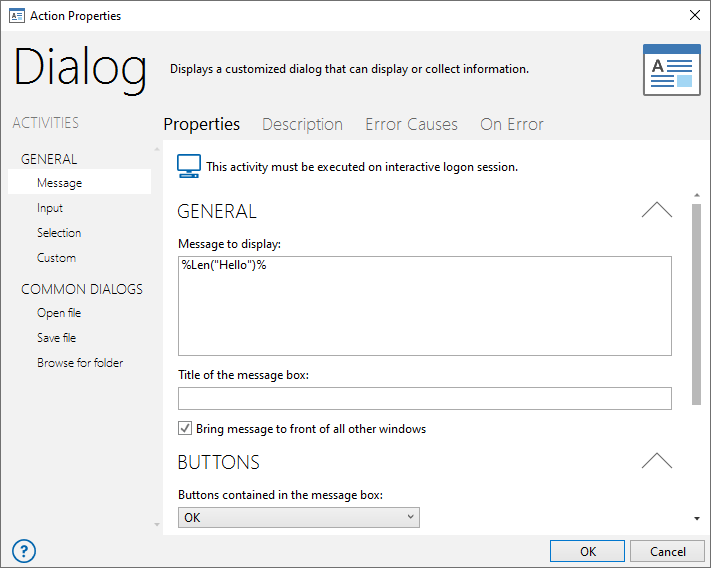
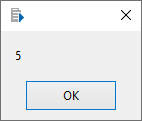
As previously mentioned, the Len() function returns the number of characters in a string. When the task runs, the Len() function is performed and a message dialog is displayed, showing the results.
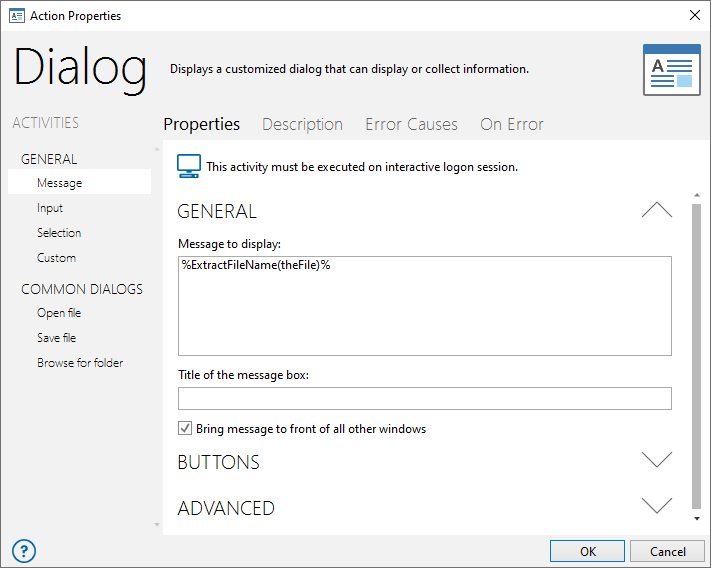
Expressions such as variables, constants or other functions can be used as arguments or parameters entered inside the parenthesis of a function. In such cases, the specified expression needs to be entered by itself (omitting any percent signs, quotes or other characters). For example, assume that a variable named %theFile% is populated with the string value c:\folderName\fileName.txt. In order to extract only the file name from this string and view the results in a message dialog, the proper syntax to enter in a message step is:
%ExtractFileName(theFile)%
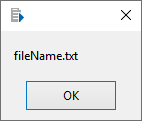
During task execution, a message dialog displays the properly extracted file name.
Using the Expression Builder
The Automate Desktop Expression Builder is a valuable tool used to assist in the creation and examination of expressions. When using the Expression Builder, help regarding each function can be accessed by first selecting the Functions folder from the lower left pane, then selecting the desired function from the lower right pane and pressing F1 on your keyboard or by right-clicking the function and selecting Help from the shortcut menu that appears.
See Expression Builder for more information.