Task Administrator Quick Reference Guide
Task Administrator is the primary interface used to manage most aspects of Automate Desktop. It can be accessed from the Windows Start menu by navigating to Programs > Automate Desktop 2025 folder and selecting Automate Desktop 2025 Task Administrator.
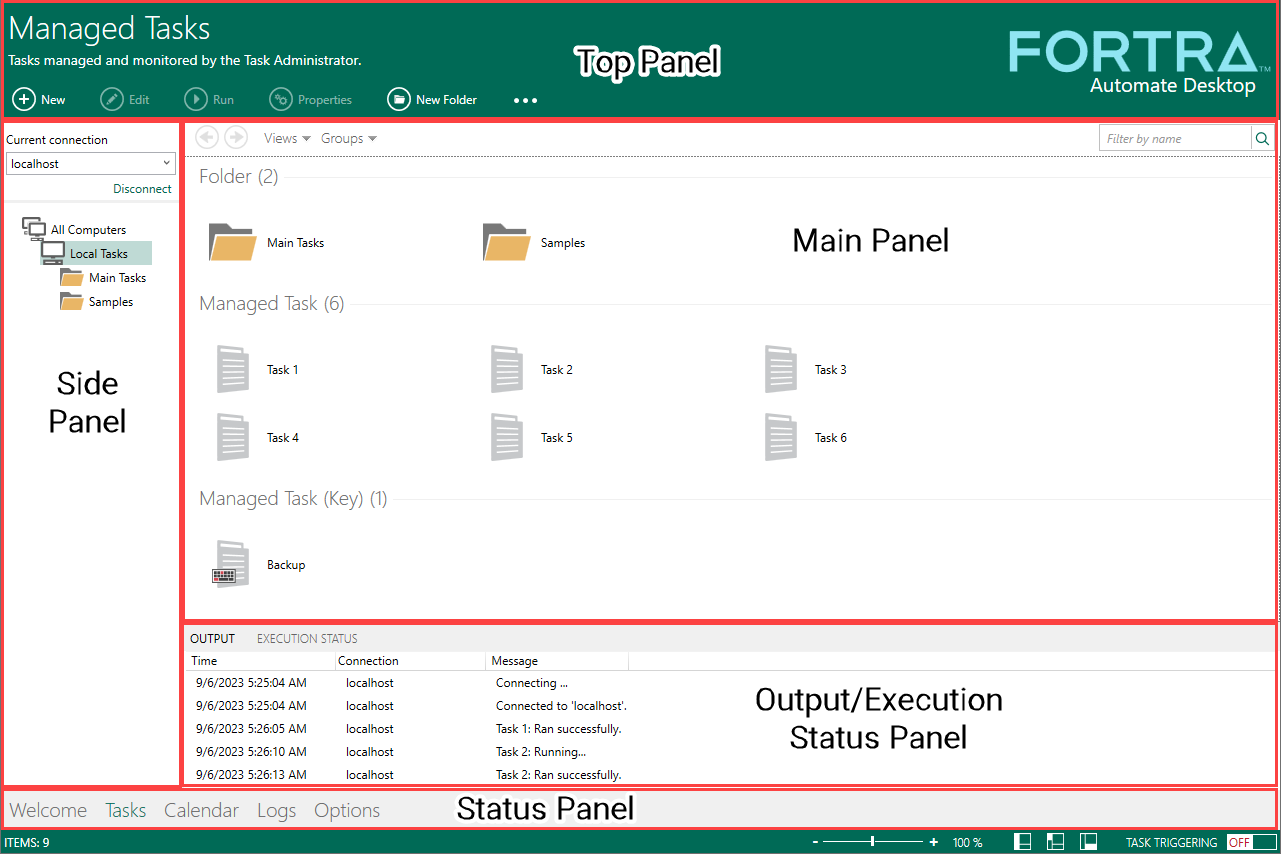
What the Task Administrator accomplishes
The Task Administrator is used to manage and implement almost all aspects of Automate Desktop with the exception of task creation and examination. Using the Task Administrator, you can perform the following:
- Creating and naming new managed tasks
- Deploying Tasks
- Viewing or setting task properties
- Viewing the Automate Desktop Event Log
- Viewing the Calendar
What the Task Administrator does not accomplish
Although nearly all aspects of Automate Desktop's operation are controlled from the Task Administrator, there is one important element that is not. That is, the actions that the task should perform once it executes (either manually or by being triggered). For this, there is a specialized task design and testing tool called the Task Builder. The Task Builder is displayed when you click Edit Steps from the Task Properties of the Task Administrator.
Remote Administration
The Task Administrator console is capable of Remote Administration. That is, the capability to connect to other machines running Automate Desktop across a TCP/IP network (such as a LAN or the Internet). When connected to a remote machine, the tasks and settings displayed are those of the connected machine, not the local system. To use remote administration, click File> Connect and enter the machine name or IP address of the remote Automate Desktop installation. For more information, see About Remote Administration.
Task Administrator Quick Reference Guide
 Creating a managed task
To create a managed task:
Adding, editing, or deleting triggers
To add, edit, or delete triggers:
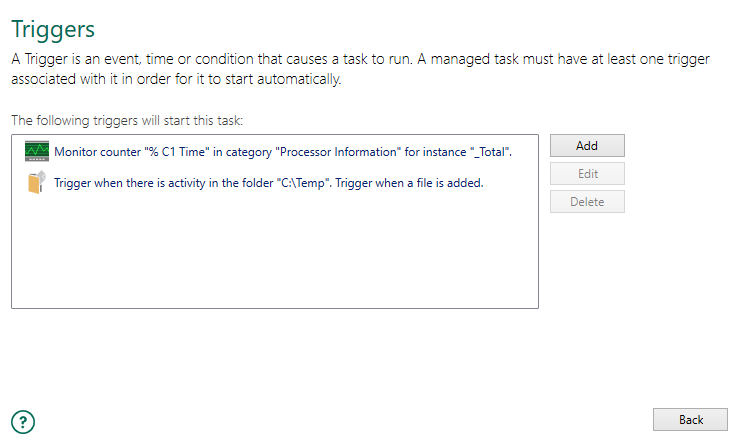
Editing a managed task
To edit a managed task:
Editing managed task properties
To edit managed task properties:
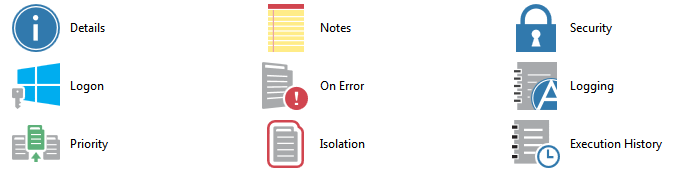
Running tasks manually
To manually run tasks: