Remotely backing up and restoring
Overview
Most of us do not take data backup seriously and only think about it when we face a catastrophic situation. And as computers continue to become the standard way many businesses conduct important transactions and deliver core services, this type of idea is becoming increasingly risky. The Backup and Restore functions in Automate Desktop can save remote backup copies of managed tasks, triggers, and system data into an Automate Desktop archive (.AMA) file. This file can later be used to restore lost data in the case of a catastrophic event, accidental deletion, or corruption of data.
To manually backup remote Automate Desktop data:
-
From the Task Administrator, connect to the desired remote Automate Desktop client using the Connection Panel. For more information, see Establishing a Remote Connection.
-
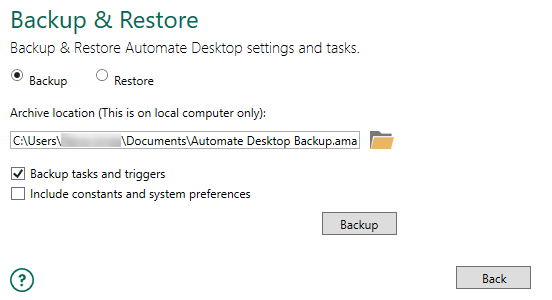
After the connection is established, select Options > System Settings > Backup & Restore. To ensure you are viewing Backup and Restore properties of the remote client instead of locally, the title bar displays the remote computer name or IP address (illustrated below, circled in red).
-
Toggle the Backup option.
-
In the Archive Location parameters, use the default archive location (C:\Users\{username}\Documents\Automate Desktop2025 Backup.ama) or enter a desired path and file name.
-
The following are two options to select from when backing up Automate Desktop:
-
Backup tasks and triggers – If selected, all managed tasks that are located in your Default Managed Tasks Location (specified in Options > System Settings > Task Service Preferences) are included in the backup (this option is enabled by default).
-
Include constants and system preferences - When selected, all created constants and global system preferences which are specified in Options > System Settings are included in the backup (this option is disabled by default, although it is recommended that it is enabled as well in order to perform a complete backup of imperative data).
-
-
After entering your preferences, click Backup . Automate Desktop attempts to backup the specified settings into a compressed file with a .AMA extension. The default name for the archive is Automate Desktop2025 Backup.ama.
To automatically backup remote Automate Desktop data:
- Create a new task on your local Task Administrator.
- From the Task Builder Actions panel, expand the Automate action and drag the Backup Automate activity to the Steps panel. The Properties page is displayed.
- From the Task Builder Actions panel, expand the Automate action and drag the Backup Automate activity to the Steps panel. The Properties page is displayed.
-
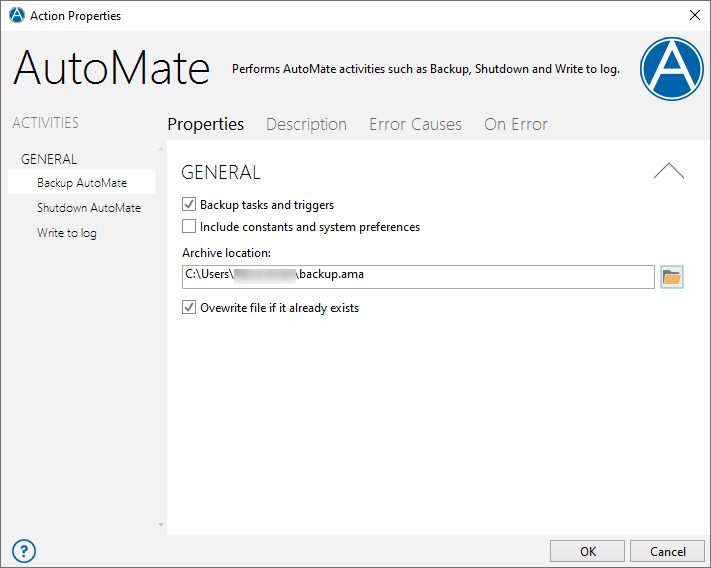
In General properties, (illustrated below), do the following:
-
Select the desired check boxes to specify the type of backup.
-
Backup tasks and triggers - If enabled, all managed tasks that are located in your Default Managed Tasks Location (as specified under Options > System Settings > Task Service Preferences) and any triggers currently attached to those tasks are included in the backup. This option is enabled by default.
-
Include constants and system preferences - If enabled, all global system preferences and existing constants (specified under Options > System Settings > Constants) are included in the backup. This option is disabled by default. To perform a complete backup of imperative data, enable this option.
-
-
-
In the Archive location text box, enter the path and file name to save the archive file. Click the Folder icon to navigate to the desired location. When editing remote preferences that specify a drive location (such as the Archive location field, the Explorer window that comes into view reflects the local computer drive. If entering a network location, specify the path using the UNC (Universal Naming Convention) format as opposed to a mapped drive. For example, X:\foldername\filename.ama is \\servername\foldername\filename.ama.
This is because mapped drives are created or connected when the user is logged in but are not accessible when the computer is in a logged off state. If the task executes in the background while the computer is logged off, it fails to recognize the mapped drive. However, locations specified in UNC format are accessible even when the computer is logged off. Also, since the Task Builder is local, you are entering information relative to you local computer, therefore, enter the location relative to the remote computer to deploy this task.
- To overwrite any backup file that currently exists in the destination, enable the option Overwrite file if it already exists.
- Click OK.
- Add the appropriate trigger to allow the task to run automatically.
- Deploy the task to the remote computer of your choice. See Deploying Tasks for more details.
To restore a remote backup:
-
From Task Administrator, connect to the desired remote Runtime.
-
Select Options > System Settings > Backup & Restore.
-
Toggle the Restore option.
-
In the Archive Location parameter, point to the archive you wish to restore.
-
Select or clear the following check boxes:
-
Restore tasks and triggers - If selected, all managed tasks that were previously backed up will be restored to its original location (specified in Options > System Settings > Task Service Preferences under Default managed task location).
-
Restore constants and system preferences - If selected, all previously backed up constants and global system preferences are restored.
-
-
Click Restore . Automate Desktop attempts to restore previously backed up data.