Copying and Reusing Task Steps
Overview
In computer programming, the reuse of code is a common technique used to save time, reduce redundancy and eliminate errors by applying the same segment of code in multiple applications. The Task Builder plays a similar role by allowing task steps to be copied and re-used within the same task or across multiple tasks. This article describes various methods to perform this operation.
Copying task steps
The Step tab of the ribbon contains clipboard commands that allow you to reuse steps within a task by copying one or more steps and pasting them onto another section of the task. Because more than one instance of Task Builder can be opened simultaneously, code reuse can be performed across multiple tasks as well. The Copy command copies the .AML code associated to each task step. This code can be pasted onto a specific step on the same task or another task using the Paste command. Alternatively, a Copy > Description command is available, allowing the textual description of each step to be copied and pasted onto another application outside of Task Builder, such as an email message or text file.
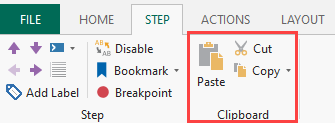
To copy and paste steps in the same task
- Select the task you want to work with to open Task Builder.
- From the Steps panel, select the steps to copy. To select a group of steps, hold down Ctrl on your keyboard during selection (you can also press Ctrl+A on your keyboard to select all).
- From the ribbon, select the Step tab and click Copy. You can also right-click the highlighted steps and click Copy.
- From the Steps panel, select the step of where you want to place the previously copied steps.
- From the ribbon, select the Step tab and click Paste. The copied steps are pasted precisely at the step you selected. Existing steps are moved directly below the pasted steps.
To copy steps from one task to another existing task
- Select the task you want to copy steps from to open the first instance of Task Builder.
- Select the task you want steps to be pasted onto to open the second instance of Task Builder.
- From the Steps panel in the first instance of Task Builder, select the steps to copy. To select a group of steps, hold down Ctrl on your keyboard during selection (you can also press Ctrl+A on your keyboard to select all).
- From the ribbon, select the Step tab and click Copy.
- From the Steps panel of the second instance of Task Builder (where you want to paste your steps), select the Step tab and click Paste. The copied steps are pasted on the selected step. Existing steps are moved directly below the pasted steps.
To copy steps from one task to a new task
- Create and edit a new task to open the first instance of Task Builder.
- Select the existing task you want to copy steps from the second instance of Task Builder.
- From the Steps panel of the second instance, select the steps to copy. To select a group of steps, hold down Ctrl on your keyboard during selection (you can also press Ctrl+A on your keyboard to select all).
- From the ribbon, select the Step tab and click Copy.
- Select the first instance of Task Builder which is associated with the new task.
- From the Steps panel of the first instance of Task Builder, on the ribbon, select the Step tab and click Paste. The copied steps are pasted directly onto the Steps panel of the new task.
To copy and paste step descriptions
- From the Steps panel, select the steps to copy the description from. To select more than one step, hold down Ctrl on your keyboard during selection (you can also press Ctrl+A on your keyboard to select all).
- From the ribbon, under the Step tab, select Copy > Description. You can also right-click in the Steps panel and click Copy > Description.
- You can paste the text into any Automate Desktop box where plain text is accepted. You can also paste copied steps or step descriptions in other documents such as email messages or text files.
- When Copy > Description is selected, the content of the clipboard is populated with the Visual View text-only description that is normally displayed in the Steps panel and does not contain any AML code (even if the Steps panel is currently set to be viewed in AML format).
- To copy the AML code of a particular step instead of the text description, select Copy from the ribbon interface or right-click the step and select Copy from the shortcut menu (not Copy > Description). Doing so allows you to paste the AML code into a document, text file or any field in Automate Desktop that accepts text.
- Selecting Copy also allows you to paste the content as a step in the Steps panel.
Saving a copy of a task
Steps of an existing task can be re-used in a newly created task by selecting the Save Copy As command. This is an ideal method for copying all of the steps of an existing task onto a new task.
To save a copy of a task
- Open the task you want to copy steps from by doing
one of the following:
- From the Task Administrator, right-click the task and click Steps. The Task Builder appears for this task.
- If a new (unmanaged) task is created by directly opening the Task Builder from the Start menu, click Open from the Application menu and navigate to the task (.AML) file you want to open and click Open. In this case, a separate tab appears in the Steps pane of the Task Builder, each signifying an open task.
- From Task Builder ribbon interface, select File > Save copy as.
- Navigate to the desired location, enter a name for the new task, and click Save.
Using snippets
Another way to use a group of steps within a specific task is to save the steps as Snippets. Snippets provide an easy way to implement frequently used code into a task. They are useful to those who use specific activities that contain commonly used properties or settings. Instead of re-entering the properties for a specific activity or series of activities every time they're added as task steps, users can save existing steps as a snippet and simply drag and drop the snippet wherever it is needed in any task.