Editing
Task Steps
Overview
Along with the ability to edit the Properties
of individual task steps, many adjustments can be performed on any step
when they are added to the Task Builder Steps
panel. You can move, indent, disable, or delete one or more existing
steps. You can perform cut/copy/paste commands as well.
Commands are conveniently located on the Ribbon
or in a shortcut menu that appears when right-clicking a specific element. Certain
ribbon commands become active only when items they apply to are selected,
making it easier to distinguish relevant commands and avoid selection
of unrelated ones.
The Quick Access Toolbar contains Undo
and Redo commands that apply to
all edit operations allowing you to undo one or more incremental sequence
of changes in case you make a mistake or redo them in case you change
your mind.
Task step properties can be viewed or modified
when they are added to Task Builder Steps panel. For convenience, step
properties can be accessed in various ways.
To view or modify the properties of a step
From the Steps panel of Task Builder, double-click the step to modify, or select the step in the panel and click Edit from Home tab of the ribbon.
Steps can be moved freely within the Steps panel. You can modify
the sequence the steps execute by moving them above or below
other steps. Task Builder supports movement of multiple sequenced
steps (for example, steps 3, 4, and 5) as well as multiple non-sequenced steps
(for example, steps 3, 6, and 8). For convenience, such operations can be performed
in various ways.
To move steps
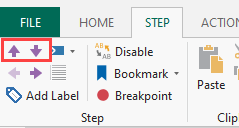
using the Move Up or Move Down commands
- From the Steps panel of Task Builder, select the
steps you want to move up or down. To select
more than one step, hold down Ctrl on your keyboard during selection.
-
From the Step tab of the ribbon, click Move
Up or Move Down.
To move steps using Cut and Paste commands
- From the Steps panel of Task Builder, select the
steps you want to move up or down the step sequence. To select
more than one step, hold down CTRL during selection.
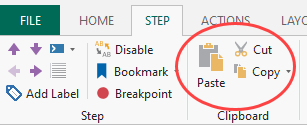
- From the Step tab of the ribbon, click Cut (you can also press Ctrl+X on your keyboard).
- From the Steps panel, select a desired location and select Paste
from the ribbon (you can also press Ctrl+V on your keyboard).
To move steps
using Drag & Drop actions
- From the Steps panel of Task Builder, select the
steps you want to move up or down the step sequence. To select
specific steps or a block of steps, hold down Ctrl on your keyboard during selection.
- Hold down the left mouse button while dragging the
highlighted steps to the desired location and release the
mouse button.
You can increase or decrease indentation of one or more steps to organize your steps. Task Builder supports indentation of
multiple sequenced steps (for example, steps 3, 4, and 5) as well as multiple
non-sequenced steps (for example, steps 3, 6, and 8).
To increase or decrease indentation
- From the Steps panel of Task Builder,
select the steps to increase or decrease their current indentation. To select a block of sequenced steps
or specific non-sequenced steps, hold down Ctrl on your keyboard during selection.
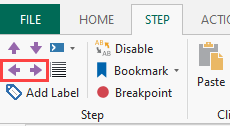
-
From the Step tab of the ribbon, select the Decrease Indent (left arrow) or Increase Indent (right arrow) arrows.
NOTE: Left justification
of an indented step is based on the parent step (if relevant)
and the default indentation settings applied using the Task Builder
Options - Formatting.
To reset indentation
- From the Steps panel of Task Builder,
select the steps that should be reverted back to their original
indentation level. To select a block of sequenced steps or specific
non-sequenced steps, hold down Ctrl on your keyboard during selection.
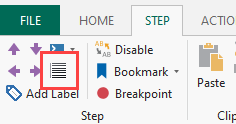
-
From the Step tab of the ribbon, click the Reset Indent icon. Hold down the left mouse button while dragging the highlighted
steps to the desired location and release the mouse button.
You can reset one or more steps to their default indentation level.
From the ribbon Step command
group, click the Format Steps
command. This enables/disables auto-formatting of steps. When enabled,
blocks of steps contained within a conditional (If) statement or Loop
process are formatted (indented) to improve distinction (this command
is enabled by default).
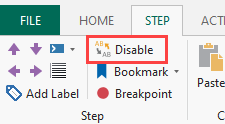
Steps of a task can be disabled or re-enabled to use
or test different versions of the same task. The Disable
button on the ribbon or shortcut menu acts as a toggle to disable an
enabled step or re-enable a disabled step. When a step is disabled,
it appears dimmed by default in the Steps panel and it is treated as
a comment and ignored when the task runs.
To disable or enable a task step
- From the Steps panel of the Task Builder,
select the steps you want to disable. To select more than one
step, hold down Ctrl on your keyboard during selection.
-
From the Step tab of the ribbon, click
Disable (you can also right-click the steps and and click Disable).
NOTE: To re-enable, follow the
same instructions.
To delete a task step
- From
the Steps panel, select the step or steps you want to delete.
To select more than one step, hold down Ctrl on your keyboard during selection.
- Right-click your selection and click t Delete (you can also use the Delete key).
By default, the Steps panel displays numbers to represent each step
in the task are displayed for each step in the Task Builder Steps
panel along with an icon designating the type of action used. Also
the text (or AML code) that appears in this panel is word wrapped
by default allowing all text to be visible in the window regardless
of its size. Nonetheless, these options can be customized according
to each user's preference.
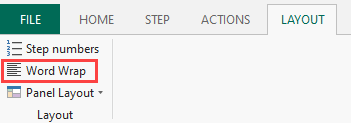
To turn Word Wrap on/off
From the Layout tab of the ribbon, select Word Wrap to turn Word Wrap on or off in the Steps panel.
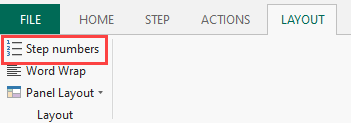
To display/hide step numbers
From the Layout tab of the ribbon, click Step Numbers to hide or display step numbers in the Steps panel.
The Task Builder offers two ways in which to view the steps of a
task. The default appearance displays a plain-English, easy to comprehend
text description of each step. They can also be displayed in AML
(Automation Markup Language) format, which is the internal program
language encompassed in Automate Desktop. When set to this view, those who
understand AML can edit their code directly from the Task Builder
Steps panel
or copy the code onto an external text editor such as Notepad.
To switch from Plain Text to AML or AML to Plain Text
From the Home tab of the ribbon, click AML
to display the AML code view or click Visual
to display the plain text view.
To edit code in the AML view
- From the Steps panel, click the step to edit.
- Click the step again to make the code editable.
- Make the desired changes.
To enable task development to be as simple and painless as possible,
an Undo and Redo command is included on the Quick Access
Toolbar. Undo reverses the last action you performed, and Redo undoes
the last Undo action, in case you change your mind. Task Builder keeps
track of all previously performed actions, therefore, you can reverse
the actions you performed one action at a time, in reverse consecutive
order, up to and including the first action.
To undo changes
From the Quick Access Toolbar, click Undo or press Ctrl+Z on your keyboard. Undo reverses
the last action. If you delete one or more steps, you
can click Undo to restore them and all their properties.
You can perform as many Undo actions as you like.
To redo a change after an undo
From the Quick Access Toolbar, click the Redo
command on the or press Ctrl+Y on your keyboard. This restores
the last action you performed if no other actions have occurred
since the last Undo. The Redo
button is normally inactive and becomes active only if an Undo action is performed.
 Editing
step properties
Editing
step properties
.png)
.png)
.png)