Running Tasks Manually
Overview
Managed tasks normally contain triggers that enable them to start automatically, either on a set schedule, upon the occurrence of an event or when a condition is met. However, situations may arise that require immediate execution of one or more tasks or a user may just prefer to run tasks on demand. In such cases, a managed task can be manually started "on the fly" from Task Administrator.
For those that prefer manually running a task outside of Automate Desktop, they can do so by initially creating a shortcut of the task in a designated location, such as the desktop, start menu or specific folder. To manually start the task, the user can simply click the shortcut associated to it.
Manually running tasks from the Task Administrator
To run tasks manually from the Task Administrator:
-
From the Task Administrator navigation bar, click Tasks.
-
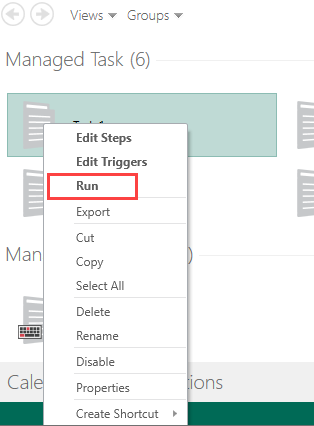
Select the task to run and click Run from the top panel. You can also right-click tasks and click Run.
Manually running tasks from a shortcut
To run tasks manually from a shortcut:
-
From the Task Administrator navigation bar, click Tasks.
-
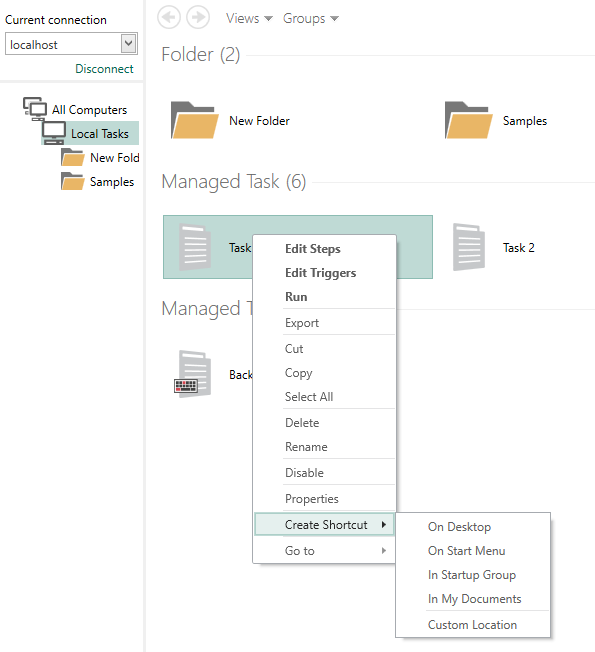
Right-click the tasks in the main panel and click Create Shortcut. Select one of the default locations listed. To select multiple tasks, hold down Ctrl on your keyboard during selection. The image below shows an example of creating shortcuts for multiple tasks.
A new shortcut (.lnk file) linked to the specified tasks is created in the location you chose. Simply click the shortcut to run its associated task.
Manually running tasks from the command-line
To run tasks manually from the command-line:
Tasks can be started manually by way of the command-line or a batch file. Whenever a user starts a task manually outside of Automate Desktop, the executable files AMTask.exe or AMTaskCm.exe (collectively, AMTask) are used. These files can be found in the following location (assuming Automate Desktop is installed in the default location):
- AMTask - C:\Program Files\Automate Desktop 2025\AMTask.exe
-
AMTaskCM - C:\Program Files\Automate Desktop 2025\AMTaskcm.exe
To properly use AMTask or AMTaskCm, you must enter the default installation path and file name of AMTask.exe or AMTaskCm.exe enclosed in parenthesis, followed by a space, then the path and file name of the .AML file associated with the task, also enclosed in parenthesis:
"C:\Program Files\Automate Desktop 2025\AMTask.exe" "C:\ProgramData\Automate Desktop 2025\Tasks\My_Report.aml"
Both AMTask and AMTaskCM operate identically with one exception. AMTask is a pure Windows application designed to run a task from within a Windows environment, whereas AMTaskCm.exe is a console application designed run a task from a command prompt or batch file.
To learn more about running tasks from a command prompt along with the appropriate command line parameters to use, see Command-line Operation.