Preferences
Description
Contains preferences that determines the overall "look and feel" of the Task Administrator interface. Preferences include whether to play a sound on task failure, whether to use the Add Task Wizard when creating a new task and whether a pop-up warning dialog should appear when deleting a task.
To access the Preferences page, from the Task Administrator, go to Options > Preferences.
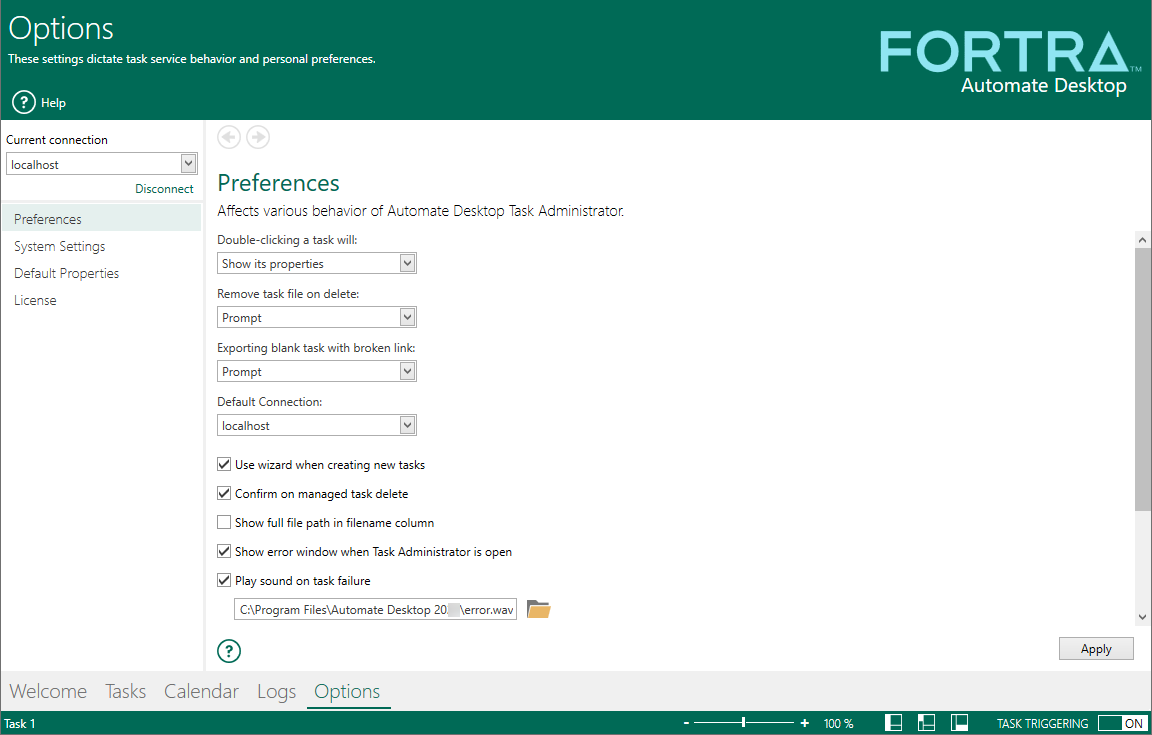
Parameters
| Property | Description |
|---|---|
| Double-clicking a task will | Specifies what action should be accomplished
when a user double-clicks a task in the Task Administrator. The
available options are:
|
| Remove task file on delete | When a new managed task is created, an associated task (.aml) file
is generated on the system which stores the task steps and trigger
information (if any). When a managed task is deleted, the associated
task file can be deleted or left on the system to be used later
by another managed task. This preference sets the default
action when a managed task is to be deleted. The available options
are:
|
| Exporting blank task with broken link | When
exporting a task, the task steps are usually embedded within the
exported managed task. A broken link is a managed task that cannot
find its associated task file. This can happen if the task file
once associated with the managed task has been removed or deleted
manually. This preference sets the default action when a task
to be exported with blank steps. The available options are:
|
| Default connection | Sets the default connection upon startup. If remote connections are available by way of Remote Administration, this preference displays the localhost (local computer) along with a list of remote hosts in which to select from. If no remote connections are available, this defaults to localhost. |
| Language (requires restart) | The default language for this Automate Desktop installation. Any change requires an Automate Desktop restart. The default value is System default. |
| Use wizard when creating new tasks | If enabled, Automate Desktop will present the Add Task Wizard when clicking New on the Task Administrator header. The Add Task Wizard provides a step-by-step means of creating a new Automate Desktop Managed Task. If disabled, the Add Task Wizard does not appear. Instead, Automate Desktop creates a task with a default name (usually New Managed Task) with default properties. The task can then be further configured by editing its properties. This preference is enabled by default. |
| Confirm on managed task delete | If
enabled, each time an attempt to delete a managed task occurs
a prompt appears confirming the action. If disabled, tasks
are deleted immediately (with no prompt appearing). This preference
is enabled by default. NOTE: Once a managed task is deleted, it cannot be recovered. The task
can usually be re-imported, however, if the task file associated
with the managed task was left on the system. See Importing
Tasks for more details. |
| Show full file path in filename column | If enabled, when the file namecolumn is selected as a viewable column and the task display is in Detail mode, this preference determines whether the full path to the task file is displayed. If disabled, only the name of the task file is displayed. This parameter is disabled by default. |
| Show error window when Task Administrator window is open | If
a Managed Task fails during runtime and the Task Administrator
is open, enabling this preference displays a dialog with information
relevant to the error that occurred (such as the task name, step
number, error, and so on). If disabled, no dialog is displayed. This
preference is enabled by default. NOTE: Errors are always logged to the log file as set in Log
Management regardless of whether this preference is enabled
or disabled. |
| Play sound on task failure | If enabled and a running task fails to run correctly while the Task Administrator is open, the sound file specified is played. The path and file name of the default error sound file is C:\Program Files (x86)\Automate 2025\error.wav. Click the folder icon to navigate to an alternate sound file or enter the its path and file name in the provided text box. The sound file must be a valid .wav file. If disabled, no sound is played. This parameter is enabled by default. |
| New tasks use elevated privileges | When User Access Control (UAC) is enabled, a task requires administrator privileges in order to run. If this preference is enabled, newly created tasks automatically runs with elevated privileges. If disabled, newly created tasks do not run with elevated privileges. This preference is disabled by default. |
| Show alternating colored rows in grid view | If enabled, rows will display alternate colors in grid view. If disabled, rows display a single color. This option is enabled by default. |