Searching Vulnerabilities
The Vulnerability Search page enables fine–grained searches for specific vulnerabilities.
To search for vulnerabilities
-
Click Results > Search. This page presents the following search options:
Field Description Organization The organization to search for. Scan The scan that identified the vulnerabilities. NOTE: An organization must be selected first.Vulnerability Name Searches for text in the descriptive name for the vulnerability. Category The category of vulnerability. beSECURE categorizes vulnerabilities according to their area of impact (web applications, encryption, etc.). Hostname/IP Address The hostname or IP address scanned. Use commas to separate multiple values. You can also use a dollar ($) sign to indicate that you want an exact match. By default, he system returns partial matches. Service and Port The service and port scanned. Separate the values with commas. For example, entering 80,443 will return the results for port 80 and port 443. Scan Number The number assigned to the scan. The Scan Number for the first scan of a target will be 1, the second scan will have the Scan Number 2, and so on. Test ID The ID for the beSECURE test that detected the vulnerability during the scan. Summary A summarized description of the test beSECURE conducted and the findings it revealed. Impact The potential impact of the vulnerability, such as unauthorized access or loss of data. Solution Potential solution(s) for resolving the vulnerability. Output Evidence that a web scan test was able to detect a vulnerability. This may be the name of a file in a format known to be vulnerable, sensitive information that can only be obtained by using the vulnerability, or some other indication of a vulnerability. NOTE: The Return Dynamic Output box must be checked for the Output to be displayed (see below). Output is available for web scans only.Risk The level of risk assigned to the vulnerability. The first drop-down list in this field allows users to search for vulnerabilities with a risk level thatis equal to, (=), greater than (>), less than (<), greater than or equal to (>=), or less than or equal to (<=) the risk level selected from the second drop-down list(High, Medium, Low, or None). CVSS Score The CVSS score for the vulnerability.
Vulnerability Age The age of the vulnerability, as an integer. Use the drop-down list to the right of the text field to indicate whether the number entered represents day(s), week(s), or month(s). Reference Search Searches for a specified CVE, CERT, CSC (Cisco), or KB (Microsoft Knowledge Base) item. OS Type The type of operating system the remote target runs. Scan Date Searches scans that fall within a date range. Use the calendar widgets to enter begin and end dates. Vulnerability ID The ID for a specific vulnerability. Include Previous Scan Results Whether to include results from previous scans. Show ‘None’ Risk Whether to show vulnerabilities that are not associated with a risk level. Show Un-Ticketed Whether to show vulnerabilities that aren’t associated with a ticket. Show Ignored Whether to show vulnerabilities that have been marked Ignore. Return Dynamic Output Activates the Output field above. NOTE: Output is available for web scans only. -
Search using one or three parameters:
-
Vulnerability name - A string search (you can write a part of the name)
-
Vulnerability ID - for a specific vulnerability on a specific IP/DNS
-
Test ID - for all the places this vulnerability shows
-
-
When finished entering search parameters, click the Search button. The Vulnerability Scan Detailed Results page appears.
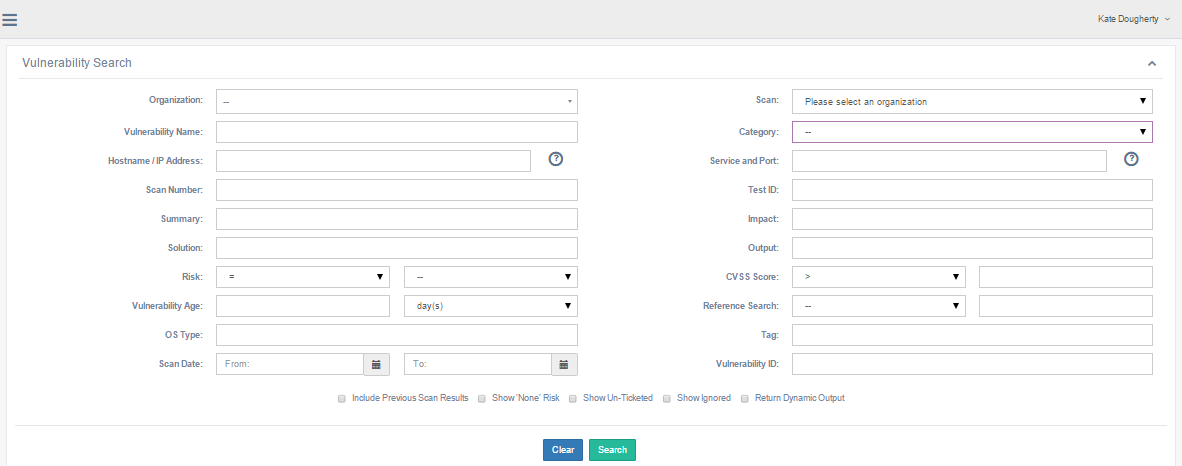
The Vulnerability Search page.
This page displays a list of vulnerabilities that match the search criteria. It presents the following default information about each vulnerability:
| Field | Description |
|---|---|
| Vulnerability Name | A descriptive name for the vulnerability. |
| Organization | The name of the organization associated with the vulnerability. |
| Scan | The name of the scan that found the vulnerability. |
| Risk | The risk level associated with the vulnerability. Values are High, Medium, Low, and None. |
| CVSS Score | The CVSS Score for the vulnerability. |
| Hostname/IP Address | The host address or IP address of the affected host. |
| Service and Port | The service and port affected by the vulnerability. Separate the values with commas. For example, entering 80, 443 will return the results for port 80 and port 443. |
| Scan Date | The date the scan took place. |
| Field | Description |
|---|---|
| Vulnerability ID | |
| Port | |
| Service | |
| Protocol | |
| Category | |
| Ticket Status | |
| Ticket Assigned To | |
| Ticket State |
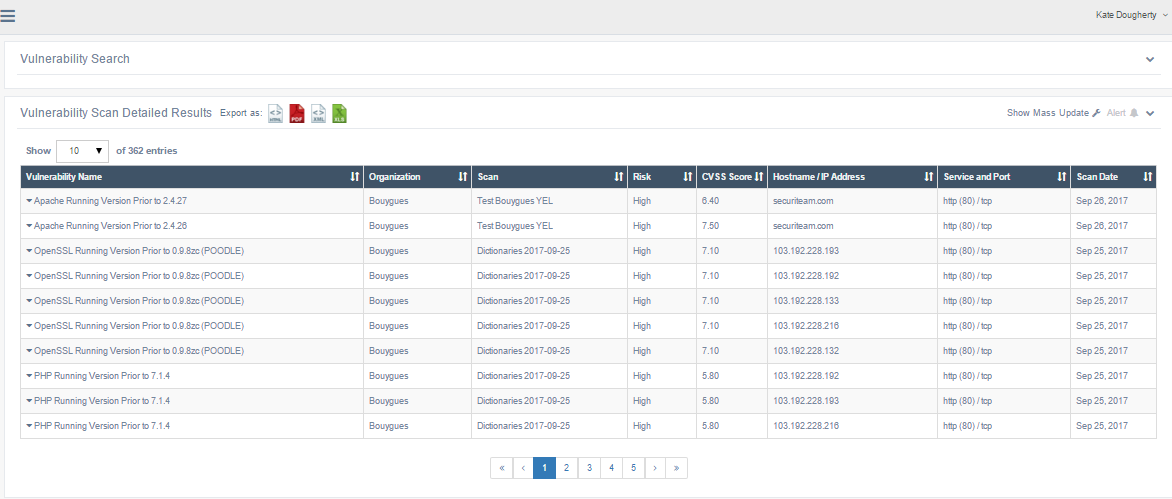
The Vulnerability Scan Detailed Results page.
You can export a copy of the list by clicking the icon for the file format you prefer at the top of the page. The list can be exported in HTML, PDF, XML, or XLS format. Click on an entry in the list to view the Vulnerability Details.
Viewing vulnerability details
The Vulnerability Details page shows detailed information about a specific vulnerability and ways to resolve that vulnerability. The system presents the following information on vulnerabilities:
| Field | Description |
|---|---|
| Vulnerability Name | A descriptive name for the vulnerability. |
| Risk | The risk level associated with the vulnerability. Values are High, Medium, Low, and None. |
| Hostname / IP Address | The host address or IP address of the affected host. |
| Service (Port) Protocol | The affected scan setting service, composed of the service name, port number, and scan setting protocol. |
| Scan Date | The date and time the scan took place. |
| Category | The category of vulnerability. beSECURE categorizes vulnerabilities according to their area of impact (web applications, encryption, etc.). |
| Summary | A summary of the vulnerability that gives extended details about the vulnerability, the affected products, and if possible, ways to recreate the situation caused by the vulnerability. |
| Solution | Potential solution(s) for resolving the vulnerability. |
| CVE(s) | The Common Vulnerabilities and Exposures (CVE) ID number for the vulnerability. Click on the value to view details about the CVE at NIST.gov. |
| Nist NVD CVSS Score | The CVSS severity score for the vulnerability. The CVSS is an independent system that scores vulnerabilities on a scale from 1 to 10. A score of 10 indicates a critical vulnerability, while 0 represents negligible risk. |
| Nist NVD CVSS Score v3 | The severity score for the vulnerability on the updated CVSS Score v3 scale. Click on the value to view details about the CVE at NIST.gov. |
| CWE | The Common Weakness Enumeration ID for the vulnerability. CWE is an industry standard for indicating vulnerability type. |
| More Information | Provides links to external websites that contain further information about the vulnerability, including the CVE, Microsoft's knowledge base, and securiteam.com. |
| Test ID | The ID for the beSECURE test that detected the vulnerability during the scan. |
| Vulnerability ID | The ID for the vulnerability. |
| Vulnerability Age | The age of the vulnerability, as the number of days that have elapsed between the first and last time beSECURE detected it. |
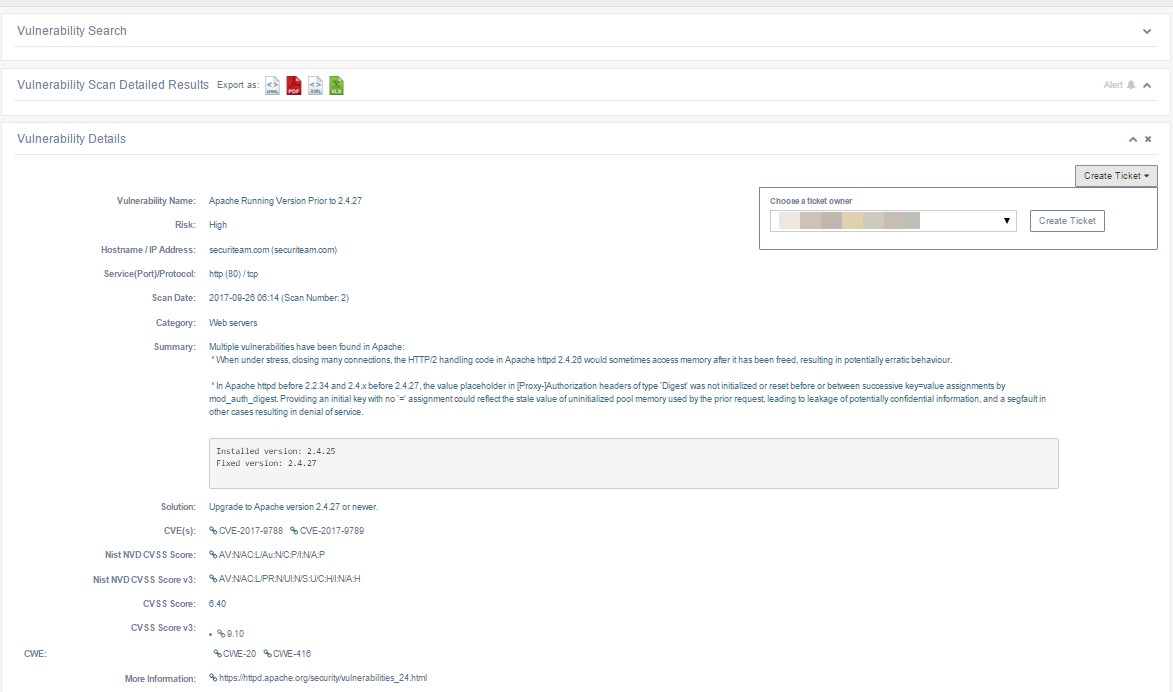
The Vulnerability Details page.
Vulnerabilities are categorized by three main risk levels. High-risk vulnerabilities can allow an attacker to gain elevated privileges on a vulnerable machine, and should be addressed as top priority. Medium- risk vulnerabilities are weaknesses that either expose sensitive data to an attacker or facilitate a denial of service. Low-risk vulnerabilities allow preliminary information–gathering for an attacker, or pose risks that are not entirely security-related. Security policies are considered low-risk. The system categorizes results that pose no security threat but show interesting information about the target as None.
The Vulnerability Details page also provides access to ticketing functionality. If a ticket does not exist for a vulnerability, you may create one by clicking on the Create Ticket button. If there is an existing ticket for a vulnerability, a View Ticket button will appear instead. For more information, see Tickets.