Consoles
Cobalt Strike provides a console to interact with Beacon sessions, scripts, and chat with your teammates.
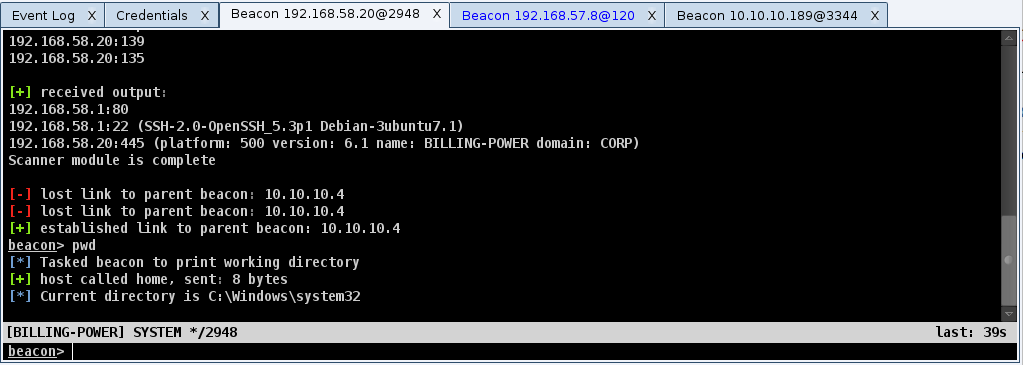
figure 15 - A Console Tab
The consoles track your command history. Use the up arrow to cycle through previously typed commands. The down arrow moves back to the last command you typed. The history command lists previously typed commands. The ! command allows previously typed commands to be ran again (for example, !3).
The list of previously typed commands is not maintained between sessions. Closing a console window and then reopening it will start with no previously typed commands.
Use the Tab key to complete commands and parameters. Use Shift+Tab to process tab completion options backwards.
Use Ctrl+Plus to make the console font size larger, Ctrl+Minus to make it smaller, and Ctrl+0 to reset it. This change is local to the current console only. Visit Cobalt Strike -> Preferences to permanently change the font.
Press Ctrl+F to show a panel that will let you search for text within the console. Use Ctrl+A to select all text in the console’s buffer. See Working with Tabs for more.
The full list of Default Keyboard Shortcuts are available from the menu (Help -> Default Keyboard Shortcuts).
Event Log
The Event Log console shows general messages from the system and users to connected users. Use it to communicate with all other users or with specific users.
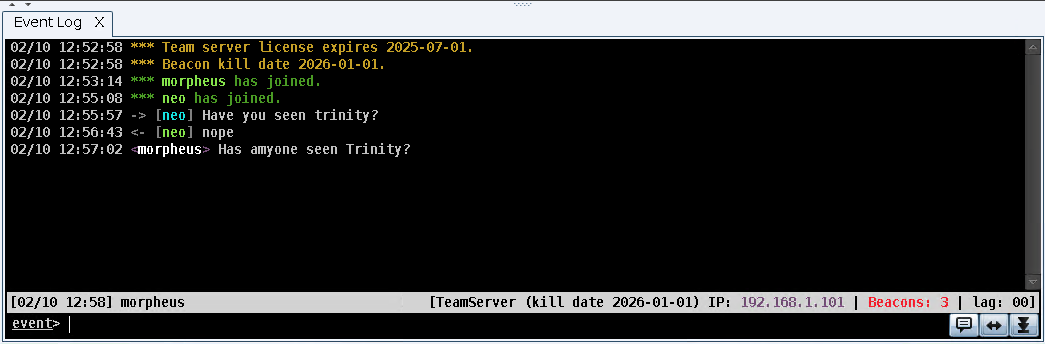
You can send public messages to all other users with the bottom event line on the dialog by entering a string, and then pressing the Run button to run the command. For example, Has anyone seen trinity?
In addition to the generic commands, you can use the following with Event Log:
| Command | Description | Example |
|---|---|---|
| /msg | Sends a private message to a specific user. | /msg neo Have you seen trinity? |
| /me | Sends a public event (similar to a public message with different formatting). | /me This is an example event! |
| /names or /sc | Provides a list of the names of the other connected users. |
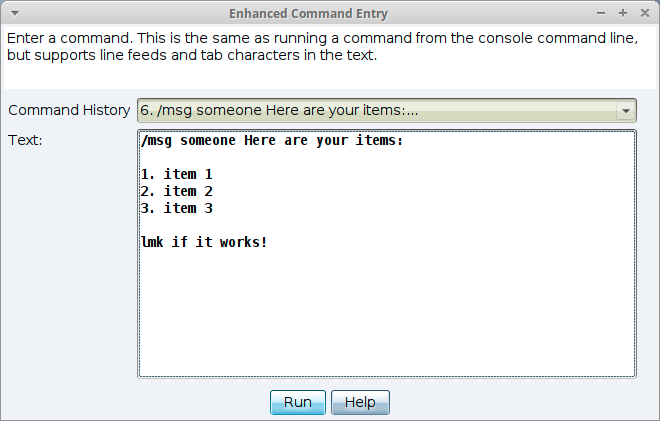
To enter log commands that include line feeds, press the Enhanced Command  button to open the following dialog: