Active View - Assets
Overview
Fortra VM On-Premises Active View gives you a comprehensive, aggregate health assessment of your environment. It helps to identify your vulnerabilities and optimize remediation resources.
The Active View System Health Assets page is the central location for managing assets in your environment. It is used throughout Fortra VM On-Premises to show asset scan results and is typically filtered based on your selected asset details.
Assets page components
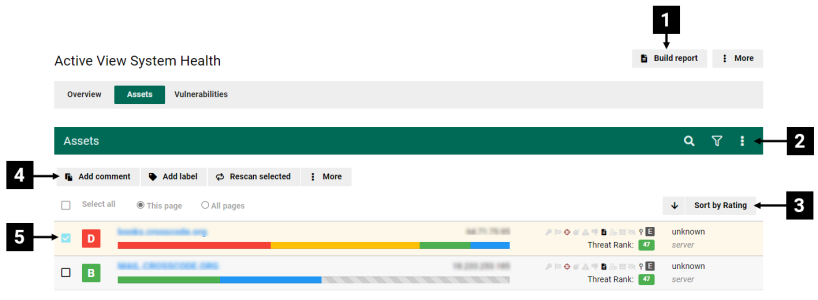
| Ref. | Description | ||||||||||||||||||||||||||||||||||||
|---|---|---|---|---|---|---|---|---|---|---|---|---|---|---|---|---|---|---|---|---|---|---|---|---|---|---|---|---|---|---|---|---|---|---|---|---|---|
| 1 | Opens the Build Report dialog. See related: Create a Report |
||||||||||||||||||||||||||||||||||||
| 2 | Options to search your assets. See related: Find Information in Fortra VM On-Premises |
||||||||||||||||||||||||||||||||||||
| 3 | Sorts the list. | ||||||||||||||||||||||||||||||||||||
| 4 | Actions you can take with selected assets:
TIP: Right-click an asset in the asset list to see these options. |
||||||||||||||||||||||||||||||||||||
| 5 | Asset list (each entry includes its Security GPA rating, asset name [select to view the asset’s page], IP address, status, OS type, and system type). TIP: Hover over the graph to see, for example, how many medium vulnerabilities an asset has. |
||||||||||||||||||||||||||||||||||||
| 6 | Icons provide visual statuses for each asset. See the full list below. You can also view this list in Fortra VM by selecting  > Key to icons. > Key to icons.
|


Automatically merge duplicate assets
If available for your account, Automatically merge duplicate assets controls whether eligible VM scan processing can merge duplicate assets in the current Active View.
Fortra VM automatically combines duplicate asset records only when device names and other identifying information together show that they represent the same device. If the information conflicts or does not clearly establish a match, the records remain separate.
Automatic merging does not combine internal assets with external assets, or assets specified as different hostnames in the scan targets. When exclusive IP matching is enabled, only records with the same IP address can automatically merge.
For example, two entries for one machine may merge when independent identity and name evidence confirms that they represent the same machine. Two machines with a cloned identifier and different names remain separate.
Configure automatic merging
-
Select the account, then select Scan Settings > Settings.
-
Under Matching and Trending, locate Automatically merge duplicate assets. If the control is unavailable, contact your account administrator or Fortra Support to verify availability.
-
Turn the option ON or OFF.
-
Select Save.
-
Reload the page and confirm that your selection was saved.
Review automatic merge results
After a scan completes and its results appear in Active View, check whether duplicate asset entries have been combined. Select an asset name to review its details and history.
Each completed automatic merge is recorded in the audit log as an Auto Merge Assets event. These events are included in Account Activity reports that include Scan Results Management events.
Scans excluded from Active View do not trigger automatic merging. Some duplicates may remain because there is insufficient or conflicting information, and one scan may not resolve every duplicate.
If an asset’s history appears incorrect, contact Fortra Support. Include the account name, affected asset names and IP addresses, and relevant scan names and dates.
See related: Configure Scan Results Settings and Understand Scan Activity.
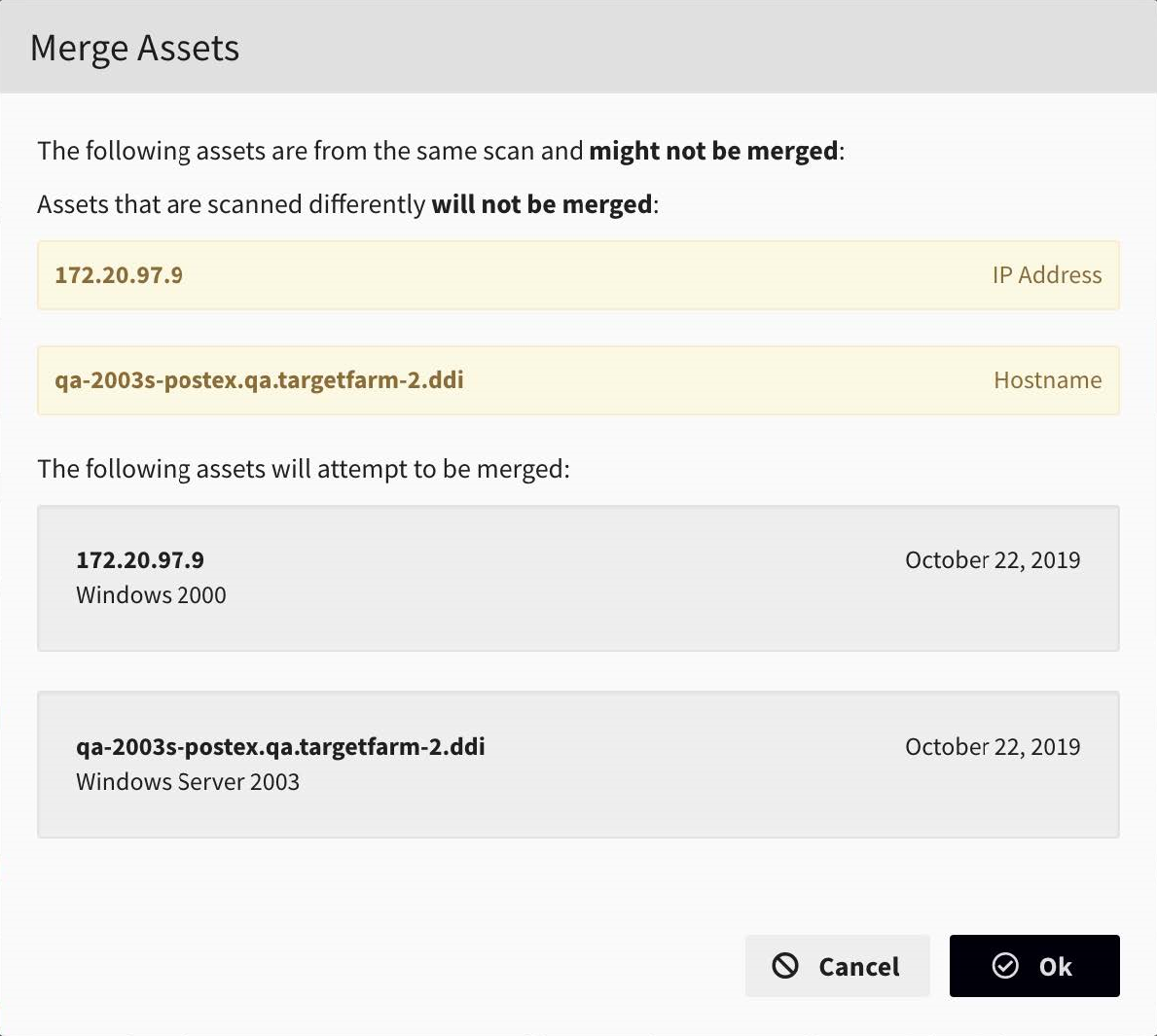
Asset Merge Form
When you attempt to merge an internal asset with an external asset, a message indicates that assets in different locations cannot be merged.
Assets scanned by different methods, such as IP scanning and hostname scanning, also display a warning that they cannot be merged. In these cases, Fortra VM On-Premises indicates that a merge was attempted rather than reporting a successful merge.