Create a custom Command using the procedure in Creating a Command.
Create a new Event Rule using the procedure in Creating Event Rules.
If you need to apply any conditional behavior, click it in the Conditions list.
In the Actions list,
double-click Execute command in folder.
The Action is added to the Event in the Rule
pane.
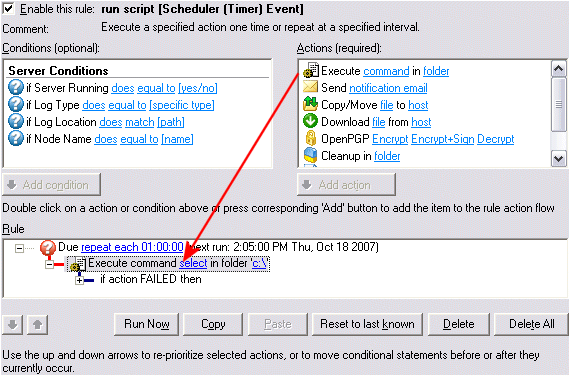
In the Rule pane,
click one of the blue underlined text
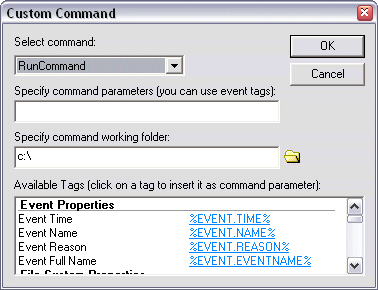
links. The Custom Command dialog
box appears.
|
|
Links in the Rule pane indicate parameters that have not yet been defined. They must be defined to save the Rule. |

In the Select command list, click the down arrow to select the command.
(Optional) In the Specify
command parameters box, include any parameters for the command.
For example, type the script name (argument 0) if running a script.
You can also select the items in the Available
Tags list to add them as parameters. For example, suppose you want
to run a script on a file that was uploaded and triggered the Event Rule.
You would type the script name and the tag %FS.FILE.NAME%,
as shown below:
dosomethingwithfile.vbs -file %FS.FILE_NAME%
|
|
Refer to Variables for details of available variables and how to use them. |
In Specify command
working folder type the path or click the open icon  to specify the
folder in which the script or executable resides e.g., C:\EFTscripts;
for mapped drives, use their UNC path.)
to specify the
folder in which the script or executable resides e.g., C:\EFTscripts;
for mapped drives, use their UNC path.)
Click OK to save the Command.
Click Apply to save the Event Rule.